Inspiring
August 3, 2018
Answered

How to attach Particular to moving shape layer?

  • August 3, 2018
  • 1 reply
  • 2425 views

Hi there,

My question is a bit more involved than the title implies, but hopefully not much more difficult.


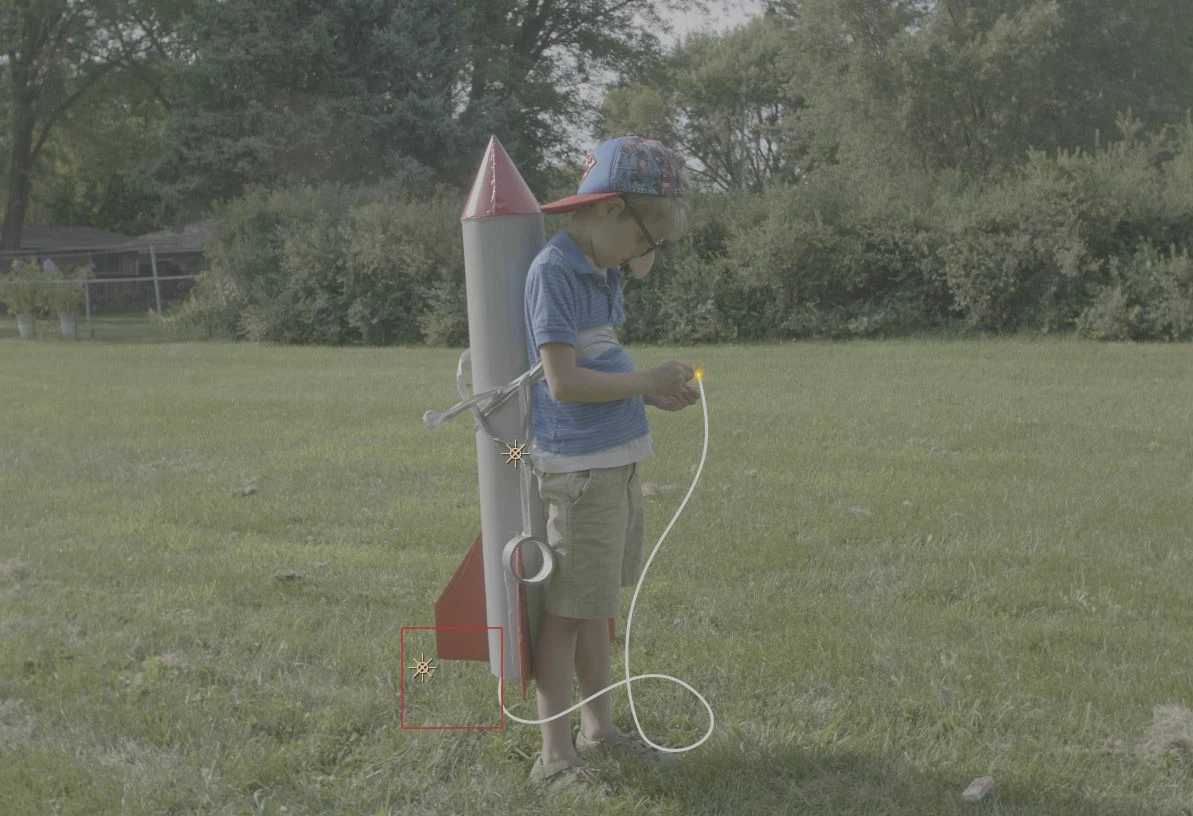
I have a rocket that is attached to someone's back. It does NOT have a real fuse, so it is created with a shape layer (a line with some bezier curves).  In order to attach the fuse to the rocket, I tracked the rocket position and rotation and applied it to a null. I then attached the fuse shape layer to the null.  I have the timing set up so that as the fuse it lit I have Trim Paths start which trims the path until there is nothing left of the fuse, at which point it will ignite.

I'm struggling with understanding the best way to attach the emitter from Trapcode Particular.  It will have two instances of particular- one for the sparks and one for the smoke.  The motion of both have to match the Trim Paths motion (starting and stopping exactly in sync).

Any ideas on how I would tackle this the right way?  Below is the example scene (the fuse will be much thinner in the final version, which means I might be able to get away with it not tracking perfectly).


Thank you!
-Stephen
This topic has been closed for replies.
Correct answer Rick Gerard

Trim Paths and movement along a path are both linear so if the starting and ending keyframe are at the same time then your sparks and smoke will exactly match the speed of trim paths.

Here's what I would do. Select your "fuze" shape layer, press the U key twice to reveal all modified properties then set a keyframe for Path 1 then immediately cut the keyframe using Ctrl/Cmnd + x.

On the Particular layer, you can either set a keyframe for the emitter and then paste (Ctrl/Cmnd + v) or you can add a light, name it "Emitter" and then press Alt/Option + p to set a position keyframe and then paste. Now the emitter will precisely follow the fuze layer path.

The next step is to go to the first keyframe for the emitter and then add Trim Path to the Fuze layer. Set a keyframe for in, move to the last keyframe for the emitter and then set the in value to 100% to add another keyframe.

The emitter will now perfectly follow the path of the fuse layer and the timing will be perfect. Since fuzes burn at a constant rate you won't have to do any easing. All you have to do is adjust the first and last keyframe position for both properties.

I hope this helps.

BTW, if you have also animated the curve of the fuze as it burns this becomes much more difficult. It is still doable but it involves many more steps and a lot of juggling.

1 reply

Rick GerardCommunity ExpertCorrect answer
Community Expert
August 3, 2018

Trim Paths and movement along a path are both linear so if the starting and ending keyframe are at the same time then your sparks and smoke will exactly match the speed of trim paths.

Here's what I would do. Select your "fuze" shape layer, press the U key twice to reveal all modified properties then set a keyframe for Path 1 then immediately cut the keyframe using Ctrl/Cmnd + x.

On the Particular layer, you can either set a keyframe for the emitter and then paste (Ctrl/Cmnd + v) or you can add a light, name it "Emitter" and then press Alt/Option + p to set a position keyframe and then paste. Now the emitter will precisely follow the fuze layer path.

The next step is to go to the first keyframe for the emitter and then add Trim Path to the Fuze layer. Set a keyframe for in, move to the last keyframe for the emitter and then set the in value to 100% to add another keyframe.

The emitter will now perfectly follow the path of the fuse layer and the timing will be perfect. Since fuzes burn at a constant rate you won't have to do any easing. All you have to do is adjust the first and last keyframe position for both properties.

I hope this helps.

BTW, if you have also animated the curve of the fuze as it burns this becomes much more difficult. It is still doable but it involves many more steps and a lot of juggling.

Inspiring
August 3, 2018

Thank you for the detailed explanation!  That gets me really close to what I'm going for.  However, I can't seem to figure out how to get Particular to follow the path when it's also moving and rotating.  It follows the shape layer path exactly, but it drifts once the shape layer rotates or moves (I need to have the shape layer moving and rotating to match the rocket that moves and rotates.

Thankfully I decided that animating the fuze path was not necessary, so hopefully, the position and rotation does not involve the juggling you're talking about. It wouldn't be a big deal to animate the fuze and sparks, then add the position and rotation, but with smoke, I would like gravity and wind to always be correct.

PS, I may or may not have googled to confirm that I was incorrect my entire life in thinking it was spelled 'fuse'...  My world is now shattered.

Thank you again for your help!
-Stephen

Inspiring
August 3, 2018

Ah ha, I just needed to parent the light (the emitter type is set to a light) to the shape layer that has the motion.  Works exactly as I hoped.  You saved me a ton of manual keyframing.  I really appreciate your help!

-Stephen