


Inspiring
November 2, 2023
解決済み

How to bend a line line and make curves

  • November 2, 2023
  • 返信数 2.
  • 1138 ビュー

Hi community.


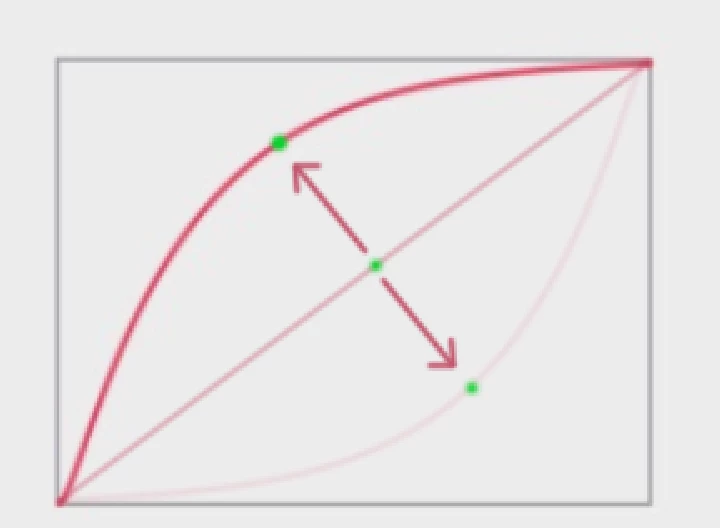
Im trying to make a stragiht line, to bend from its middle axis. like the example I have attached.

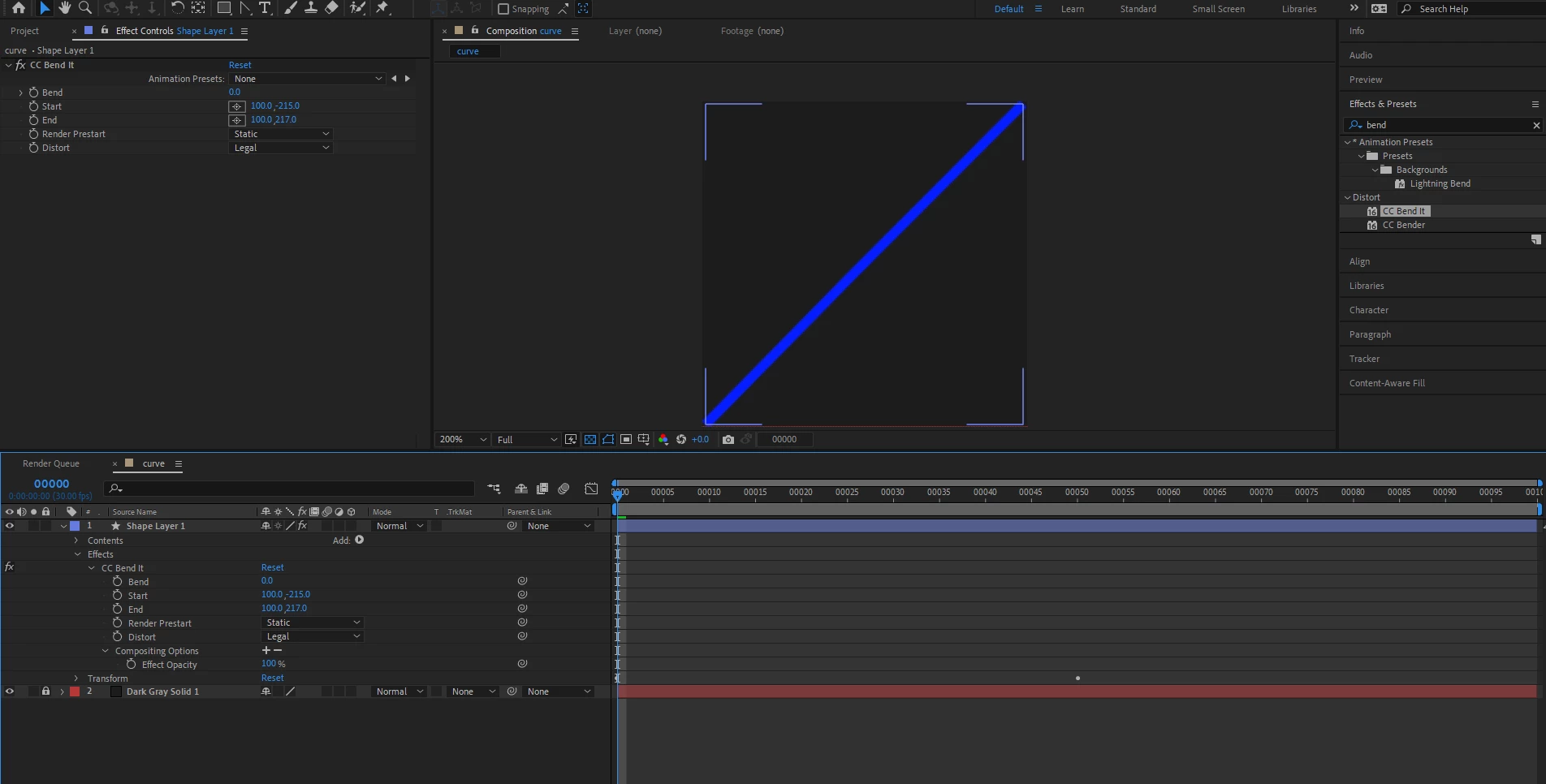
I tried with CC Bend it, but it cant figure out how to bend it from the middle axis.


As shown in this example, I have a diagnal line, and there's a pivot point in the middle, and I would like to be able to bend/animate from that position. so the curve can go in positive and negative direction.


Kind regards.

このトピックへの返信は締め切られました。
解決に役立った回答 David Arbor

CC Bend It isn't made for this type of move. CC Bender does let you get closer with the "Marilyn" style, but you'll get more of an hourglass bend where the start and end of the line ease before they increase like in your example.


Another way to achieve this would be to add a point in the middle of your line, adjust the bezier handles to your desired length, then keyframe the Path property as you move this middle point. If you want even more flexibility, you can tie that middle point to a null object using the "Create Nulls from Paths" script under the Window menu. If you select the actual Path property in your shape layer, then click the "Points Follow Nulls" button, you'll get three null objects that you can animate. You could safely delete the nulls on the start and end of your path if you really didn't need them, but then you wouldn't be able to directly manipulate the path with the Pen tool.

返信数 2

ShiveringCactus
Community Expert
Community Expert
November 7, 2023

I think David has the right approach here, but just in case, take a look at CC Split.  That creates a very basic mouth shape between two points with the curve matching your sketch.

David Arbor解決!
Inspiring
November 6, 2023

CC Bend It isn't made for this type of move. CC Bender does let you get closer with the "Marilyn" style, but you'll get more of an hourglass bend where the start and end of the line ease before they increase like in your example.


Another way to achieve this would be to add a point in the middle of your line, adjust the bezier handles to your desired length, then keyframe the Path property as you move this middle point. If you want even more flexibility, you can tie that middle point to a null object using the "Create Nulls from Paths" script under the Window menu. If you select the actual Path property in your shape layer, then click the "Points Follow Nulls" button, you'll get three null objects that you can animate. You could safely delete the nulls on the start and end of your path if you really didn't need them, but then you wouldn't be able to directly manipulate the path with the Pen tool.