


Inspiring
September 12, 2024
Question

How to change 4K to HD without cropping?

  • September 12, 2024
  • 1 reply
  • 950 views

Dear all. I have a 4K composition like below 
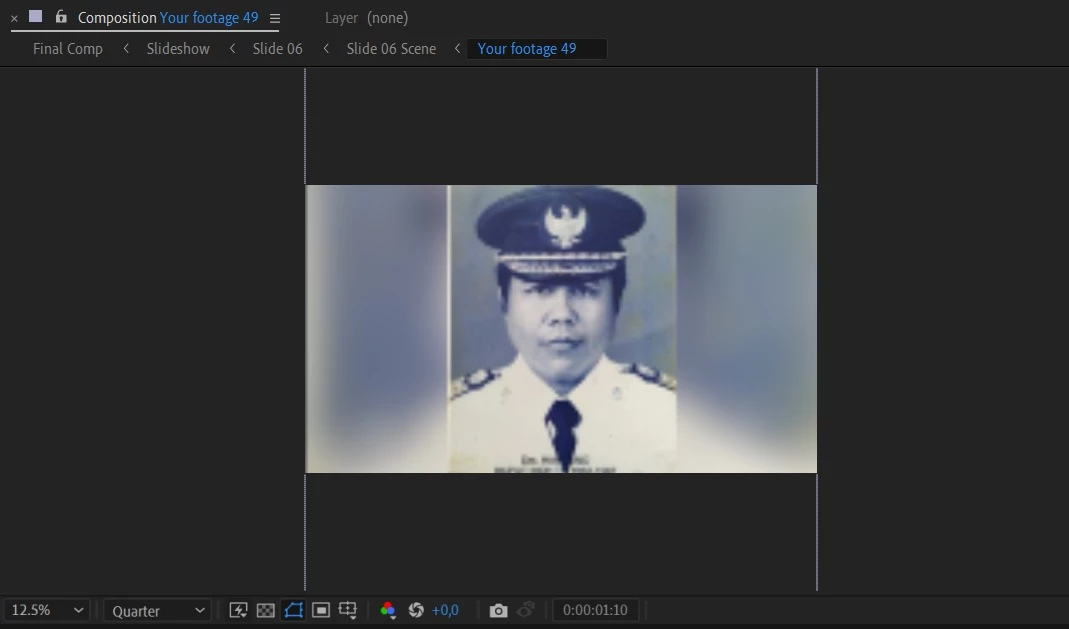
But whenever i change the resolution from 4k to HD, it is cropped.

I always change resolution by using Composition settings dialog box.
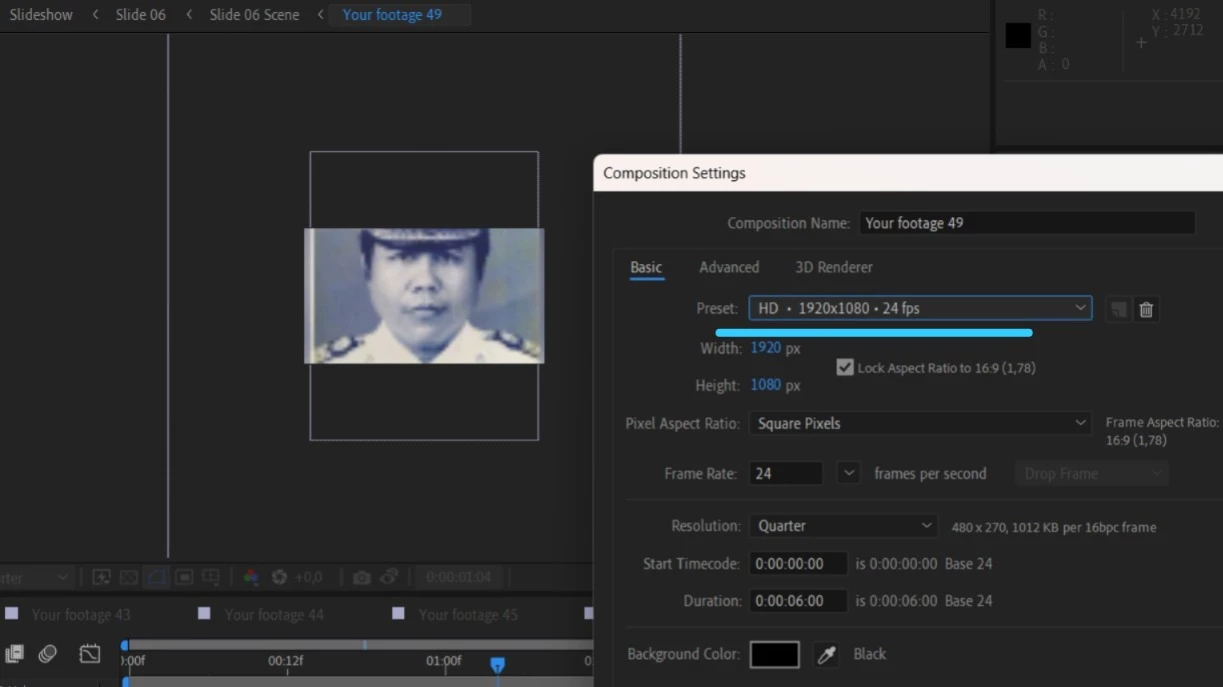
Is it possible to automatically fit to the composition resolution without croped?? 

Thanks.

This topic has been closed for replies.

1 reply

Participant
September 12, 2024

To change the resolution from 4K to HD in Adobe After Effects without cropping, you'll need to scale down your composition. Here's a step-by-step guide on how to do this:

### 1. **Open Your Project:**
- Launch Adobe After Effects and open your project with the 4K composition you want to downscale.

### 2. **Select Your Composition:**
- Click on the composition in the Project panel to select it.

### 3. **Create a New HD Composition:**
- Go to `Composition` > `New Composition` (or press `Ctrl+N` / `Cmd+N`).
- In the Composition Settings window:
- Set the **Width** to 1920 pixels.
- Set the **Height** to 1080 pixels.
- Choose the same frame rate as your original composition.
- Click `OK` to create the HD composition.

### 4. **Add Your 4K Composition to the HD Composition:**
- Drag your 4K composition from the Project panel into the new HD composition timeline.

### 5. **Scale Down the 4K Composition:**
- Select the 4K layer in the HD composition timeline.
- Press `S` on your keyboard to bring up the Scale property.
- Adjust the Scale percentage to fit the HD frame. Since you are scaling down from 4K (3840 x 2160) to HD (1920 x 1080), you can scale the layer to about 50% (1920/3840 = 0.5 or 50%).

### 6. **Check Your Composition:**
- Scrub through your timeline to ensure that your content fits well within the HD frame without any cropping.
- If necessary, adjust the position of the layer by pressing `P` for Position and moving it as needed.

### 7. **Render the HD Composition:**
- Once satisfied with the scaling and positioning, go to `Composition` > `Add to Render Queue` (or press `Ctrl+M` / `Cmd+M`).
- Choose your desired output settings and render the composition.

### Tips:
- **Preserve Quality:** Ensure that your scaling maintains the quality of your content. Scaling down generally preserves quality better than scaling up.
- **Aspect Ratio:** Since 4K and HD have different aspect ratios (16:9 for both), there should be no need for cropping if you are scaling uniformly.

By following these steps, you should be able to convert your 4K composition to HD without cropping, preserving the content's aspect ratio and visual quality.

Inspiring
September 12, 2024

Thanks, @mr._4474 , i'll try it.

######Raizen 7, 40Gb Ram, RTX 3060, Win 11 -- All of Software in the world are just tools. Buy it if it works for you :)