
Participating Frequently
March 20, 2025
解決済み

How to change speed of Typewriter effect WITHOUT keyframes?

  • March 20, 2025
  • 返信数 2.
  • 1010 ビュー

Hi all!


I am trying to create my own .mogrt file of a typewriter effect that's meant to mimick a robot speaking, with plans to move it into Premiere Pro so I can control the speed, font, colours, etc for future projects.


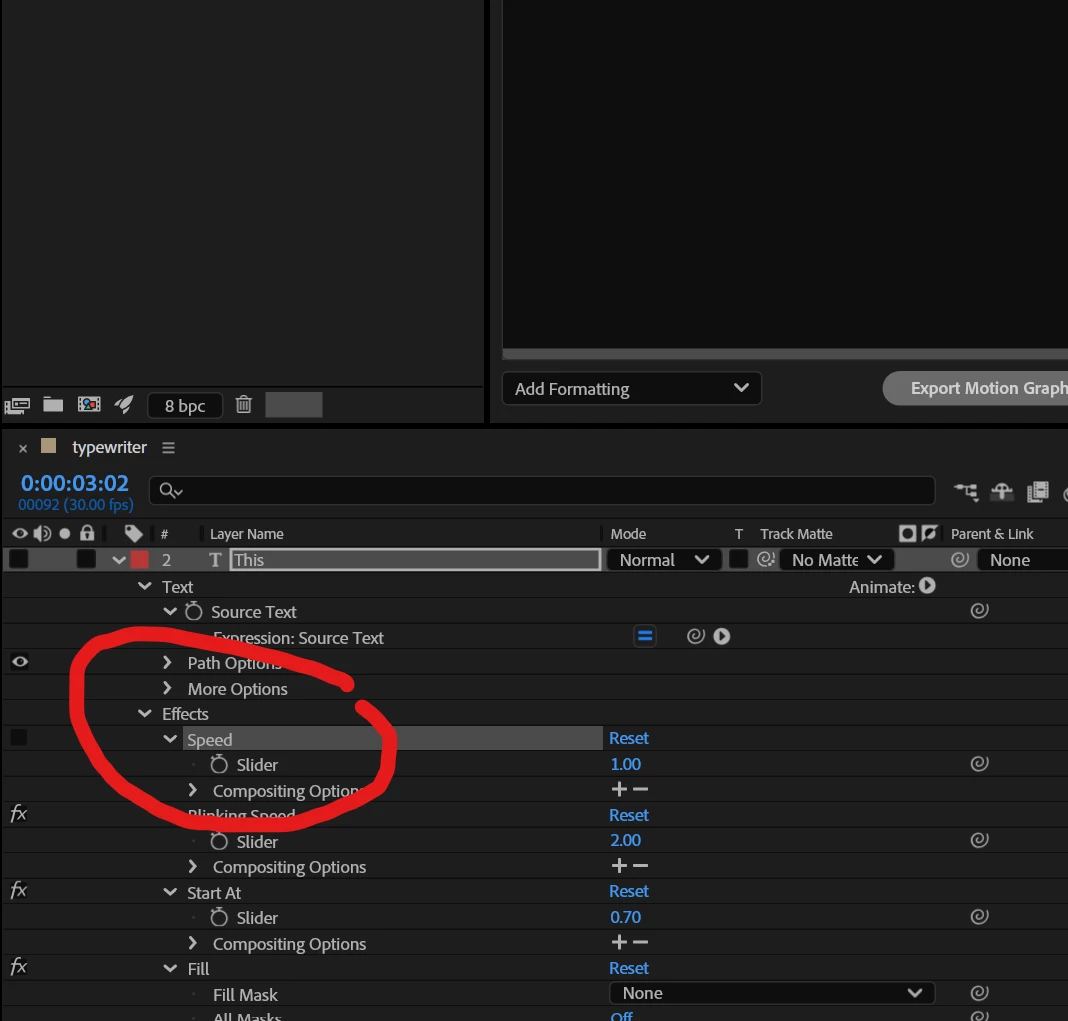
The attached image is from a template that I downloaded, and the speed can be controlled via this slider and NOT keyframes.


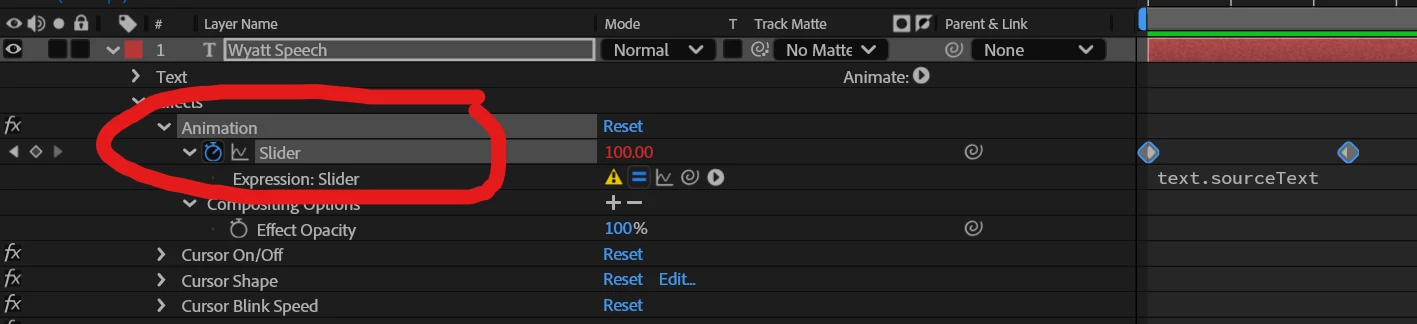
The below image is my effect that I'm creating. As you can see, it has the normal 'slider' with the keyframes. My issue is that I want to bring this into Premiere Pro and control the speed in there, and that can't work with keyframes.
 

Does anybody know how that 'speed' fx was added onto the first image, allowing the typewriter effect to be made without keyframes?


Thanks! Hope that made sense lol 
 

解決に役立った回答 Mathias Moehl

返信数 2

Community Expert
February 8, 2026

You can tie the typewriter effect to an audio track in After Effects by converting the Audio to Keyframes, then using an expression to reveal the letters as the audio passes a threshold. 


Unfortunately, this can only be done by converting Audio to Keyframes, so the workflow does not allow you to create a MOGRT that lets you easily follow an audio track in Premiere Pro.


I do this all the time in After Effects. I wish I could have given you an easier solution. You’re going to still have to keyframe things in Premiere Pro.


Here’s a Quick Tip video I produced a while ago. It ties audio to position, but you could easily tie a text animator using the same ideas.


Mathias Moehl
Community Expert
Community Expert
March 20, 2025

You could apply an expression to the slider which increases your slider value over time without the keyframes.

Example:

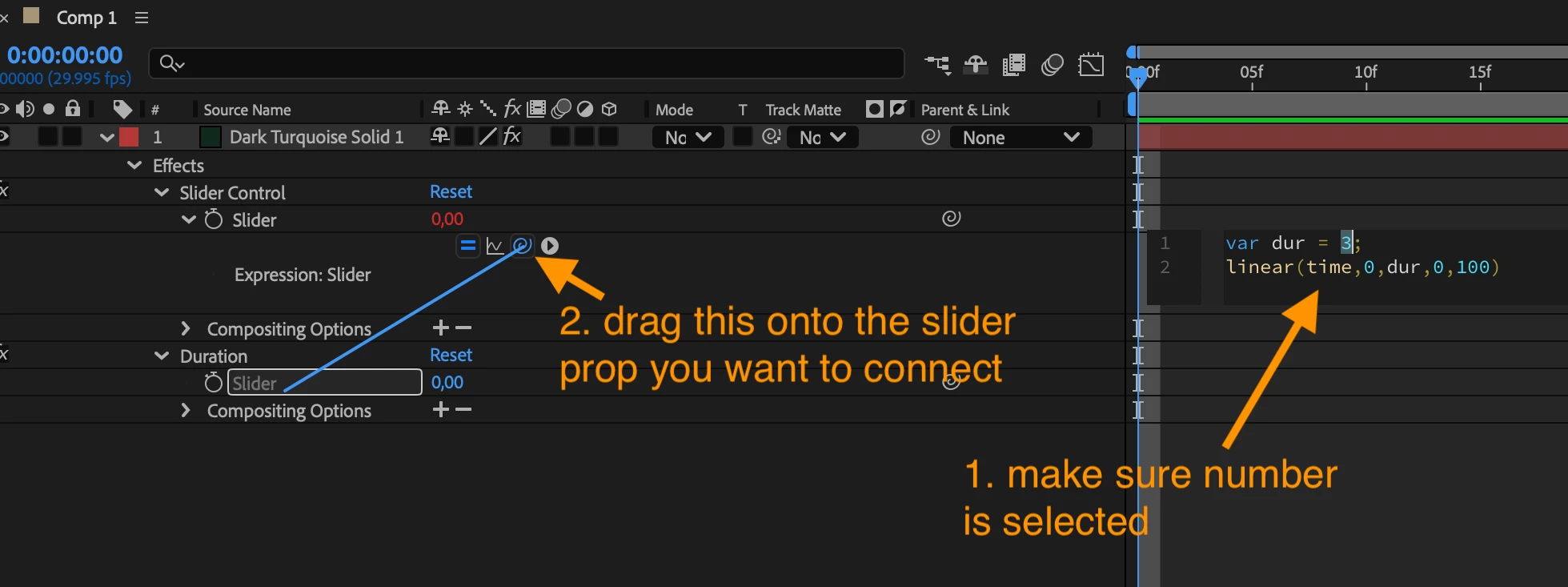
var dur = 3;
linear(time,0,dur,0,100)

If you apply this expression to your slider, it will increate the slider value during the first three seconds of the comp from 0 to 100.

Now replace the 3 by another slider, say "duration" and then you can control with that slider how long your typing animation should last.

Mathias Möhl - Developer of tools like BeatEdit and Automation Blocks for Premiere Pro and After Effects
Dan_A_Art作成者
Participating Frequently
March 20, 2025

Thanks for replying Mathias. How do I change the '3' to another slider? I am still learning about expressions.

Mathias Moehl
Community Expert
Mathias MoehlCommunity Expert解決!
Community Expert
March 20, 2025

Mathias Möhl - Developer of tools like BeatEdit and Automation Blocks for Premiere Pro and After Effects