You need to start with a path so you have a place to put the expression. Select the pen tool, make sure no layers are selected, and Click a single point anywhere in the Comp panel to create a new shape layer and a path. Then press the 'u' key twice to open the path property and add the expression.
If I were doing something like you are suggesting, I would use a parametric shape (rectangle) on a text layer, add a couple of point controls to the shape layer, and label one "Height and Width,} and the other "Position." Save the rectangle and effects as an animation preset. Double-click the preset to add a new shape layer and set the size and position using the two effects Point Controls.
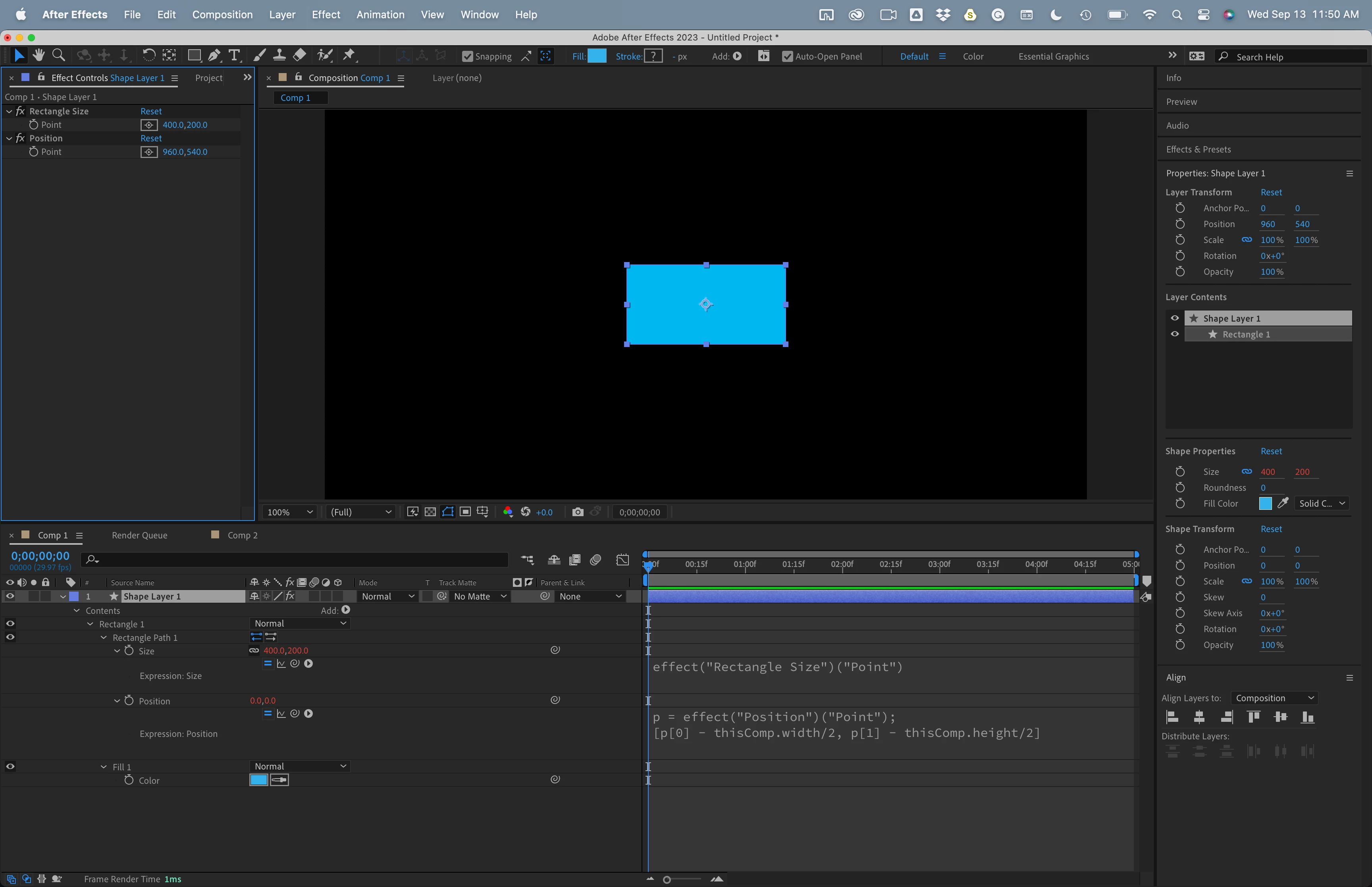
This is the expression and a screenshot.
// Rectangle 1/Size
effect("Rectangle Size")("Point")

// Rectangle 1/Position
p = effect("Position")("Point");
[p[0] - thisComp.width/2, p[1] - thisComp.height/2]
You could do the same thing with Dan's expression.
The downside to this approach is that you could only automatically create a single rectangle on a single layer with the preset. Duplicating the Rectangle (or path) on a single shape layer and duplicating the controllers would give you the option of having more than one shape on a single layer, but you would have to edit the duplicate rectangles' position and size expressions to link them to the duplicate sliders.



 AdChoices