
November 11, 2017
Answered

How To Disable Particular Overlay??? Plz Help
  • November 11, 2017
  • 2 replies
  • 2465 views

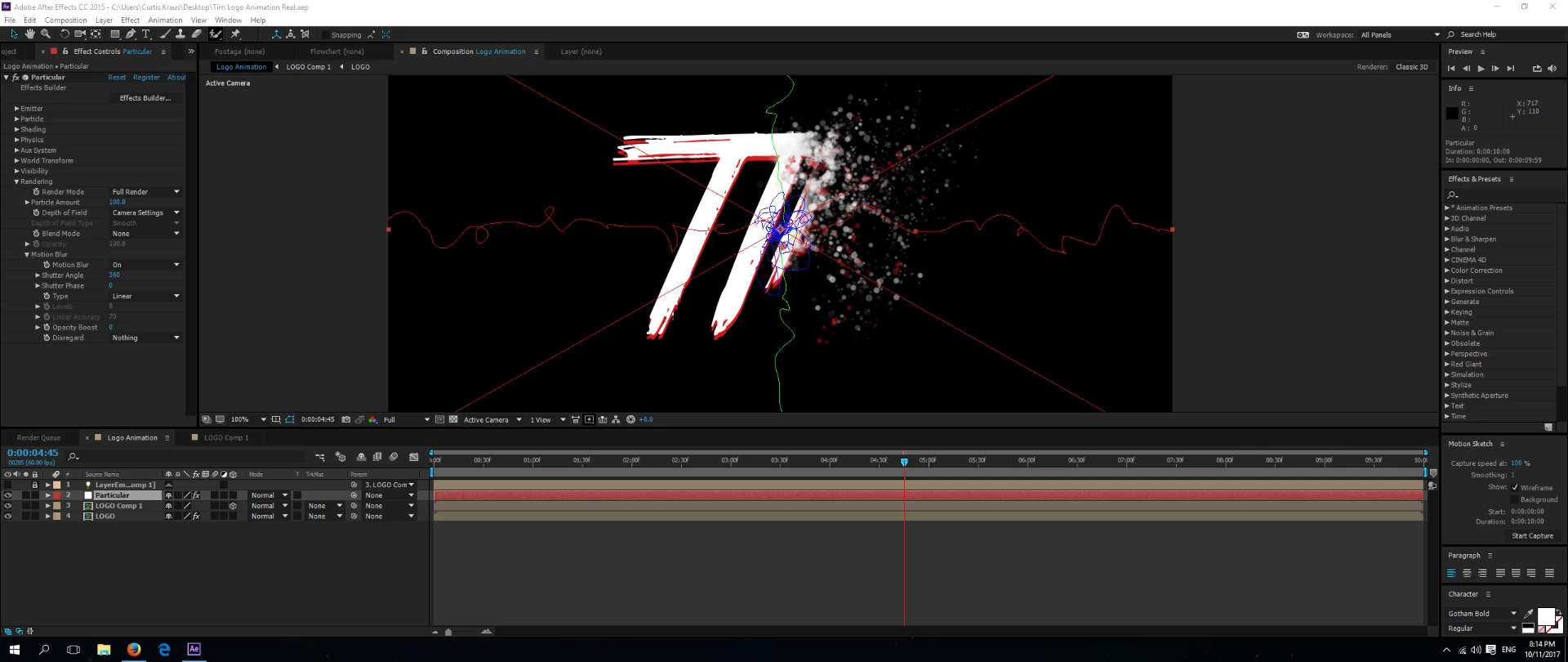
Im working on an intro for a short film im working on and when using particular i cant disable the overlay as seen above, its the swirly lines for the physics. How do i remove that overlay because it even shows in the export of the video?

Thanks in advance

    This topic has been closed for replies.
    Correct answer Rick Gerard

    I see a red X, which means that the plugin is not licensed. You have to purchase it and license it to make that go away. to see if there are any other switches thrown that should not be select the layer, press the U key two reveal all modified properties and check the timeline for anything obvious. There are no "path" switches in Particular.

    2 replies

    P.M.B
    Legend
    November 11, 2017

    It's under Physics>Air>Visualization Fields to turn off the squigglies.   Then , like Rick said you're going to have to activate a license for the plug-in to get rid of the x.

    ~Gutterfish
    Community Expert
    November 11, 2017

    Gutter-Fish is right. I forgot about that, but I was correct that pressing the U key twice would bring the switch up in the timeline panel:

    P.M.B
    Legend
    November 11, 2017

    I always forget about that "reveal modified properties"  shortcut.

    ~Gutterfish
    Rick GerardCommunity ExpertCorrect answer
    Community Expert
    November 11, 2017

    I see a red X, which means that the plugin is not licensed. You have to purchase it and license it to make that go away. to see if there are any other switches thrown that should not be select the layer, press the U key two reveal all modified properties and check the timeline for anything obvious. There are no "path" switches in Particular.