Participant
December 1, 2016
Answered

How to edit text composition in After Effects

  • December 1, 2016
  • 2 replies
  • 8531 views

Hello,

I downloaded a template from Videoblocks which is a typography template, You can see it here After Effects CS4 Template: Sports Promo Typography - VideoBlocks

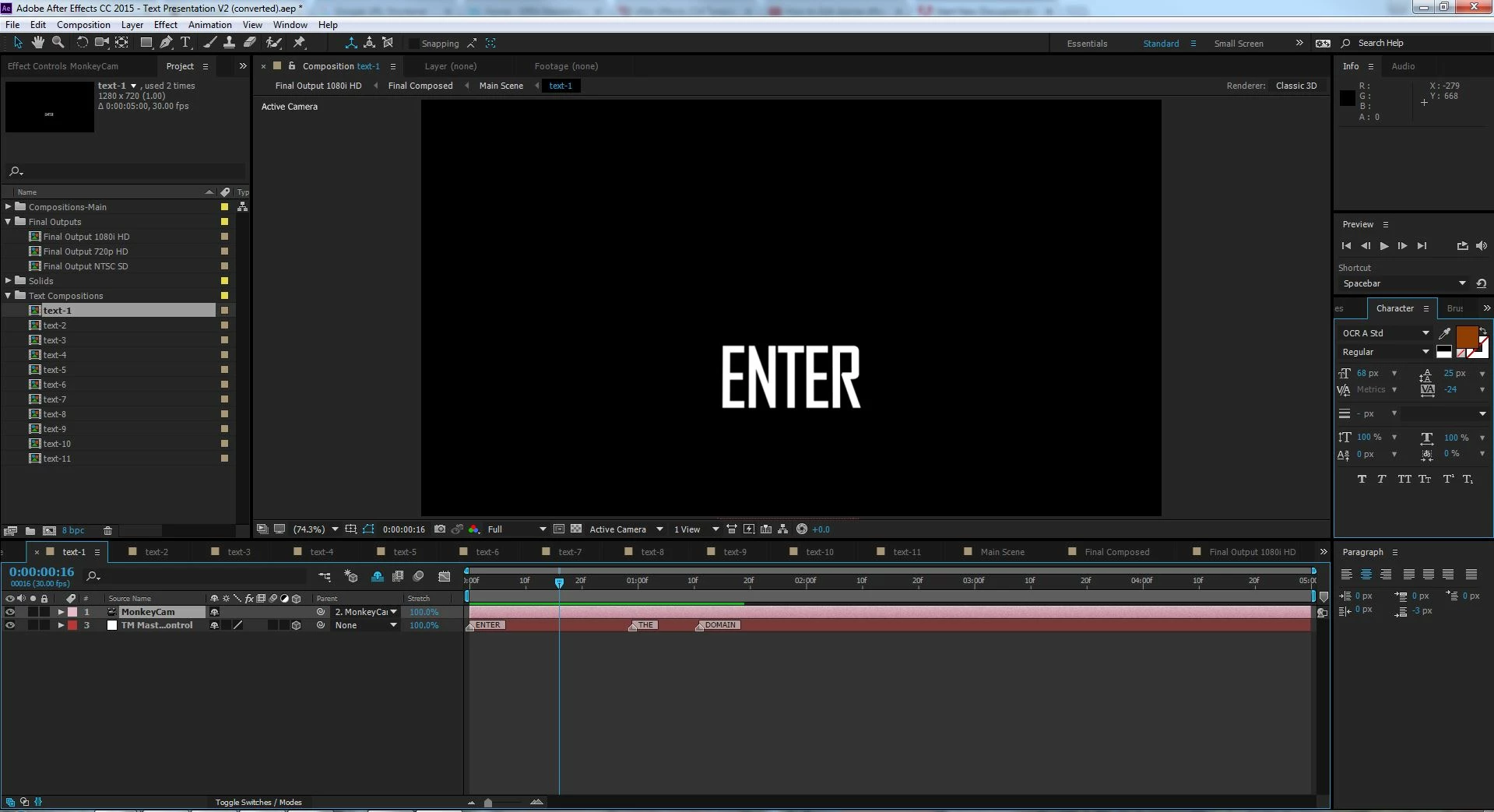
When I open it up in After Effects, I expected it to be editable text to change the words, but it doesn't seem to be the case. I can't figure out how you're supposed to change the text but still keep the effects?

If you double click on each text composition, it comes up with the camera effects and the background colour, but not a way to edit the text on screen. I can't seem to find a way of doing this anywhere.

Can anyone explain to me how you do this? Sorry, I'm quite new to After Effects.

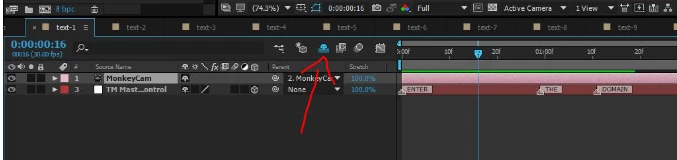
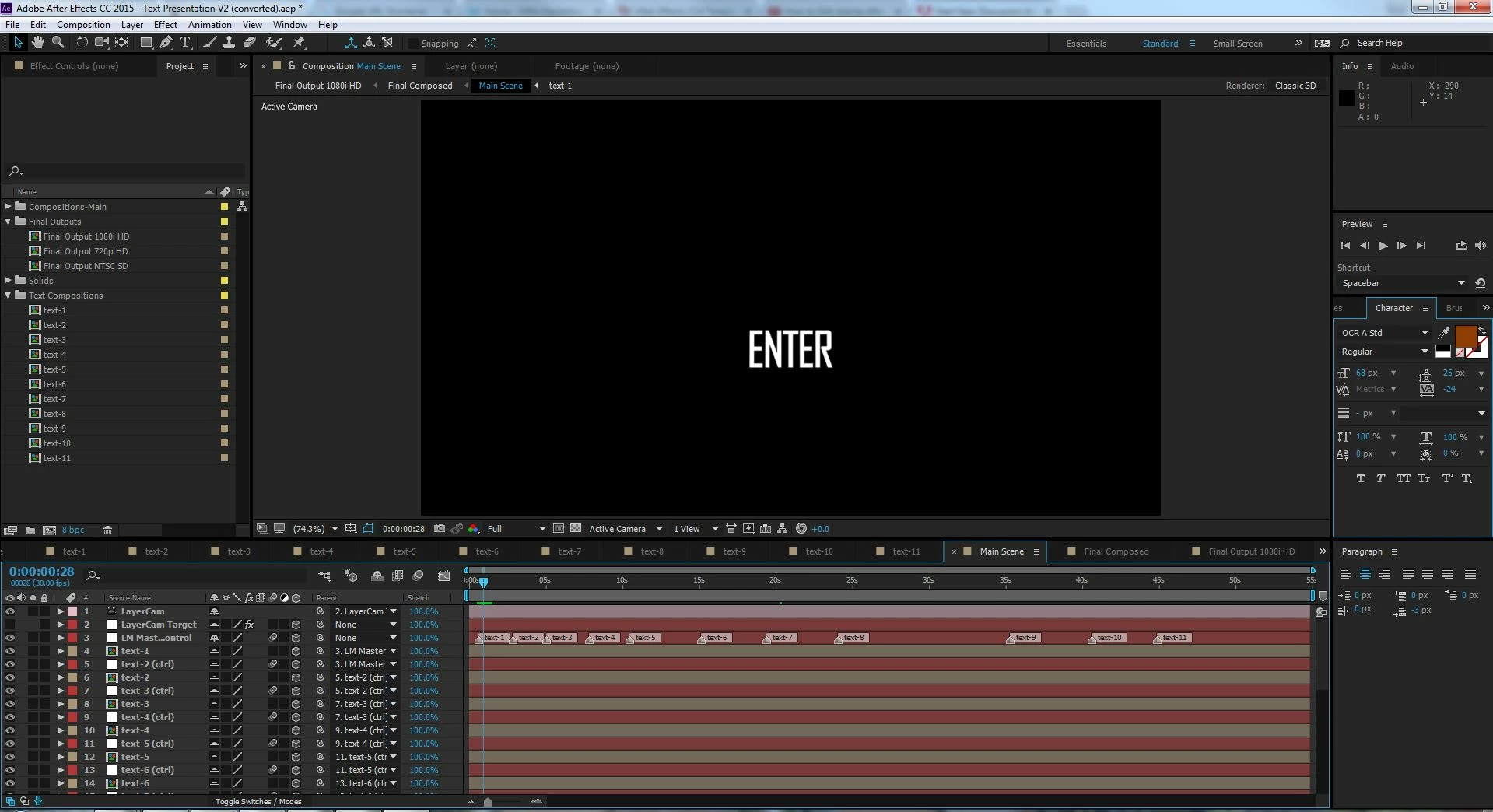
Here are some screenshots to show what I mean. Thanks
    This topic has been closed for replies.
    Correct answer Roei Tzoref

    you should follow the instructions provided with this template if there are any. maybe they are attached as a readable format with the zip file or something. if you paid money for this then the owner owes you an explanation.

    guessing by the way this setup looks, I would say you set your text inside the markers. just click twice on the markers and change the text in the comment text field and click o.k. if that's not it, there is a shy switch (though it is there probably for a reason so you won't mess with the template)

    and if you click it you will see all the layers and also the text layers.

    2 replies

    Dave_LaRonde
    Inspiring
    December 1, 2016

    Yup, I'm with Roei -- when in doubt, READ THE INSTRUCTIONS!

    Roei Tzoref
    Roei TzorefCorrect answer
    Legend
    December 1, 2016

    you should follow the instructions provided with this template if there are any. maybe they are attached as a readable format with the zip file or something. if you paid money for this then the owner owes you an explanation.

    guessing by the way this setup looks, I would say you set your text inside the markers. just click twice on the markers and change the text in the comment text field and click o.k. if that's not it, there is a shy switch (though it is there probably for a reason so you won't mess with the template)

    and if you click it you will see all the layers and also the text layers.

    Participant
    December 2, 2016

    Hi,

    Thanks for your suggestion. Just to clarify- there are no instructions that came with this. Which is why I asked!

    Community Expert
    December 2, 2016

    When trying to diagnose a problem the first step is to reveal the modified properties of the layer that is giving you problems by pressing the U key twice. If you have a text layer you'll see something like this:

    The biggest problem I see in your screenshot is that there is not a text layer anywhere:

    See the missing "T" icon in your layer? When you end up at this point it's time to look at the flow chart to try and find your text layer.

    Second icon from the right at the bottom of the Composition panel.

    You may have to expand things to see all of the layers. It is easy to find the text layers. They will have a T icon. Just double click it to open the comp with the text layer and edit away.