


ChrisCrystalize
Inspiring
April 28, 2018
Question

How to get my XYZ arrows to show up in a layer in the Composition panel
  • April 28, 2018
  • 3 replies
  • 14352 views

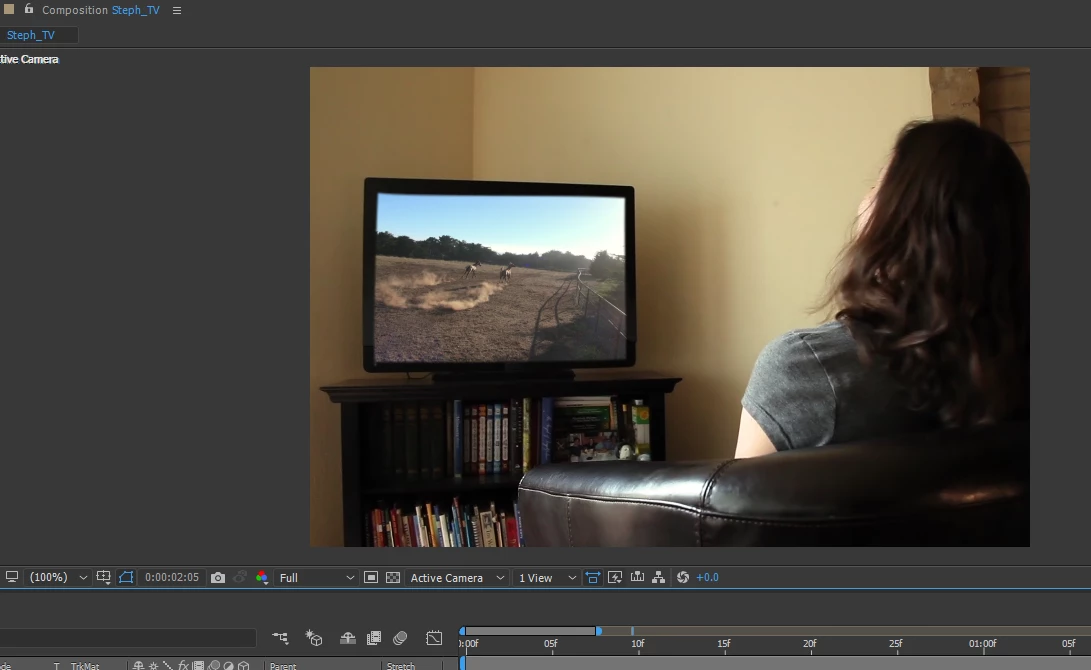
The horse video inside the TV screen is a separate layer and I enabled it as a 3D layer. How do I get my xyz arrows to show, as well as the 9 square dots bordering the edges of the video? I searched the FAQs and cannot find anything so I'm probably not referencing the feature correctly. What toggles on this visibility? I have the layer selected in the timeline panel and am in active view. I can only go by guesswork in resizing and re positioning this video without the arrows and borders showing. Sometimes I get this feature, sometimes I don't and I would like to know how to toggle it on and off when desired.

Thank you,

Chris

    This topic has been closed for replies.

    3 replies

    Community Expert
    April 29, 2018

    Your cropped screenshot shows us nothing about your comp. We don't know if you have layer controls turned off or if you have not selected the layer. You probably have, as Giutterfish said, turned off view layer controls. The only thing I know about your project is that you have pixel aspect ratio correction turned on, the magnification ratio is set to 100% and the resolution is set to Full.

    When you have problems with a layer or a comp the first thing to do is select the layer, press the U key twice to reveal all modified properties of that layer, and then start turning things off or resetting properties until the problem goes away. If you can't solve the problem post a full-size screenshot so we can take a look.

    ChrisCrystalize
    Inspiring
    April 29, 2018

    Here's the layer selected with the U key pressed twice, it is behind the first layer and a mask reveals it inside the TV screen. I also have the layer with the solo switch enabled to separate it from the rest of the composition. As you can see, there is no characteristic 9 square dots surrounding the border, my anchor point is not visible and since it is a 3D layer it should have my three arrows for the XYZ parameters which of course are not visible here. Looks like layer controls are off for this composition; I found by Googling the way to turn them off on a composition or layer basis is CTRL+SHIFT+H but invoking that keystroke combination doesn't seem to work in reverse. Neither layer shows the 9 dot border or the anchor point when selected. I looked in the menus and found nothing that references turning on this feature. Thank you for your help so far. Once I know how to do this I will be good to go for future instances.

    Community Expert
    April 29, 2018

    You have turned off layer controls. Simple as that. Turn them back on. If you don't know how or need specific instructions type view layer controls in AE's search help field at the top right corner of the app or poke around in the menu's. There is also a keyboard shortcut.

    P.M.B
    Legend
    April 28, 2018

    Yes it seems like you do not have Show Layer Controls enabled in the View menu.

    It's a shame you have not responded to peoples suggestions on your other thread about not being able to see the anchor point.

    Ctrl+Shift+H  is how you toggle the layer controls on/off

    If all the suggestion offered up till now fail there's always the small possibility of a memory glitch that might be fixed by purging

    your memory and disc cache.

    It could also be that your layer controls and anchor point are off screen (outside the comp panel's bounderies).  A screen shot of your layer panel with the position property revealed would let us see that.

    uploading cropped screenshots is generally discouraged.

    You should upload complete shots of your interface with modified properties of the relevant layers revealed.

    ~Gutterfish
    P.M.B
    Legend
    May 1, 2018

    ChrisCrystalize  wrote

    After Effects keyboard shortcuts reference

    I've looked all over this page and have found nothing that can help me to turn on layer controls on a global basis. I still have several compositions where I cannot see my 9 dot square border or anchor point, and pressing CTRL+SHIFT+H while having the layer selected does not turn on this feature. I've even went on YouTube and found several 20 minute videos on everything on layers except how to turn on this feature. Please enlighten me and I will bother you no more. Thank you.

    Gutterfish  wrote

    Yes it seems like you do not have Show Layer Controls enabled in the View menu.

    ~Gutterfish
    ChrisCrystalize
    Inspiring
    May 1, 2018

    Unfortunately that's not it - I have found that control and the shortcut is CTRLSHIFTH - and the lack of my 9 dot border and anchor point is now on all my layers on all my new compositions. I'll try deleting my preferences and putting my disk cache back on my external SSD and see if going back to the AE defaults brings back this feature. This appears one of those controls you stumble upon by fortune during your learning curve. Until then it's nuke the planet from space and start over from scratch.

    Roei Tzoref
    Legend
    April 28, 2018

    so I guess this thread did not help you?

    Re: Trying to figure out the best way to ask this question as I couldn't find anything in the FAQs...

    if checking mask visibility (which I see you have checked) or view->show view controls does not help, check your view options

    and see you are good there with layer controls the check boxes

    angineha12386666
    Participant
    October 26, 2023

    Thanks alot. It works now.