Inspiring
April 3, 2022
Answered

How to get perpendicular lines using the repeater function

  • April 3, 2022
  • 2 replies
  • 445 views

Hi forum.


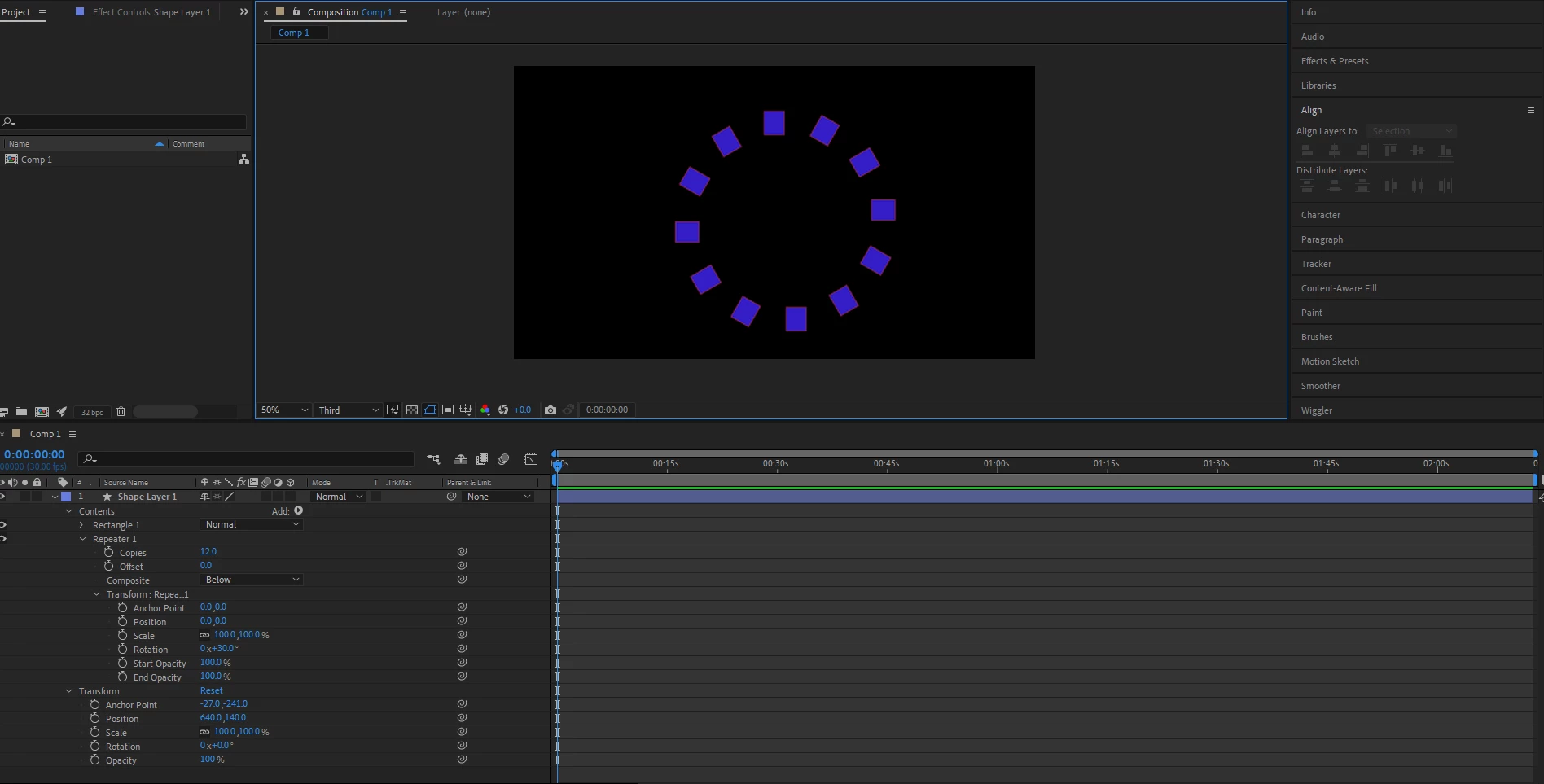
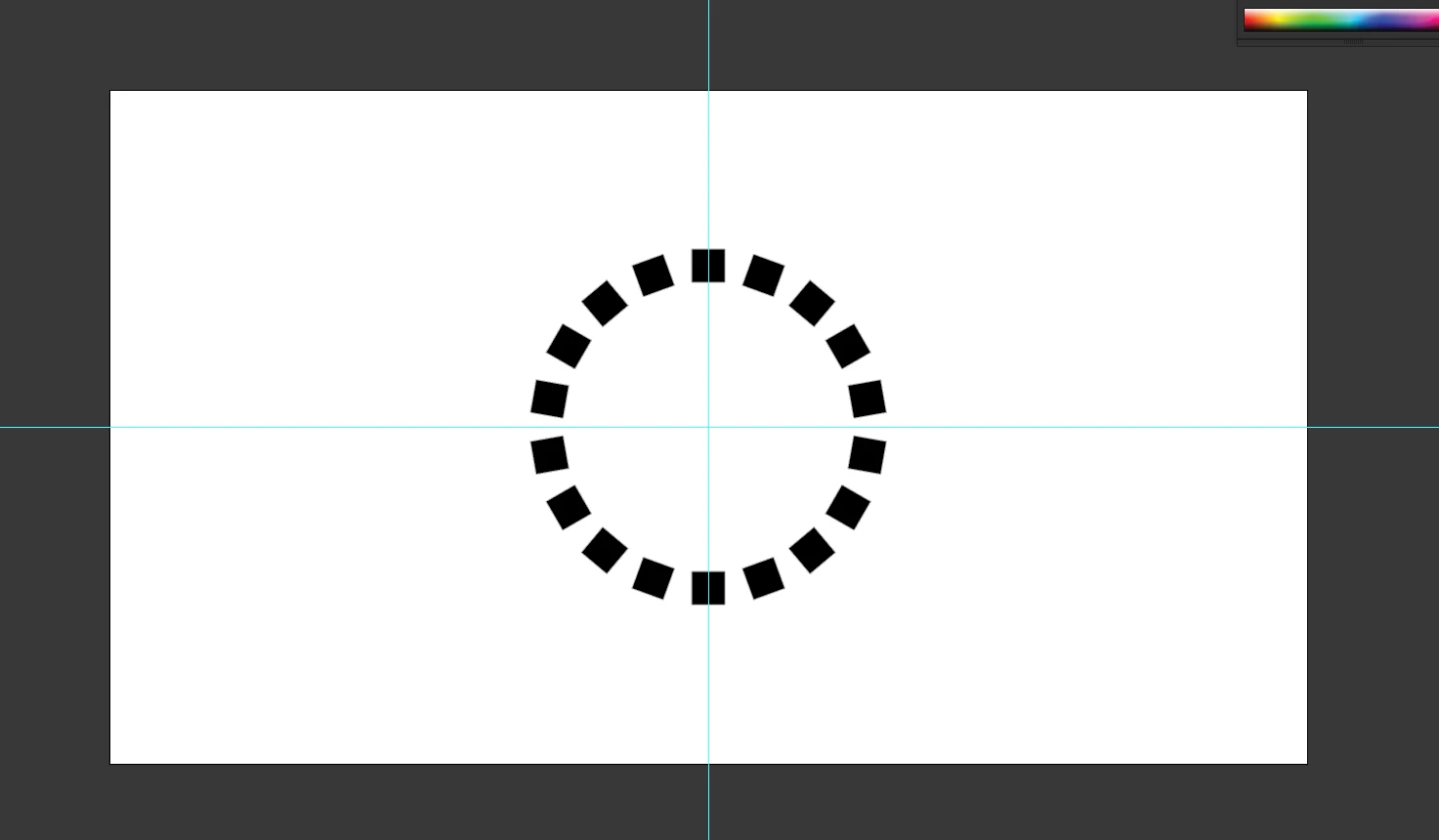
Im trying to make perpendicular blocks to animate using the repeater function. But the blocks are somewhat skewed if you notice. I want to be able to make them perpendicular like in the example. 


Here is the AE sample


and this is what Im trying to achieve


 Thank you.

This topic has been closed for replies.
Correct answer Rick Gerard

Draw your Rectangle, press the U key twice to reveal all modified properties of the Rectangle. Spin the Transform/Rectangle 1 properties and adjust the Y value to offset the Rectangle. Now select contents and add the Repeater, and set the proper values. If the Rectangle 1/position or the Transform/Rectangle 1 position is not at the default value of 0, 0, you need to reset it. This screenshot shows all the modified properties of the comp so that you can duplicate it perfectly.
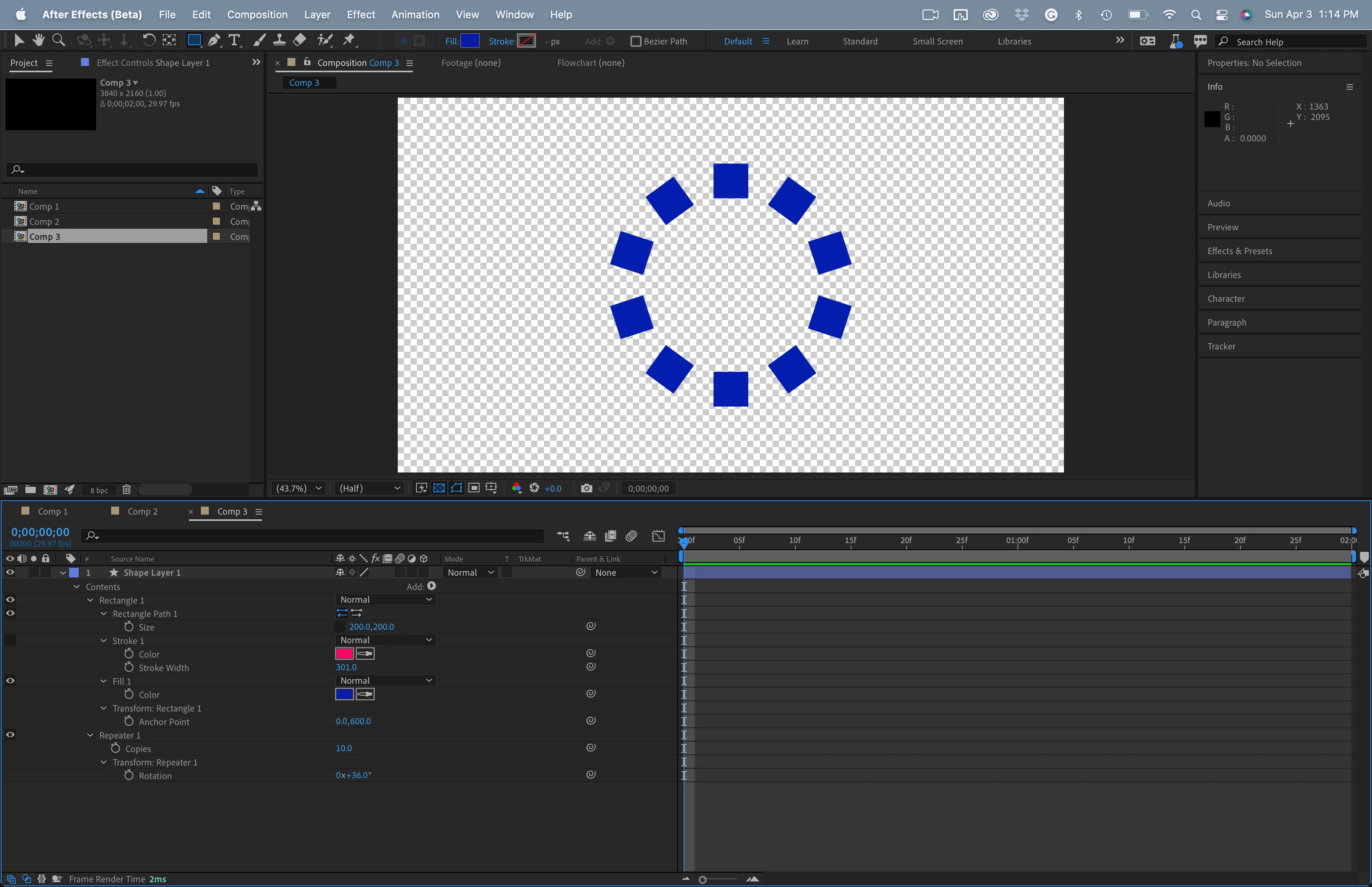
When you get what you need, you can add a new Group, put the Rectangle and the Repeater in the group, then move the created shape anywhere you want with the Transform Group properties. 


The rectangles are all still perfectly square. At some sizes and resolutions, you may experience an optical illusion that they are not perfect rectangles.

2 replies

Rick GerardCommunity ExpertCorrect answer
Community Expert
April 3, 2022

Draw your Rectangle, press the U key twice to reveal all modified properties of the Rectangle. Spin the Transform/Rectangle 1 properties and adjust the Y value to offset the Rectangle. Now select contents and add the Repeater, and set the proper values. If the Rectangle 1/position or the Transform/Rectangle 1 position is not at the default value of 0, 0, you need to reset it. This screenshot shows all the modified properties of the comp so that you can duplicate it perfectly.

When you get what you need, you can add a new Group, put the Rectangle and the Repeater in the group, then move the created shape anywhere you want with the Transform Group properties. 


The rectangles are all still perfectly square. At some sizes and resolutions, you may experience an optical illusion that they are not perfect rectangles.
Jose Panadero
Community Expert
Community Expert
April 3, 2022

The most important thing is that the anchor point for this shape (not for the layer) must to be placed in the center of the composition. Then you only need to change the rotation parameter under the Transform Repeater options.


Also you can achieve this effect using a stroke with dashes and the Trim Path operator.

Inspiring
April 4, 2022

If possible, Id like to see a link on youtube if you know of a tutorial.


Thank you.