Participating Frequently
August 22, 2018
Answered

How to make a shape layer effect only one color in footage?

  • August 22, 2018
  • 1 reply
  • 2030 views

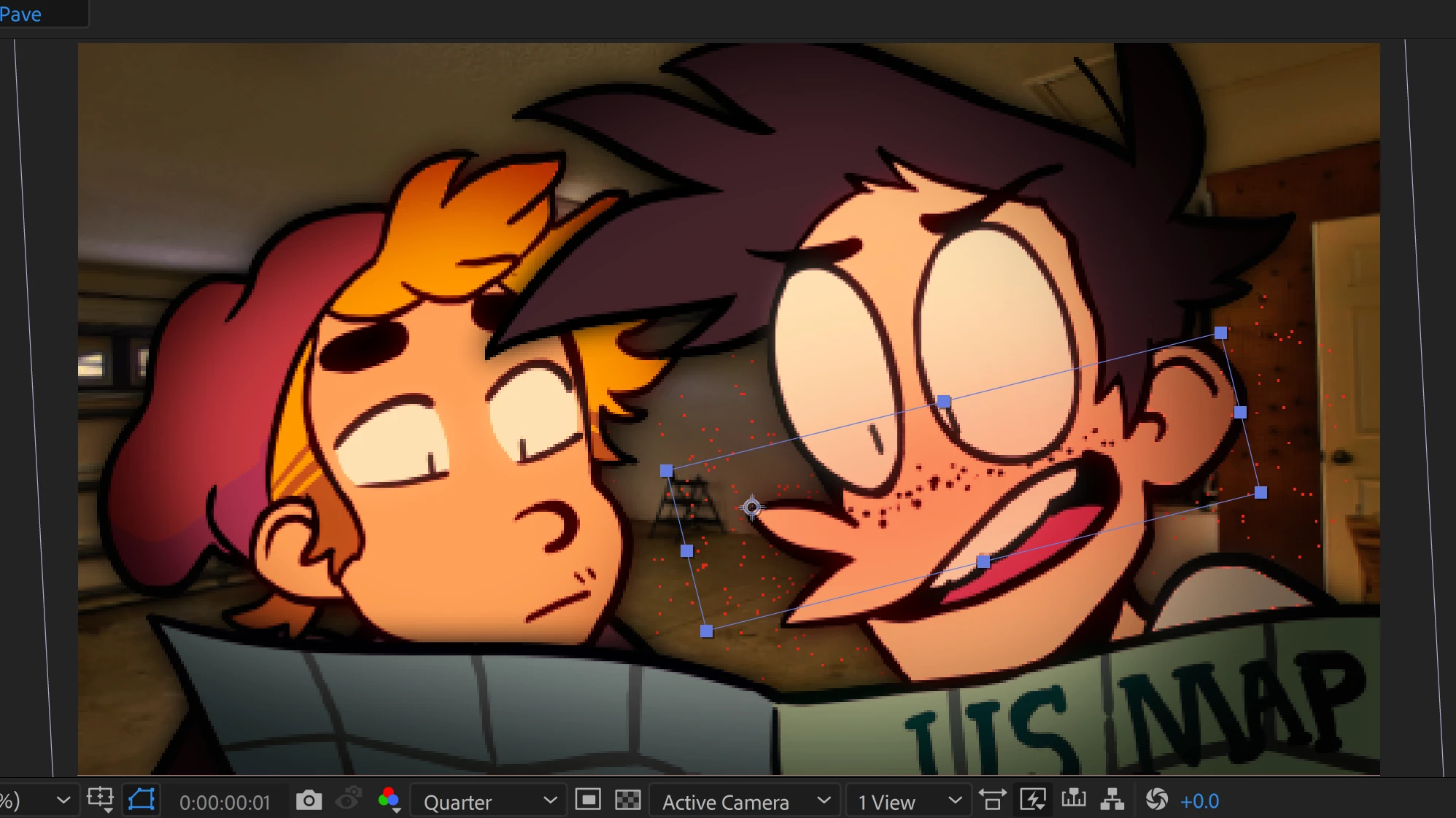
How would I go about, in After Effects, making a shape layer over some footage and having the shape layer effect only 1 specific color in the footage?

I have this footage I made in Animate, and overtop of it I created a feathered red shape layer set to Linear Burn that I want to act as the blush in this character's skin, but I only want it to effect the character's skin color, whereas right now it's also effecting the eyes/teeth and parts of the background.

Does anyone know a fix for this?

This topic has been closed for replies.
Correct answer Roei Tzoref

if you have a layer of the skin you can apply a color correction in many ways. then on top will be the eyes so they will not be affected by anything beneath it. same as you would do that in photoshop/illustrator . Ae is like Photoshop/ilustrator but with a timeline. layer based, you composite through using layers, masks and effects. for color correction you could use a solid or shape with a blend mode or an adjustment layer with some color correction affect like levels or curves or tint etc.

so say I have the skin, you could create a shape layer or a masked solid above it and set the blending mode and move it like the animated layer beneath either manually or using motion tracking. when I worked in Waltz With Bashir I was given png sequences made in Flash as different layers, then composited them in Ae so I could affect layers differently. if there was movement I would get tracking markers as a different layer that were placed on the same place where the element was moving (like an X sign on the tip of a cigarette for example)  so I could place things like smoke on these tracked markers and then when I was done I would remove the markers layers.

as for confining the layer to the alpha of another, you could use alpha mattes or other ways. you should read here: Use alpha channels, masks, and mattes in After Effects

1 reply

Roei Tzoref
Legend
August 22, 2018

since this was done in animate, and you probably have all the layers there, you could render the animation as separate passes and then you could affect each individually when you bring it to Ae.

Participating Frequently
August 22, 2018

I have them brought into AE with different layers currently, but I'm still not sure how to get the effect I'm trying to get.

Even if I were to separate the color layer from the line layer, I'm not sure how I could confine the shape layer I'm putting overtop to the color layer.

Roei Tzoref
Roei TzorefCorrect answer
Legend
August 22, 2018

if you have a layer of the skin you can apply a color correction in many ways. then on top will be the eyes so they will not be affected by anything beneath it. same as you would do that in photoshop/illustrator . Ae is like Photoshop/ilustrator but with a timeline. layer based, you composite through using layers, masks and effects. for color correction you could use a solid or shape with a blend mode or an adjustment layer with some color correction affect like levels or curves or tint etc.

so say I have the skin, you could create a shape layer or a masked solid above it and set the blending mode and move it like the animated layer beneath either manually or using motion tracking. when I worked in Waltz With Bashir I was given png sequences made in Flash as different layers, then composited them in Ae so I could affect layers differently. if there was movement I would get tracking markers as a different layer that were placed on the same place where the element was moving (like an X sign on the tip of a cigarette for example)  so I could place things like smoke on these tracked markers and then when I was done I would remove the markers layers.

as for confining the layer to the alpha of another, you could use alpha mattes or other ways. you should read here: Use alpha channels, masks, and mattes in After Effects