
This topic has been closed for replies.

3 replies

OussK
Community Expert
Community Expert
March 5, 2022

this tutorial should help you understand how to animate shapes in after effects, and you just need to glow effects over the animated shapes

https://www.youtube.com/watch?v=IuLwu4TYJWo


Participant
March 7, 2022

Thank you for your great advice.
It's a very simple and easy video for me.
I'll do it.
Thank you! 😉

Community Expert
March 5, 2022

If you just bought After Effects, expect to spend about 20 hours just learning the UI and compositing basics. 

Start in the Learn workspace, then spend some time with the User Guide.


When you have a general understanding of how AE works, start experimenting with the pen tool and shape layer animators. That is how you make the lines grow. Then add a couple of copies of the same animated shapes with different stroke widths and a slight blur. Then pre-compose the glowing lines and add the glow effect. I told you it could get complicated.


You might also need to add some animated gradient layers as track mattes to make the lines fade out. It all depends on how you setup the Shape layer animators. Here are a couple of screenshots from some of my old posts that show how to modify some of path properties on a Shape layer. The second screenshots shows how to use Paint + Echo to produce animated lines.

When you start working on the actual composite on a still image (photo) and you run into problems, please embed* screenshots showing us the modified properties of the layers you are having problems with. Just press 'uu' to show all modified properties, take a screenshot, then copy and paste it or drag it to the reply field on the forum and explain your workflow and the problems you are having. The screenshots I shared show the modified properties of the layers so you could duplicate the effect just by setting the same paramiters.


I hope this gets you started. AE is an amazingly powerful and complicated app. You will not get much done until you get some training. Watch out for tutorials presented by enthusiasts. Then often present inefficient workflows that lead to more questions than answers.


Hope this helps.

* The "Drag & Drop here..." area is buggy and should not be used to share images. Please use the toolbar or just drag your images to the reply field.

Participant
March 7, 2022

Thank you for your great advice.

I knew the UI for Photoshop, however I just bought the AE, so I have to training for AE that follow your advice.

Thank you very much! 🙂


Participant
March 4, 2022

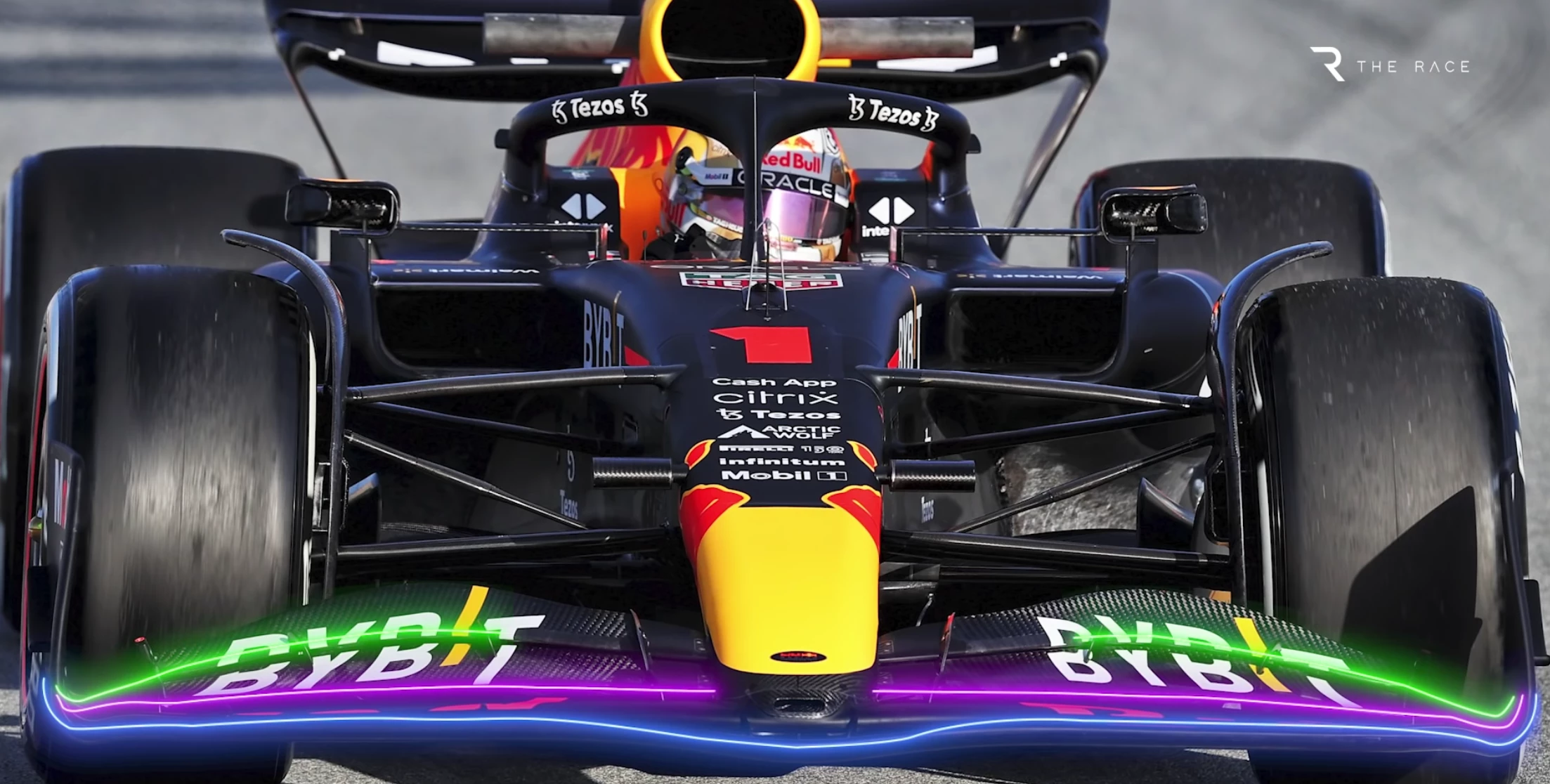
Lines are moving around the edges.