


Participating Frequently
January 29, 2024
Answered

How to move 5 dots (that appear one after another) on a path and then disappear the same way at end?

  • January 29, 2024
  • 2 replies
  • 753 views

I made a stroke with round cap dashes and used start property of trim paths to move the doted line and I used end property make the path short and I had to put a keyframe of end excatly in the center time of 2 keyframes of the start property and I had to use keyframe hold for some keyframes.
One of the problems is that the dots don't remain 5 but keep increasing from the first dot up ahead and another problem is that the whole path with all the dots appear at the end of the keyframes.


Thanks 🙂
This topic has been closed for replies.
Correct answer Rick Gerard

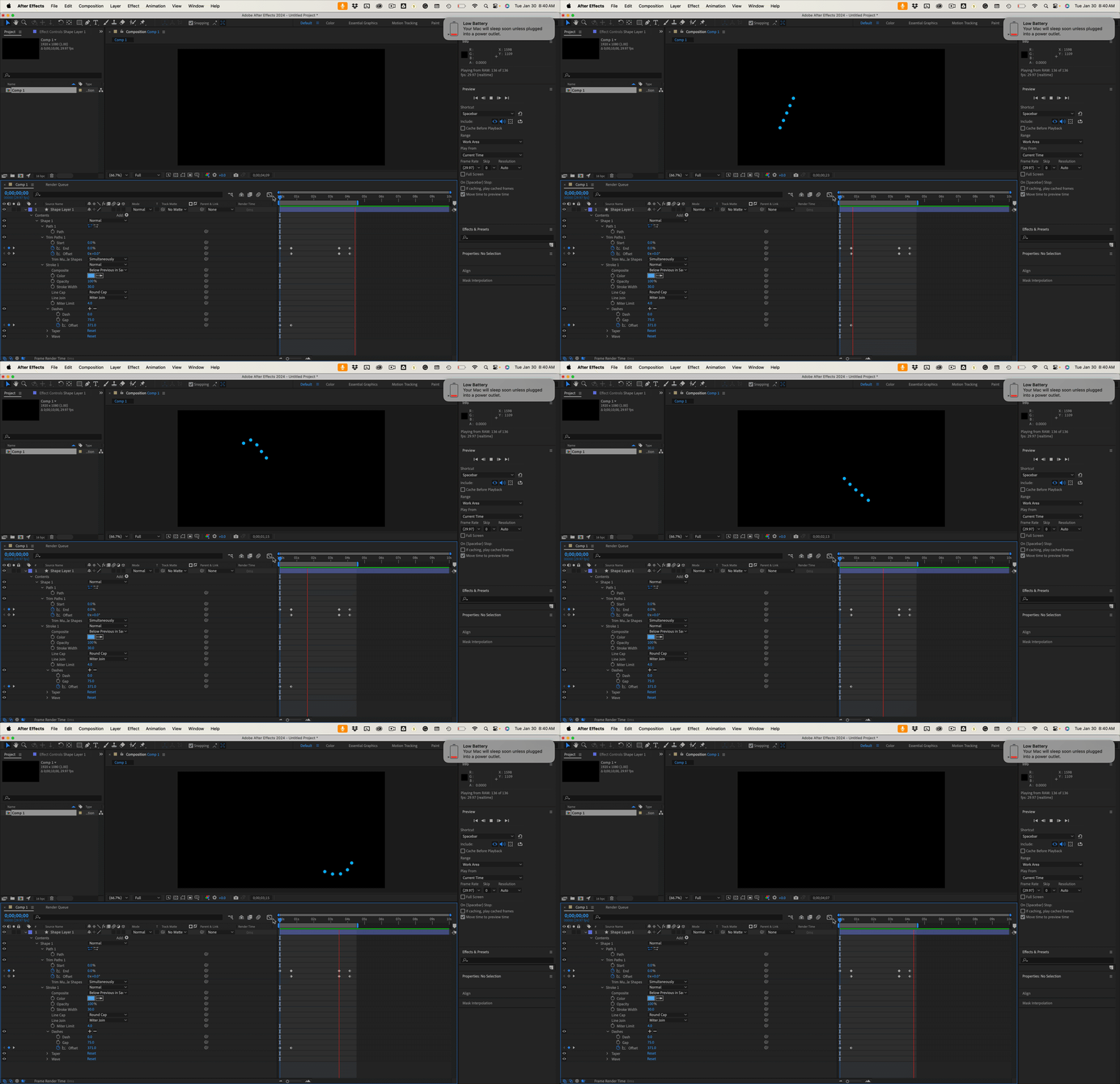
Start by setting up your dashes and gaps to get a dotted line. Then, set a Dashes/Offset keyframe at zero and another a few frames later, moving the dots to exactly five spaces. Then add trim paths, set the first Trim Paths/End keyframe at zero,  then move down the timeline, and set a second keyframe for the end to a value that reveals the five dots you want to move and the Trim Paths/Offset keyframe to zero. Move down the timeline to where you want the first dot to reach the end of the line and just the Trim Paths/Offset value to move the first dot to just before the end of the line. 


The last steps are to duplicate the Trim Paths/End keyframe, move down the timeline the same amount of time between the first two keyframes, and set the Trim Paths/Offset to 360º and the Trim Paths/End value to zero.


That should give you something like this:

It's a slightly more convoluted solution than Mylenium's text on a path solution, but it will give you the option to make the dashed like look any way you want it to look.

2 replies

Rick GerardCommunity ExpertCorrect answer
Community Expert
January 30, 2024

Start by setting up your dashes and gaps to get a dotted line. Then, set a Dashes/Offset keyframe at zero and another a few frames later, moving the dots to exactly five spaces. Then add trim paths, set the first Trim Paths/End keyframe at zero,  then move down the timeline, and set a second keyframe for the end to a value that reveals the five dots you want to move and the Trim Paths/Offset keyframe to zero. Move down the timeline to where you want the first dot to reach the end of the line and just the Trim Paths/Offset value to move the first dot to just before the end of the line. 


The last steps are to duplicate the Trim Paths/End keyframe, move down the timeline the same amount of time between the first two keyframes, and set the Trim Paths/Offset to 360º and the Trim Paths/End value to zero.


That should give you something like this:

It's a slightly more convoluted solution than Mylenium's text on a path solution, but it will give you the option to make the dashed like look any way you want it to look.

Participating Frequently
January 31, 2024

Thanks Rick, you rock!
It worked. Could you please also explain a little logic behind it to understand the technique and apply without needing to follow the steps.
Thanks again!

Mylenium
Legend
January 30, 2024

Use text on mask paths.


Mylenium

Participating Frequently
February 2, 2024

This was a LOT simpler.
Need it for for a loop path all full of dots. A problem is that linking first margin to last margin makes 2 dots connected to each other!
Any solution? 
Thanks Mylenium!