


Participant
March 3, 2024
Question

How to Reduce Mesh Warp Scope

  • March 3, 2024
  • 2 replies
  • 1029 views

Hello, is there any way to make a selection to obtain an area specific mesh warp that doesn't effect the whole picture?
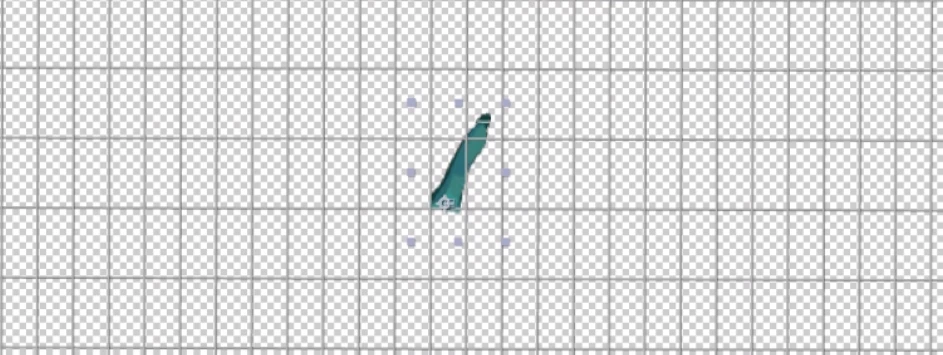
 

I'm asking this because from time to time by using mesh warp (since it applies to the whole image, as seen in the above picture) I end up having to work with either a misaligned or a generally too wide grid and it's really not ideal (the above picture already has the maximum selectable amount of rows and cols).
Thanks in advance to everyone!


This topic has been closed for replies.

2 replies

Mylenium
Legend
March 4, 2024

Invest money in a decent third-party warping effect like RevisionFX Re:Shape. The stock AE distortion effects are simply too klutzy for this kind of tiny detail work.


Mylenium

Community Expert
March 4, 2024

Mesh Warp works on Composition Space, not layer space. You have a couple of options. Both require that you put the part of the layer you want to warp on a separate layer. This may require masking, keying, or any number of other workflows. 


The first option would be to Pre-compose the layer you want to warp, move all attributes to the new comp, open the new comp, and resize the composition to include only enough area to contain your warped image. If effects have been used to isolate part of an image, you will need to pre-compose again before applying Mesh Warp to the original pre-comp or add an adjustment layer.


The other option requires that you add a mask to the layer you want to warp that limits the boundaries of the warp. The grid will still cover the entire comp panel, but if you open the timeline/Effects/Mesh Warp-Compositing options and pick the mask you just created, you can keep the mesh from distorting anything outside of the mask.