This topic has been closed for replies.
Correct answer Rick Gerard

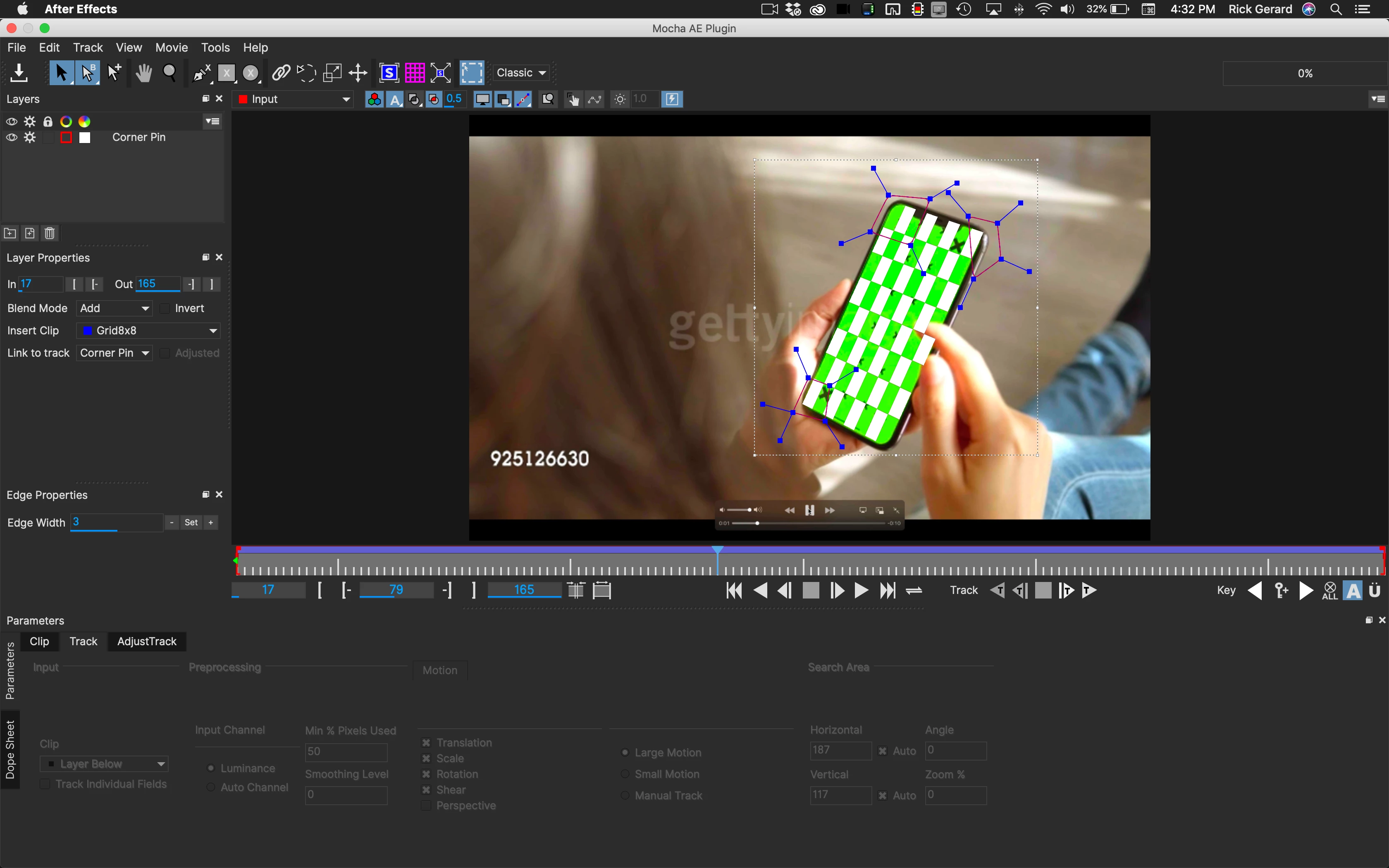
Rather than create a complete tutorial I took a few minutes to show one process for replacing the screen on a phone when there are obnoxious tracking markers on the phone. I assume you already know how to set up an efficient track in Mocha AE using multiple splines to eliminate errors caused by the moving fingers and verify the track by showing the surface, adding an image like the 8X8 grid, then saving the tracking data in the footage layer so it can be used later.
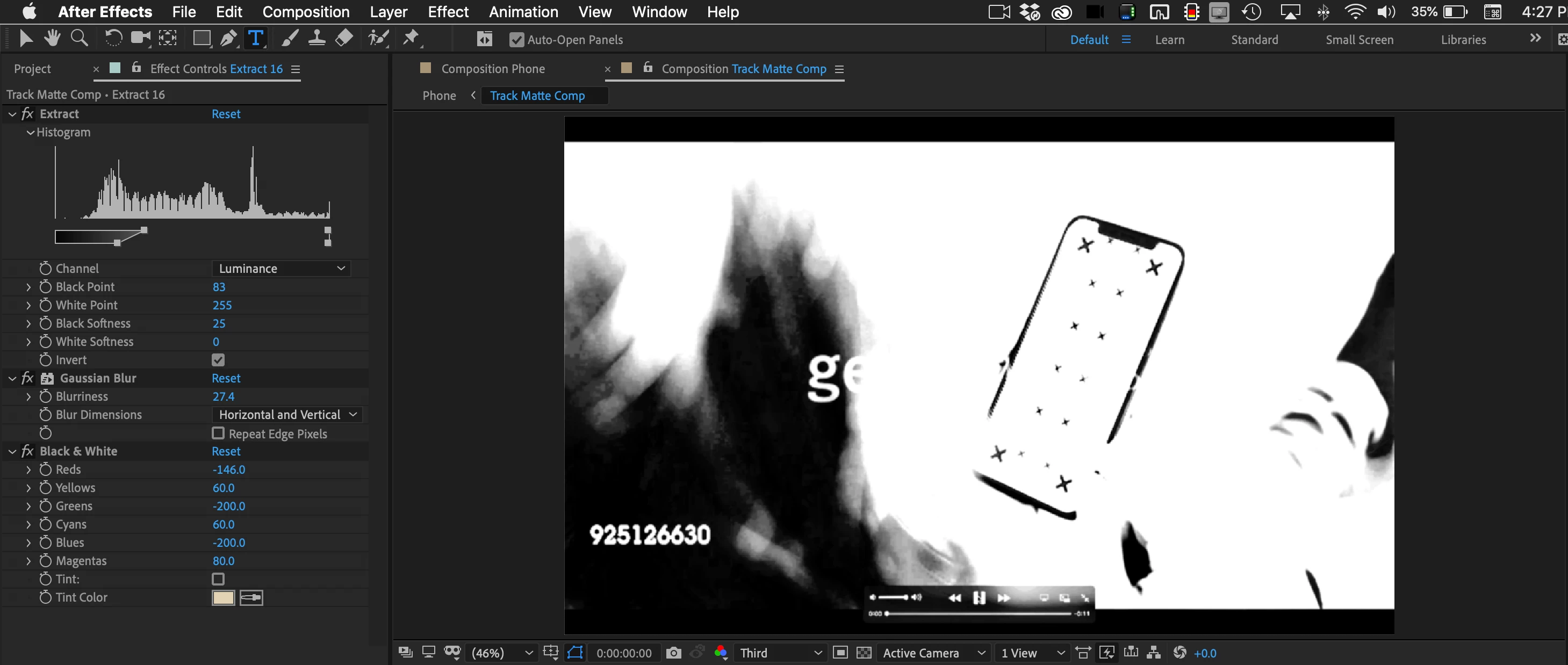
The next step is to look at the problem of the black tracking markers. Because they are black and there is not a lot of black in the fingers as they move over the tracking markers Extract from the Keying effects, plus some Gaussian blur plus the Black and White filter give us a good clean black and white screen that we can use as a luma matte to get rid of the black tracking marks.
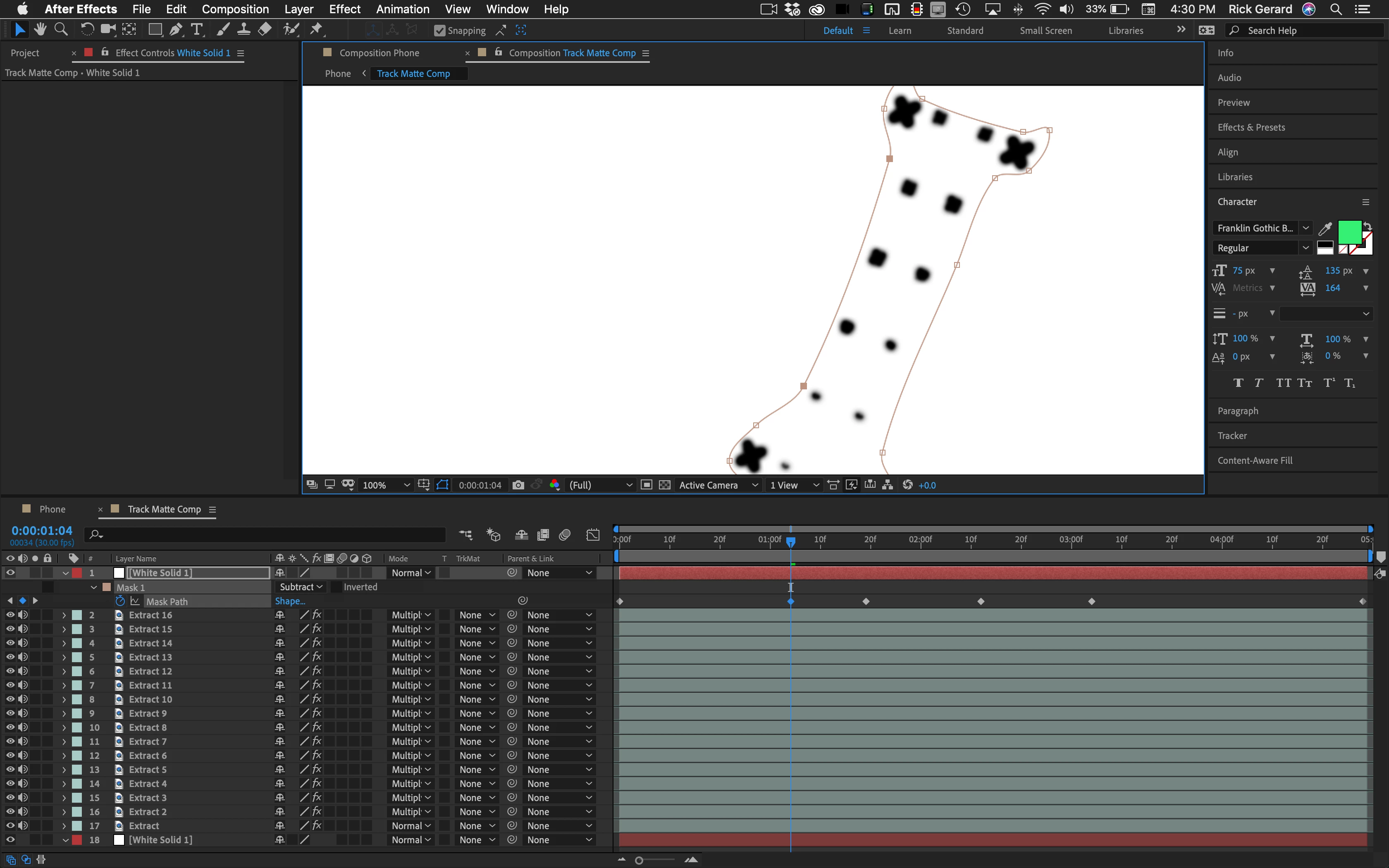
Duplicating the extract layer, setting the blend mode of the duplicates to Multiply, increasing the blur for each copy and adding a white solid with an animated mask above and a white solid below give us a clean black and white layer we can use as a luma matte with the ability to refine the edge by the number of copies and the amount of blur. For this low-quality footage, it took 17 copies to generate a good track matte for the markers.
Drop that Track Matte comp into the Main comp above the footage you need to key and set it as a Luma Track Matte then fine-tuning Keylight removes the green and the black marks. In this comp, I only had to set 6 keyframes for the mask in the top white solid to get a really good matte.
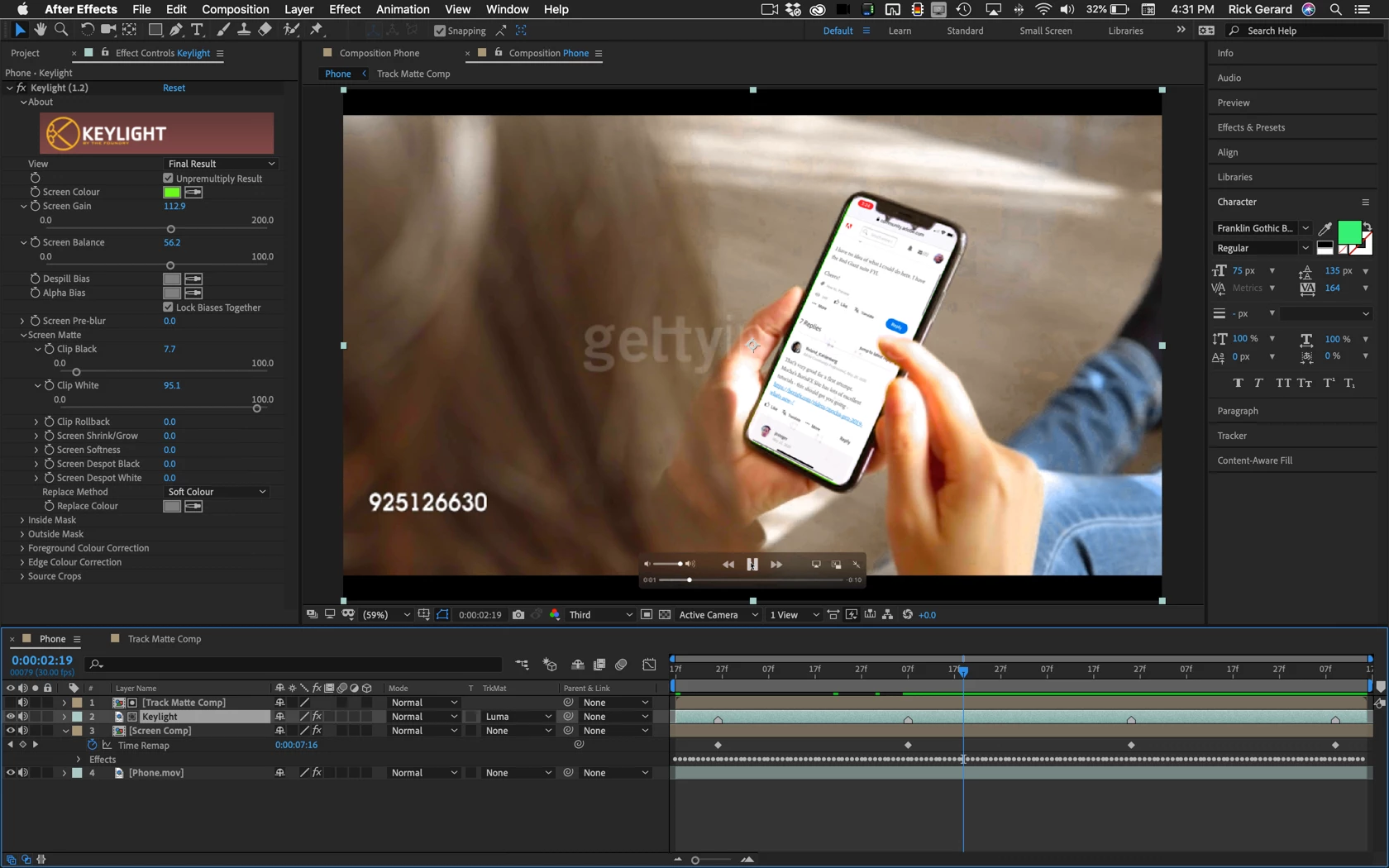
The final composite includes the Track Matte, some markers that tell me when the screen should move, a few time remapping keyframes to fix timing errors, and the comp is now ready for the final color grading.


If there are tracking markers on footage on greenscreen footage it is almost always more efficient to try and figure out a procedural way to create a matte for those markers. In this case, Extract was the most efficient tool. If the shot was different you may have had to do some additional roto over the fingers or use different techniques for removing the track marks. I had to do one a few years ago where they put blue track markers on a green screen so 2 copies of Keylight with some outside masks did the trick. For screen replacements, I always prefer that the phone just has a medium to dark gray or colored screen. Then creating the track matte is the easiest part and you can pick up reflections from the screen to add realism. A very short animated gif that shows the first test render. Timing needs improvement but the whole project and writing the post took me only about 15 minutes. I did it while I was having lunch.
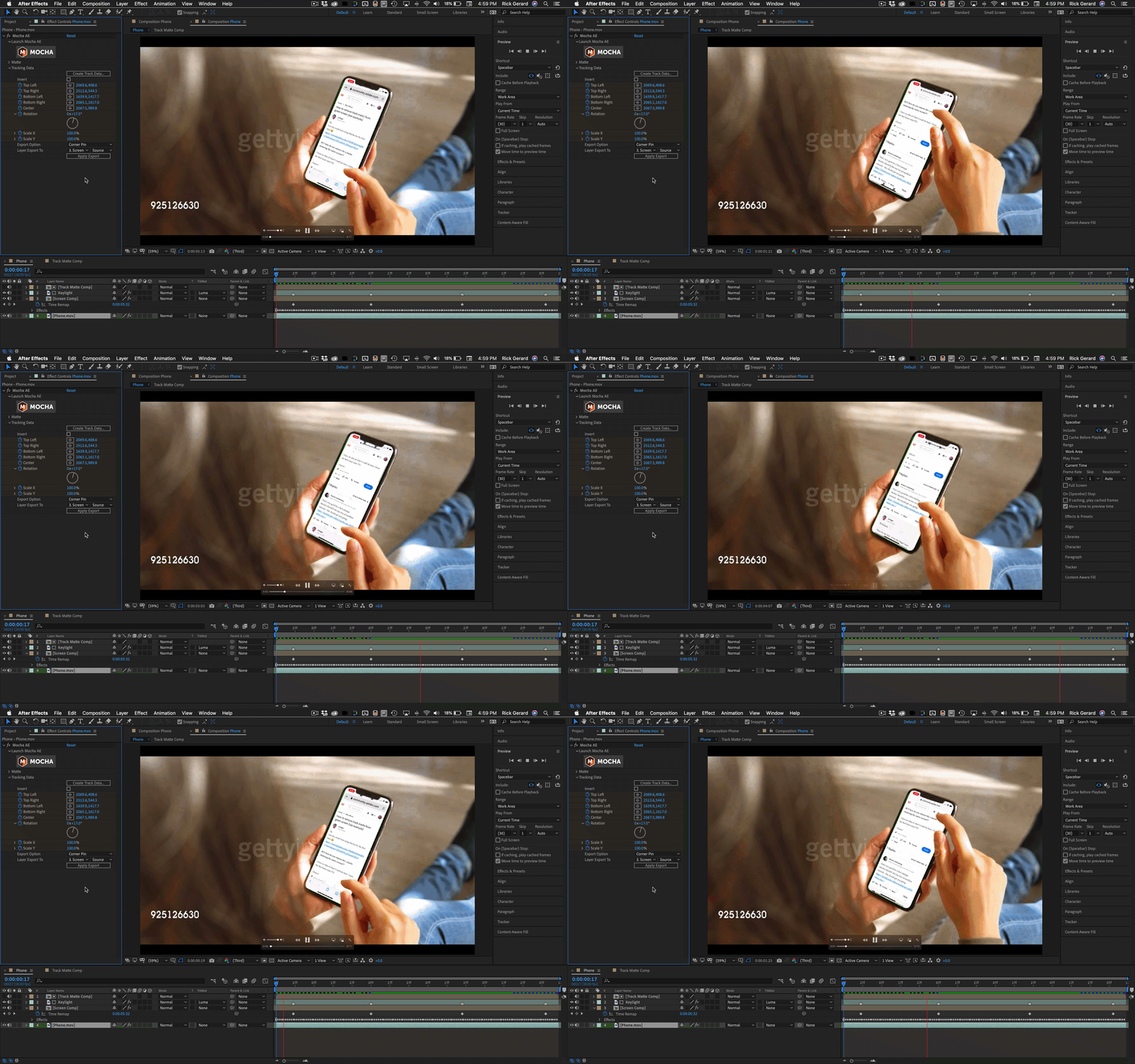
Did you notice that I put this thread on the screen?


3 replies

Rick GerardCommunity ExpertCorrect answer
Community Expert
May 29, 2020

Rather than create a complete tutorial I took a few minutes to show one process for replacing the screen on a phone when there are obnoxious tracking markers on the phone. I assume you already know how to set up an efficient track in Mocha AE using multiple splines to eliminate errors caused by the moving fingers and verify the track by showing the surface, adding an image like the 8X8 grid, then saving the tracking data in the footage layer so it can be used later.

The next step is to look at the problem of the black tracking markers. Because they are black and there is not a lot of black in the fingers as they move over the tracking markers Extract from the Keying effects, plus some Gaussian blur plus the Black and White filter give us a good clean black and white screen that we can use as a luma matte to get rid of the black tracking marks.

Duplicating the extract layer, setting the blend mode of the duplicates to Multiply, increasing the blur for each copy and adding a white solid with an animated mask above and a white solid below give us a clean black and white layer we can use as a luma matte with the ability to refine the edge by the number of copies and the amount of blur. For this low-quality footage, it took 17 copies to generate a good track matte for the markers.

Drop that Track Matte comp into the Main comp above the footage you need to key and set it as a Luma Track Matte then fine-tuning Keylight removes the green and the black marks. In this comp, I only had to set 6 keyframes for the mask in the top white solid to get a really good matte.

The final composite includes the Track Matte, some markers that tell me when the screen should move, a few time remapping keyframes to fix timing errors, and the comp is now ready for the final color grading.


If there are tracking markers on footage on greenscreen footage it is almost always more efficient to try and figure out a procedural way to create a matte for those markers. In this case, Extract was the most efficient tool. If the shot was different you may have had to do some additional roto over the fingers or use different techniques for removing the track marks. I had to do one a few years ago where they put blue track markers on a green screen so 2 copies of Keylight with some outside masks did the trick. For screen replacements, I always prefer that the phone just has a medium to dark gray or colored screen. Then creating the track matte is the easiest part and you can pick up reflections from the screen to add realism. A very short animated gif that shows the first test render. Timing needs improvement but the whole project and writing the post took me only about 15 minutes. I did it while I was having lunch.

Did you notice that I put this thread on the screen?

natural_Moonlight15A9
Known Participant
May 29, 2020

I gotta say... This community is just freaking awesome. Thanks you so much for putting in the effort to help me! 😄

I will go through this very soon - and hopefully i will be a lot wiser 😄

And yes I noticed the screen content 😉

//// RIG: CPU i9-9900K 5,0 GHz 8 core, RAM 64 GB, SSD M.2 1 TB, GPU RTX 2080Ti 11 GB, Windows 10 Pro. //// AFTER EFFECTS PLUG-INS: Red Giant Suite, 3D Elements and then some... ////
Community Expert
May 20, 2020

I am guessing that you are using Keylight to remove the green background. Forget keylight and put your replacement screen on top of the phone. When that is done, duplicate the footage layer and put it on top of the replacement screen. Then do a simple loose animated mask around the finger and apply Keylight to clean up the matte.


natural_Moonlight15A9
Known Participant
May 21, 2020

Hi Rick,

Thanks I'll try that. 😄

//// RIG: CPU i9-9900K 5,0 GHz 8 core, RAM 64 GB, SSD M.2 1 TB, GPU RTX 2080Ti 11 GB, Windows 10 Pro. //// AFTER EFFECTS PLUG-INS: Red Giant Suite, 3D Elements and then some... ////
Roland Kahlenberg
Legend
May 20, 2020

That's very good for a first attempt.
Mocha's BorisFX Site has lots of excellent tutorials - this should get you going -
https://borisfx.com/videos/mocha-pro-2019-whats-new-/

Very Advanced After Effects Training | Adaptive & Responsive Toolkits | Intelligent Design Assets (IDAs) | MoGraph Design System DEV
natural_Moonlight15A9
Known Participant
May 21, 2020

Hi Roland,

Thats for the link - it has the finger issue explained here!

Thanks!

//// RIG: CPU i9-9900K 5,0 GHz 8 core, RAM 64 GB, SSD M.2 1 TB, GPU RTX 2080Ti 11 GB, Windows 10 Pro. //// AFTER EFFECTS PLUG-INS: Red Giant Suite, 3D Elements and then some... ////