
FirstGuy
Participant
August 5, 2022
Question

How to render 3d\2d transform controls UI that show up on the main screen

  • August 5, 2022
  • 2 replies
  • 308 views

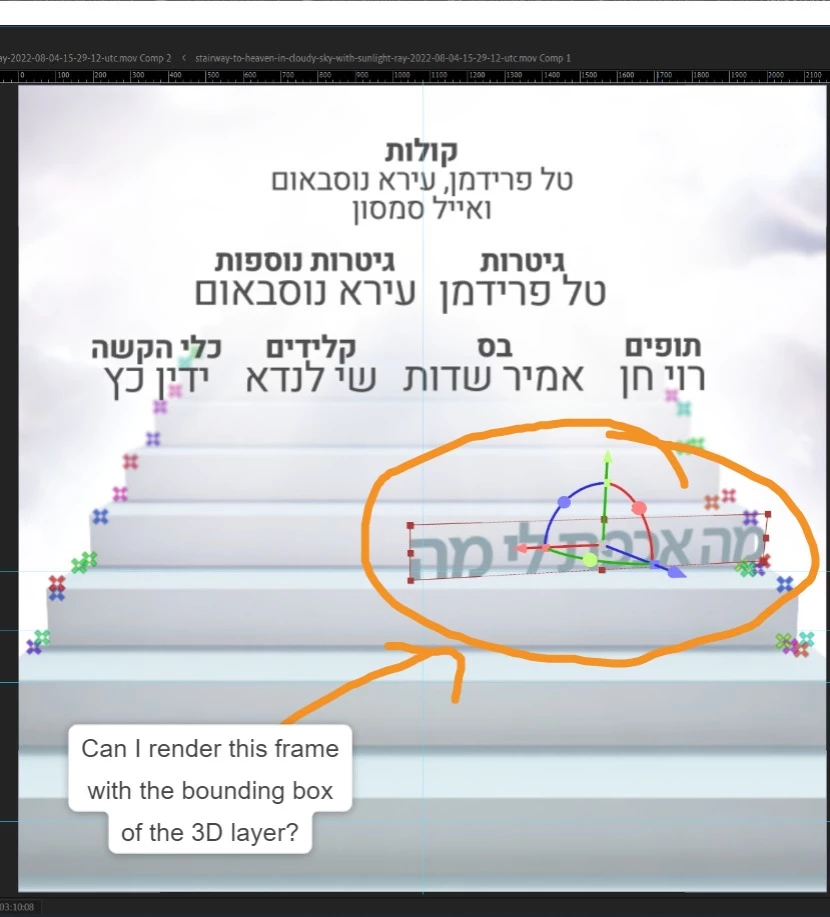
Hi, I've been wondering if there is a way that's similiar to 3D Camera Tracker's "Render Track Points", to render certein layers with the bounding box transform controlls that's surrounds them when selected.


Is there a way to avoid actually creating a layer that mimics that bounding box?
This topic has been closed for replies.

2 replies

Community Expert
August 5, 2022

You could create an Illustrator file that looks like a bounding box and then use sourceRectAtTime() to scale it to match the layer dimensions. You could also use SourceRectAtTime() to read the dimensions of a layer and center a virtual bounding box on a layer without distorting the squares in the corner or scaling the lines. That would be a more elegant solution. Now you are set for 2D layers, but you'll need a lot more calculations to keep the bounding box lined up with a 3D layer and keep all of the elements pointed at the camera, so they don't distort.


To create a 3D widget, you would have to create one layer for the X axis, one for the Y, and one for the Z, then figure out how to get the cones on the end of each axis to distort, and figure out how to hide the elements that are hidden when you click and drag on a layer. 


If you are making instructional videos, just use a good screen recording app that allows you to shore and even modify the cursor's appearance. I use Screenflow on a Mac. Lots of folks use Camtasia.

Mylenium
Legend
August 5, 2022

You can't really. Widgets are by their nature only visible in user-interactive modes. If you're doing this for instructional purposes, of course you can simply try a screen capture. Otherwise you'd have to re-create these items as genuine graphical elements and layers, which wouldn't be that hard.


Mylenium