
ChrisCrystalize
Inspiring
December 25, 2018
Answered

How to save keyframes on objects as a preset
  • December 25, 2018
  • 1 reply
  • 8420 views

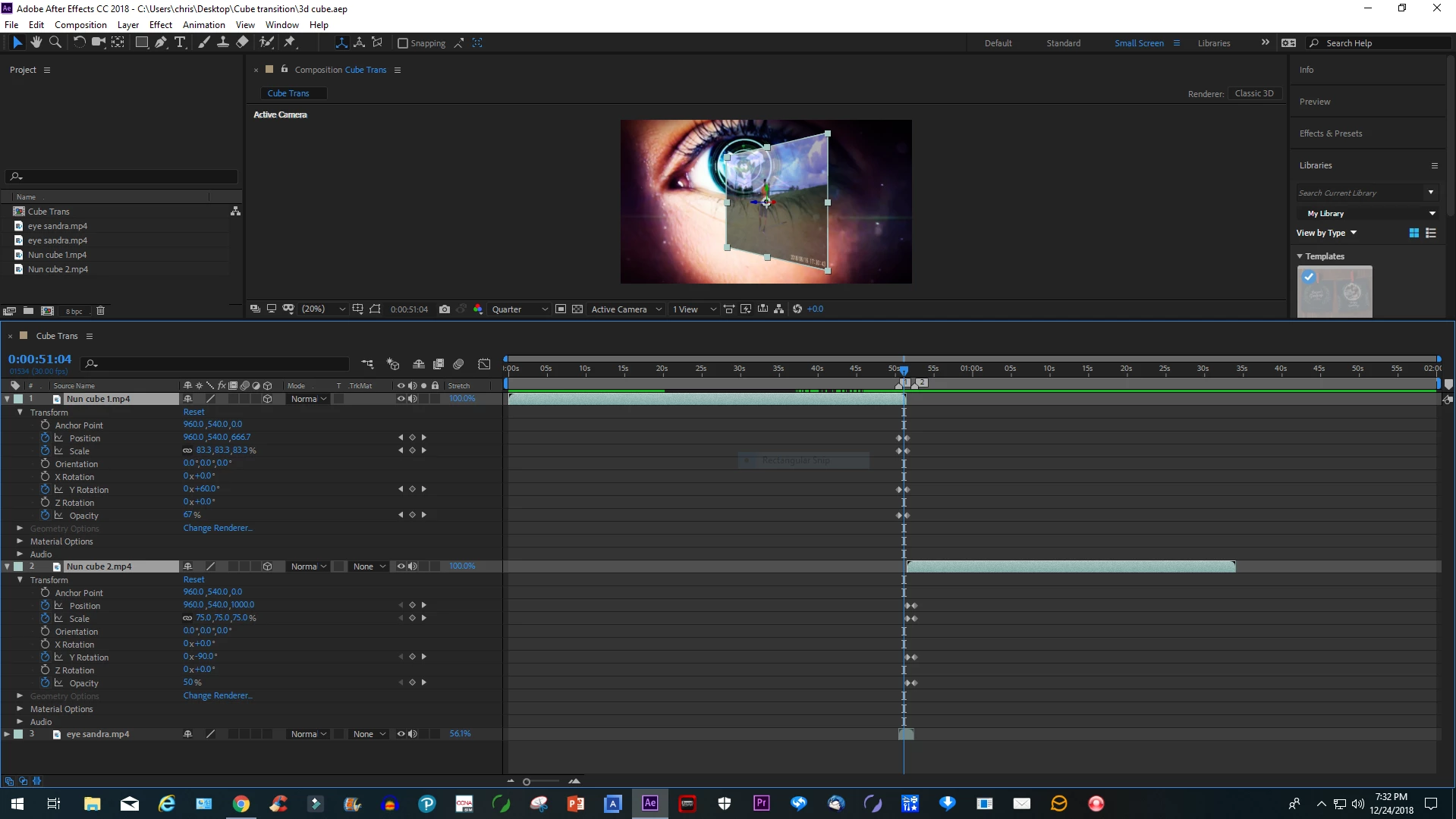
I just created my own video transition and would like to save the keyframes as a preset so I don't have to keep doing this over and over again with every video. However, when I select the two videos which are in my comp, the Save Animation Preset option is grayed out. Most instructions on the Internet deal with saving effects, not keyframes. This would save me a lot of time to just apply the preset to two videos and not have to create each individual keyframe over and over again with every video transition I wish to create. Thank you.
    This topic has been closed for replies.
    Correct answer Kristian Gabriel

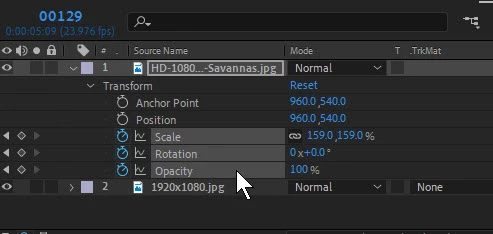
    Animation Presets and Keyframed Properties can all be recorded using Animation Presets. Most users do talk more about using Effects as Animation Presets more than properties. To save your KEYFRAMED PROPERTIES, do the following:

    1. SELECT the PROPERTIES you wish to save. For example, if you wanted to record your OPACITY and SCALING animated keyframes, SHIFT+CLICK and select the OPACITY and SCALING properties. This will also select your KEYFRAMES.

    2. Go to ANIMATION > SAVE ANIMATION PRESET... to save.

    To apply your keyframes to any future layer, just select any layer and go to ANIMATION > APPLY ANIMATION PRESET.

    For additional, more elaborate animations, I highly recommend using the GRAPHICS ESSENTIALS panel to record and export as a self-contained .MOGRT file. Hope this helps!

    1 reply

    Kristian Gabriel
    Kristian GabrielCorrect answer
    Participating Frequently
    December 25, 2018

    Animation Presets and Keyframed Properties can all be recorded using Animation Presets. Most users do talk more about using Effects as Animation Presets more than properties. To save your KEYFRAMED PROPERTIES, do the following:

    1. SELECT the PROPERTIES you wish to save. For example, if you wanted to record your OPACITY and SCALING animated keyframes, SHIFT+CLICK and select the OPACITY and SCALING properties. This will also select your KEYFRAMES.

    2. Go to ANIMATION > SAVE ANIMATION PRESET... to save.

    To apply your keyframes to any future layer, just select any layer and go to ANIMATION > APPLY ANIMATION PRESET.

    For additional, more elaborate animations, I highly recommend using the GRAPHICS ESSENTIALS panel to record and export as a self-contained .MOGRT file. Hope this helps!

    Participant
    May 9, 2019

    Thank you. I used ctrl-click on PC and I was able to save as a preset. However, when I click on the Essential Graphics panel, I don't see any way to record and export as a MOGRT. In the bottom right I see the + icon to install motion graphics template, but that's it.

    Thanks again for your help!