Three text layers and one shape layer with two rectangles one ellipse, a short stroked path, and three sliders is all it takes to get what you want. Instead of sharing all of the expressions I'll jsut share a project file.
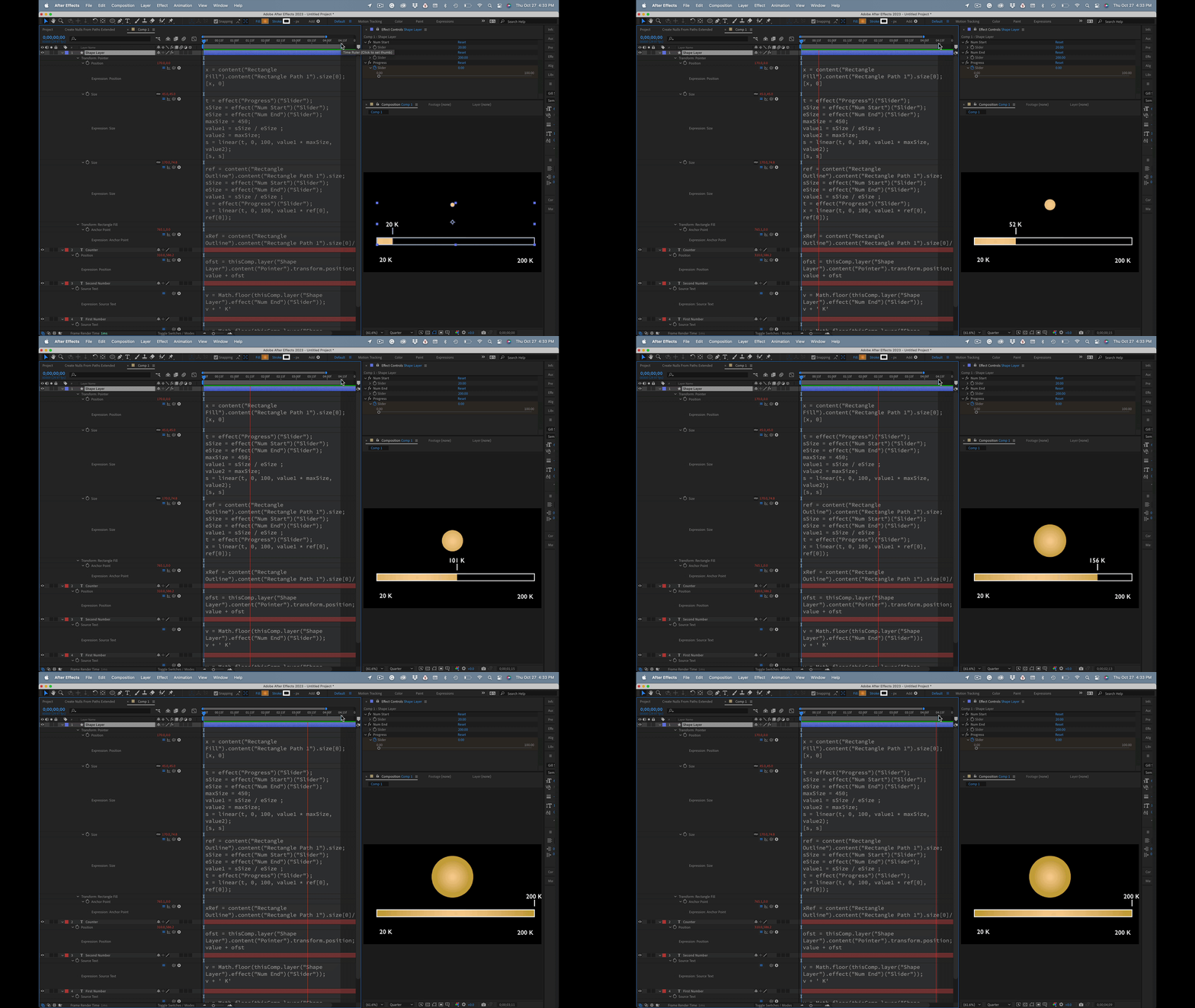
I do this kind of thing all the time.
The starting point and the workflow involve creating a Rectangle Outline and, below that, a Rectangle Fill. The size of the rectangle fill layer is controlled by a linear expression that calculates the percentage of the Start Value to the End Value, then looks at the Progress slider to grow the value so that it fills the Outline Rectangle. Here's the expression for Rectangle Fill/Rectangle 1/Size:
ref = content("Rectangle Outline").content("Rectangle Path 1").size;
sSize = effect("Num Start")("Slider");
eSize = effect("Num End")("Slider");
value1 = sSize / eSize ;
t = effect("Progress")("Slider");
x = linear(t, 0, 100, value1 * ref[0], ref[0]);

[x, ref[1]]
The Transform Rectangle Fill/Anchor point also needs an expression to keep the anchor point on the left edge of the shape so that it grows from the left. Here's that expression:
xRef = content("Rectangle Outline").content("Rectangle Path 1").size[0]/2;
x = - content("Rectangle Fill").content("Rectangle Path 1").size[0];
y = 0;

[x/2 + xRef, y]
A simple Math.round(Slider Value). expression gives you whole numbers for the text layers. That expression looks like this:
v = Math.floor(thisComp.layer("Shape Layer").effect("Num End")("Slider"));
v + ' K'
The value for the moving text layer is a little mor complex. It uses the same percentage calculation and linear method as the Rectangle Fill layer uses:
sSize = thisComp.layer("Shape Layer").effect("Num Start")("Slider");
eSize = thisComp.layer("Shape Layer").effect("Num End")("Slider");
t = thisComp.layer("Shape Layer").effect("Progress")("Slider");
v = Math.floor(linear(t, 0, 100, sSize, eSize));
v + " K"
The position for the moving text layer just uses the size value of the pointer, and the position for the pointer path just uses the size of the Fill rectangle. You just have to move the path so that it lines up with the right edge of the Rectangle Fill.
Hope this helps you figure it out.


 AdChoices