
Participating Frequently
March 26, 2024
Question

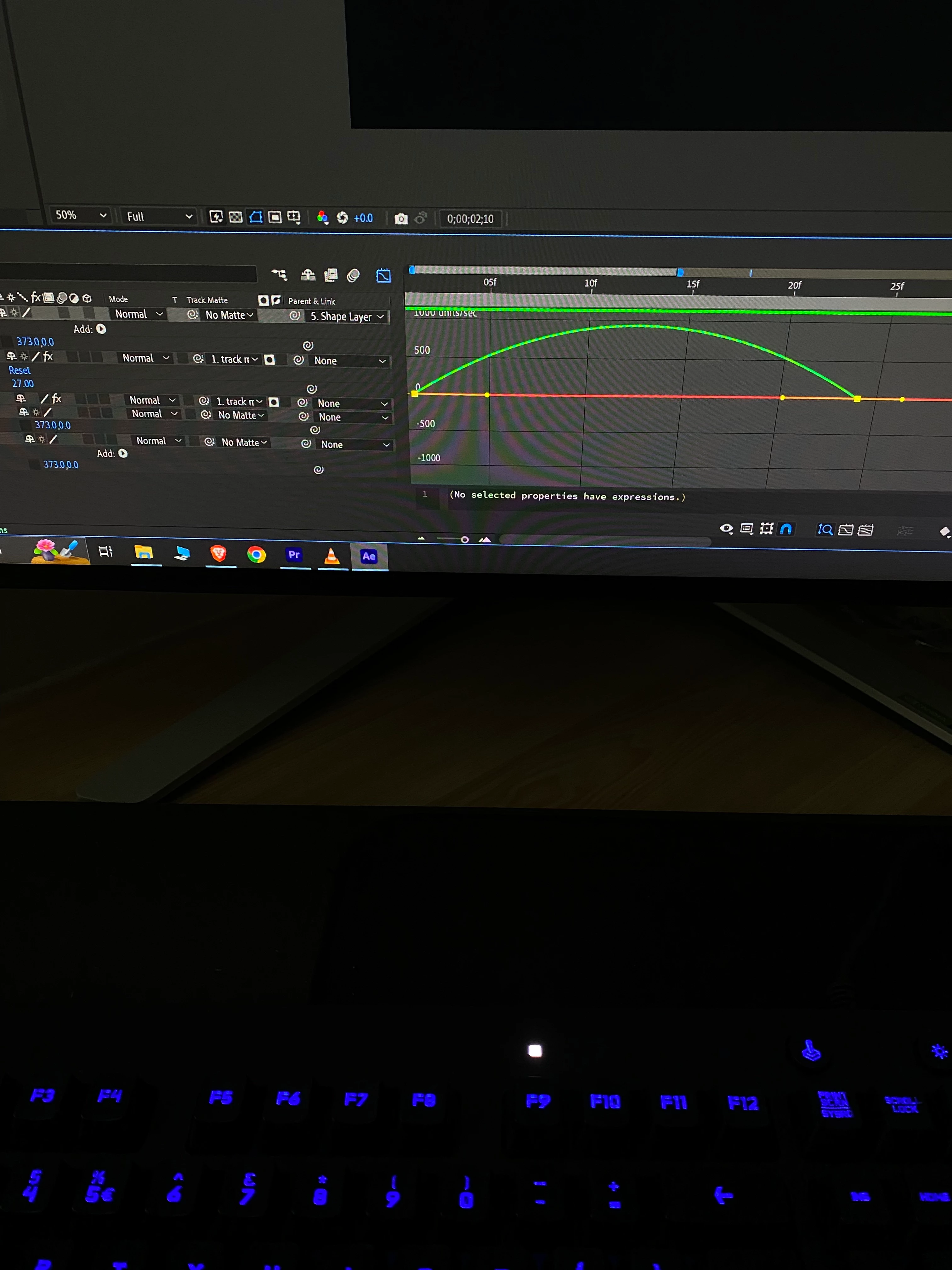
How to separate size in graph editor like position?

  • March 26, 2024
  • 2 replies
  • 634 views

Help guys!  

How to separate "size" like "position" when you constrain size properties. In graph editor it's barely possible to select X graph to animate. 

Is there a solution guys help please! 
This topic has been closed for replies.

2 replies

Community Expert
May 7, 2024

It's nearly impossible to control a motion path using the Graph Editor. Don't separate dimensions, and use the Speed Graph to control timing and the Pen tool (g) in the Comp Panel to control the motion path accurately. 


Tying the scale properties to appropriate sliders with expressions and then editing the sliders is probably the most efficient way of getting separate graphs, but if you unlink the Scale Property so you can individually adjust the sliders, you can use the pen tool and the selection tool in the Graph Editor to individually edit the X, Y, and if needed the Z scale on a layer. You need to have the Graph Editor set up as shown in this screenshot, by right-clicking on the graph area and selecting Auto Zoom, Selected Properties, and Value Graph.  Your screenshot shows the Speed Graph and that graph only shows you how fast the values in the array change. It gives no clue to the scale values.  

Here's a tutorial I did on editing position and controlling timing with the graph editor. I hope you find it useful.

My Quick Tips Playlist

Legend
March 26, 2024

Maybe using 2 slider controls (x Scale and y Scale)

x= effect("x Scale")("Slider");
y = effect("y Scale")("Slider");
[x, y]


Ray_ariaAuthor
Participating Frequently
May 6, 2024

It worked thanks