Inspiring
December 12, 2017
Answered

How to use green screens partially covered by moving subject?

  • December 12, 2017
  • 2 replies
  • 671 views

Hello all,

This is a very basic question that might be as relevant to a premiere forum or some other, so please let me know if this thread should be moved.

Here is a screenshot of a comp that can be found here: Engineer looks at the green screen and talking on the radio inside the control room. - Stock Video Footage - Dissolve
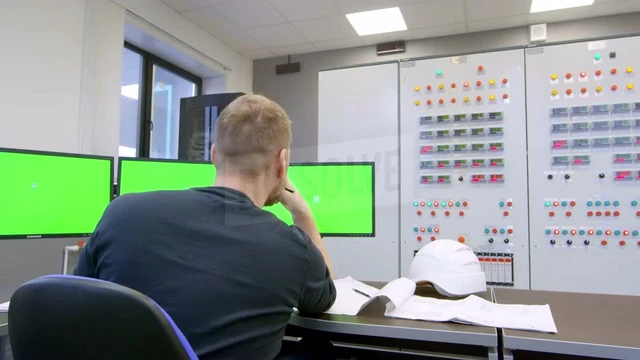
This is just an example of the issue I am trying to get to grips with. If the computer screens were all in a clean shot, unimpaired by the guy moving in front of them, I would know how to fill the screens with motion graphics. Indeed, I wouldn't have to use the green screens though they do make it easier to see. What I don't know (yet) is how to use the screens as they stand, partially obscured by the guy in front. I know how to key out the green screens, but as the guy in front moves constantly, I am not sure how the keying should be made to adapt.

This may require what I understand is called rotoscoping. I don't expect a full tutorial here, of course, but I would be grateful for he main workflow pointers. If you have a link to a relevant tut, all the better.

Thank you for your suggestions.

Best

Chris
    This topic has been closed for replies.
    Correct answer Rick Gerard

    The reason you would use a green screen is to avoid rotoscope. Properly keyed out the greenscreens will become transparent and you will not have to worry about the guy moving around in front of them. You just put your graphics below the footage layer instead of above it.

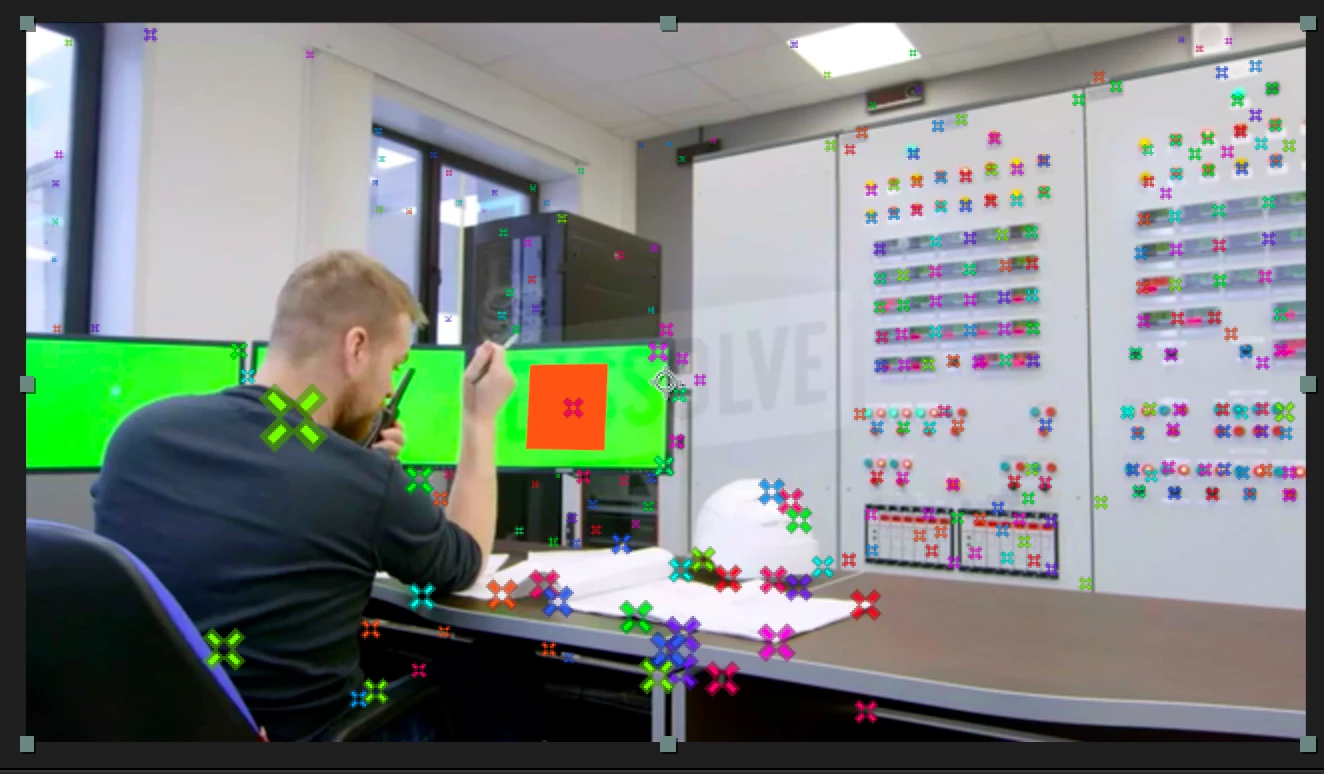
    Because of the camera movement in the scene, you will have to do some tracking. Camera Tracking is not going to work very well because the middle and left screens do not have enough detail to ever end up with more than 2 tracking points so there is no way to accurately locate those planes.

    It is pretty easy to stick a solid to the right screen, the desktop, and the controls, but that does not solve your problem.

    Because of the changing perspective caused by the pan and camera move motion stabilizing can lock a couple of corners in place but it would require you to match the perspective manually by keyframing the corner pins you use to line up your graphics with the screens.

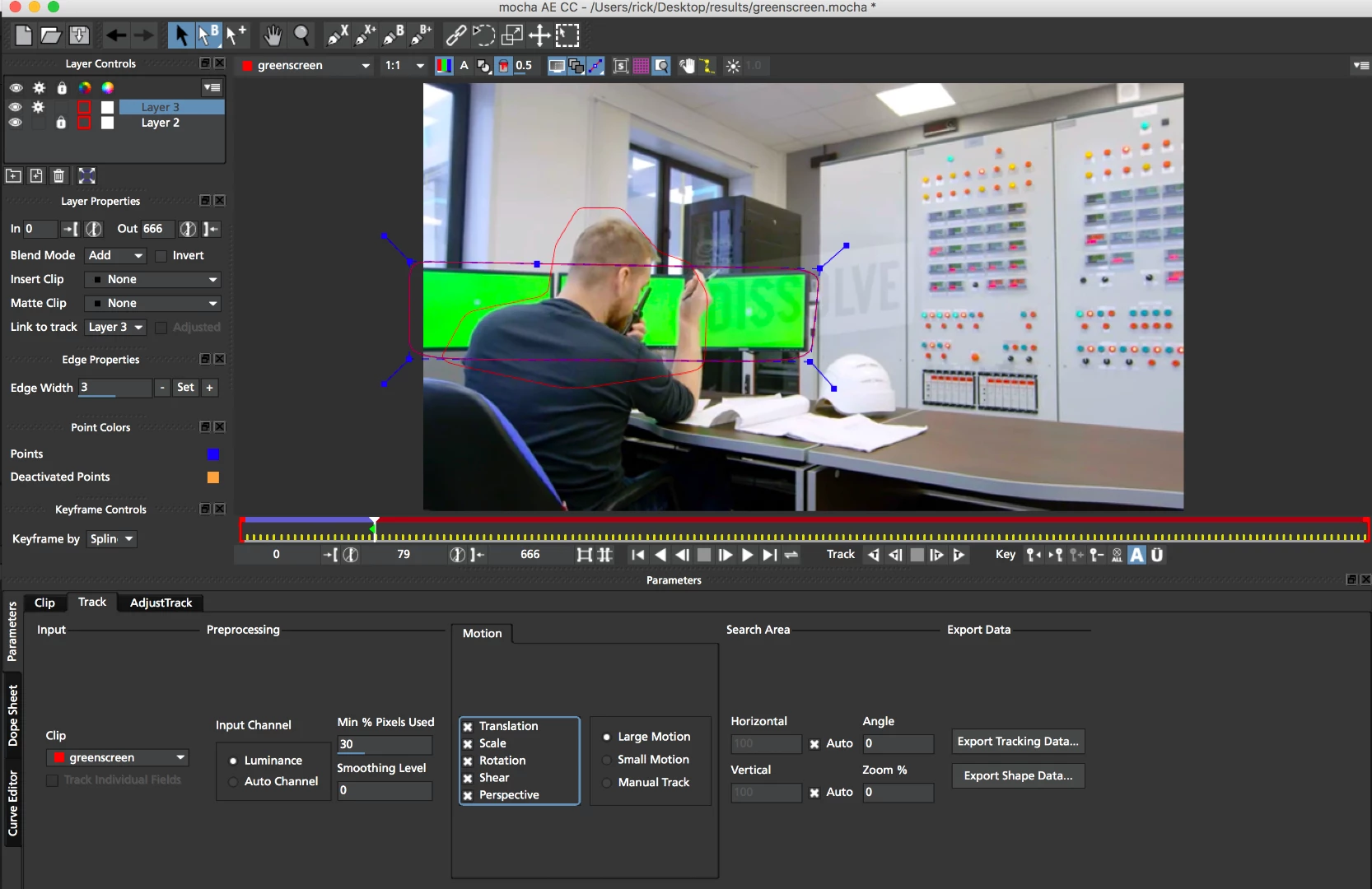
    I think the easiest solution would be to use Mocha AE and corner pin all of the screens as a single plane. You will have to use a hold out mask in Mocha to keep the actor from fouling up the track but that is pretty easy.

    Then I would use this Advanced Corner pin technique to replace the screens. You just put the replacements on the bottom layer.

    I think you'll get it. I didn't take the time to try the whole project but from what I can see you'll have better luck hand keyframing the perspective changes if you use Mocha AE.

    2 replies

    Rick GerardCommunity ExpertCorrect answer
    Community Expert
    December 12, 2017

    The reason you would use a green screen is to avoid rotoscope. Properly keyed out the greenscreens will become transparent and you will not have to worry about the guy moving around in front of them. You just put your graphics below the footage layer instead of above it.

    Because of the camera movement in the scene, you will have to do some tracking. Camera Tracking is not going to work very well because the middle and left screens do not have enough detail to ever end up with more than 2 tracking points so there is no way to accurately locate those planes.

    It is pretty easy to stick a solid to the right screen, the desktop, and the controls, but that does not solve your problem.

    Because of the changing perspective caused by the pan and camera move motion stabilizing can lock a couple of corners in place but it would require you to match the perspective manually by keyframing the corner pins you use to line up your graphics with the screens.

    I think the easiest solution would be to use Mocha AE and corner pin all of the screens as a single plane. You will have to use a hold out mask in Mocha to keep the actor from fouling up the track but that is pretty easy.

    Then I would use this Advanced Corner pin technique to replace the screens. You just put the replacements on the bottom layer.

    I think you'll get it. I didn't take the time to try the whole project but from what I can see you'll have better luck hand keyframing the perspective changes if you use Mocha AE.

    Inspiring
    December 12, 2017

    Thanks a lot Rick. Sounds like a fair amount to mearn so I'll try it in small chunks. I'll watch the tut too.

    Mylenium
    Legend
    December 12, 2017

    Well, the screens are static, are they not? So all that is required is to draw a simple mask around them matchin theri corners and define it as an inside/ outside mask in Keylight, aka "garbage matte". Even if the camera moves, it is simple enough to adapt the mask shape with a bunch of keyframes. Once you have the key, you can use the resulting matte in whatever fashioon you fancy, including as a matte on your graphics which you pin to the screens using tracking or manually placing it in a static shot. There's really no magic beyond that. It realyl only comes down to generating your key and constraining it further with a mask to produce a clean matte.

    Mylenium

    Inspiring
    December 12, 2017

    The screens are not static in that the camera moves and so does the guy in front in the actual clip. Or is that not what you mean?

    Community Expert
    December 12, 2017

    I explained how to deal with the moving camera and perspective changes. There will be some manual keyframing involved. Either Motion Stabilize or probably better and easier, try the Advanced Corner Pin technique I posted. If you run into problems let us know. The green screen is not the difficult part of this problem, the perspective changes on the screens is the problem that will require some hand keyframes because the folks that shot the footage did not consider the tracking problems that would come up with this shot.

    A half-dozen pieces of blue masking tape on the screens would have made the job a lot easier and shaved a couple of hours off the composite.