
Participant
January 13, 2021
Answered

I'm trying to edit a Twitch clip and give each person who talks a text layer.

  • January 13, 2021
  • 3 replies
  • 575 views

Hi all,

I'm quite new to AE, watched tutorials and went through the tutorials in AE itself.


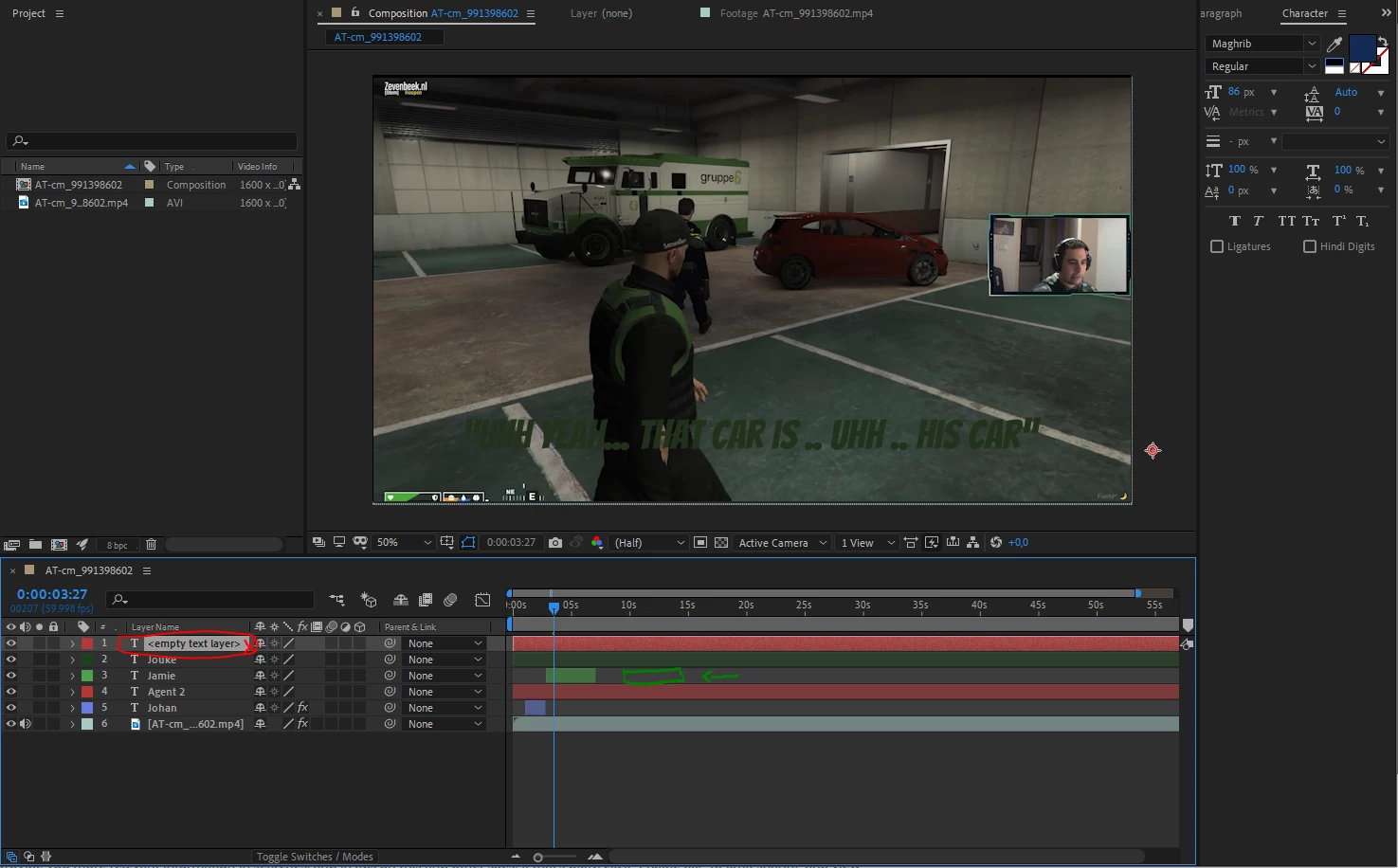
What I'm trying here is giving subtitles for every person who talks. Everyone has his own color and layer (see the names of the layers). Now everytime whenever I try to add new text in the same layer, AE makes a new layer. I don't want that. I want to add new text for the same person, 4 seconds later in the video without having to create a new layer. Isn't it possible to have multiple text lines or create multiple of those colored bars in the same layer?


Or do any of you guys know how to create proper subtitles for every person who talks. I tried creating a layer for each person and give them a seperate color but it doesn't work the way I thought it would.


I've added an image for better understanding.
 

This topic has been closed for replies.
Correct answer Rick Gerard

You can set keyframes for text and keyframes for layer opacity. All you have to do to change the text on a frame is set a keyframe for Source Text, move down the timeline, then type in a new word. To make the text disappear for a while, set opacity keyframes. If your comp is just a few seconds long then it is probably Ok and fairly efficient to do this in After Effects, but if you are dealing with a movie that is longer than a few seconds Premiere Pro is the most logical choice.


The Subtitling options for Premiere Pro have gotten a lot better. Here's a tutorial. There are even options to set audio track layer markers and have them automatically change the text based on the position of the marker. 


3 replies

Rick GerardCommunity ExpertCorrect answer
Community Expert
January 14, 2021

You can set keyframes for text and keyframes for layer opacity. All you have to do to change the text on a frame is set a keyframe for Source Text, move down the timeline, then type in a new word. To make the text disappear for a while, set opacity keyframes. If your comp is just a few seconds long then it is probably Ok and fairly efficient to do this in After Effects, but if you are dealing with a movie that is longer than a few seconds Premiere Pro is the most logical choice.


The Subtitling options for Premiere Pro have gotten a lot better. Here's a tutorial. There are even options to set audio track layer markers and have them automatically change the text based on the position of the marker. 


Community Expert
January 13, 2021

I've never made subtitles in Premiere but a Google search came up with many tutorials, the latest, 14.8, version is meant to be better than earlier versions

Community Expert
January 13, 2021

You might be better off doing this in Premiere.

JeerusAuthor
Participant
January 13, 2021

Alright, so what I'm trying to do is more achievable in Premiere?