Participant
June 20, 2018
Answered

Illustrator File To AE 3D Questions

  • June 20, 2018
  • 2 replies
  • 853 views

Hey everyone!

I tried searching for these questions, but I don't think I know the appropriate verbiage to find the right posts. I am making a 3D video intro for a client based on their logo in Illustrator and I have a few questions:

1. When I take that file into AE, it shows up as very small on the 1920x1080 comp. I can scale it up, but was wondering if there was a better way to prep the AI file before import so it matches the dimensions?

2. If I take the AI file and import to AE and "create shapes from vector layer," the logo becomes 3D but the text does not. I then went back to AI and turned the typography into shapes before importing it into AE. This worked with the exception of letters with holes in them (a, e, b, etc.) Is there a way to turn typography into 3d shapes in AE without turning them into shapes in the AI file? Or what is the workout once they are shapes in AI and imported into AE to avoid the issue shown below?
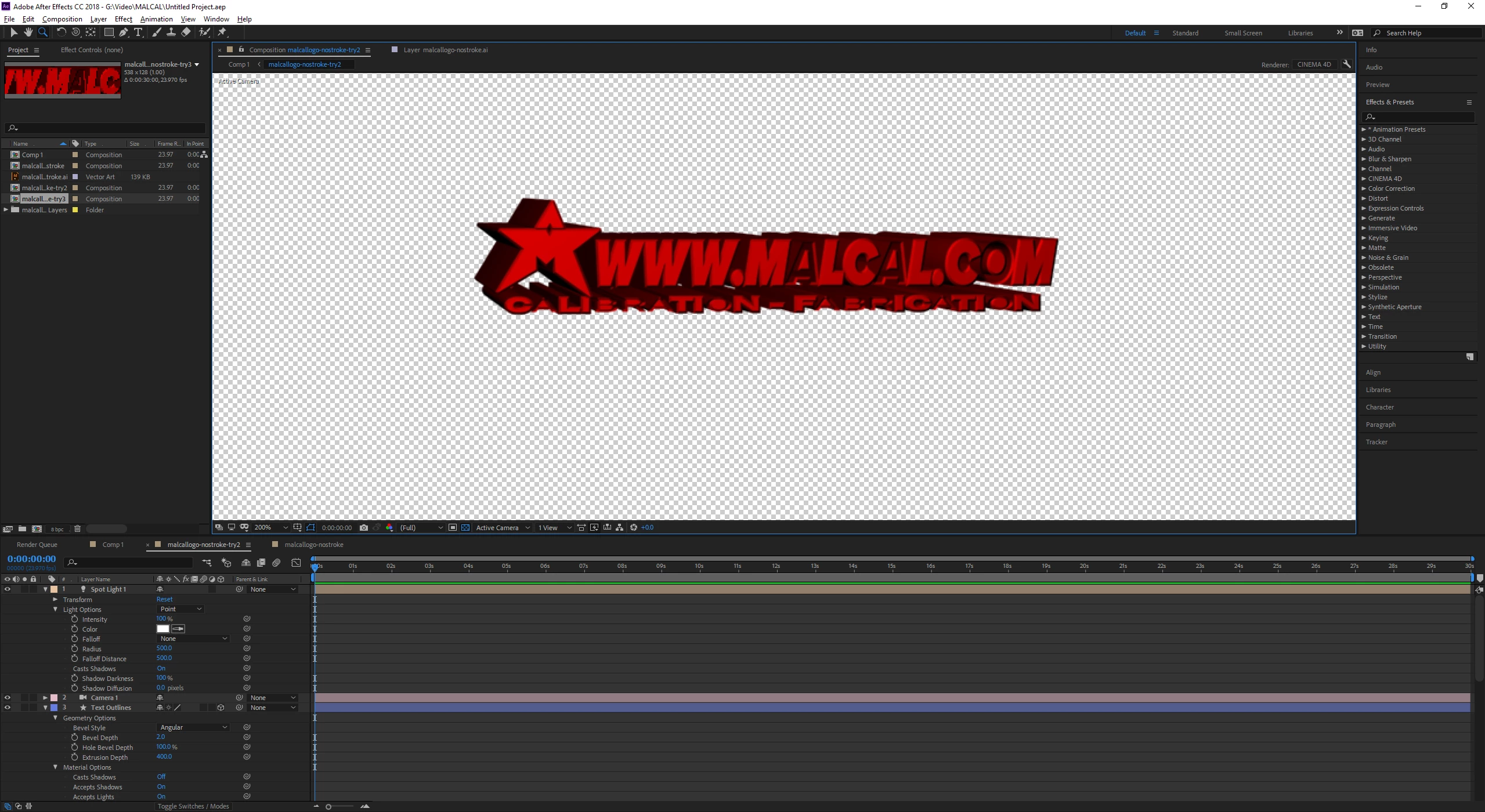
Thank you in advance for your help! Like I said I tried to find answers but don't know the right way to ask my question; if there is a link to another question or tutorial I'd be very grateful!

This topic has been closed for replies.
Correct answer tonyc44652235

Turns out it was an error caused by using the font "Proxima Nova". Using another font avoided the hole making issue I had!

2 replies

Kyle Hamrick
Community Expert
Community Expert
June 21, 2018

re: very small when bringing into AE
Make sure you're working at 100% magnification in Illustrator. Since Ai allows you to zoom WAYYY in without quality loss, it's sometimes easy to work at 800% magnification without even realizing it. When you bring it into AE, you now have this teeny little thing you'll have to scale way up to work with.

Almost every time I get a logo/vector from a client, I save my own version of it to bring into AE. I can scale, dissect, etc. and always have the original to revert to if needed.


re: text holes - Your solution is better, but for future reference...
When converting text to shapes (or especially when converting to outlines in Ai then pushing to AE), you'll sometimes need to tinker with the shape paths/groups within the shape layer to get the holes to display correctly.

Participant
June 27, 2018

Thanks for the info!

How does one go about "tinkering" with the paths to get the holes to display correctly? Do you have a video or tutorial you can link to so I can see how it's done!

Thanks for the reply and sorry for my delayed response!

Kyle Hamrick
Community Expert
Community Expert
June 27, 2018

I've seen instances where a letter with a cutout - let's say a lower-case "a" - when converted may not display properly, though you can SEE that it has the appropriate paths. It usually converts fine, but certain combinations of the font, how you're using it in AE, etc. will sometimes do this.

You may need to twirl open your shape groups to explore a bit. While these shouldn't need a Merge Paths operator to display correctly,  in theory, sometimes adding one to that particular letter (likely set to "Subtract") will be the ticket to getting it to display those cutouts correctly.

Bonus - if you aren't using Merge Paths already, I highly recommend exploring them and how they can help really level up your shape layer usage!

tonyc44652235AuthorCorrect answer
Participant
June 21, 2018

Turns out it was an error caused by using the font "Proxima Nova". Using another font avoided the hole making issue I had!