Participant
November 17, 2017
Answered

Illustrator layer getting cut off when rotated in After Effects

  • November 17, 2017
  • 4 replies
  • 4499 views

I've just posted this in the Illustrator forum as well.  Not sure if double posting is frowned upon--but this is potentially a double app issue...

This started happening to me a couple of weeks ago, when working with an Illustrator file provided by a client inside of After Effects: some assets/layers from the AI file, when rotated in AE, get "cut off" at certain points along the rotation.  So I've got a layer, static.  I rotate it.  At some point in the rotation part--not all--of the layer "vanishes", like it's been matted/masked, then comes back.  I thought this was maybe an anomaly/glitch associated with the AI file that came from the client--but it's just happened again with another file, from a different client; and it's happening on two different computers.

A workaround I discovered was to make the "offending" layer 3D.  The vanishing stopped.  But why?  Why is this happening????  Never had it before, now suddenly happening in two separate instances...

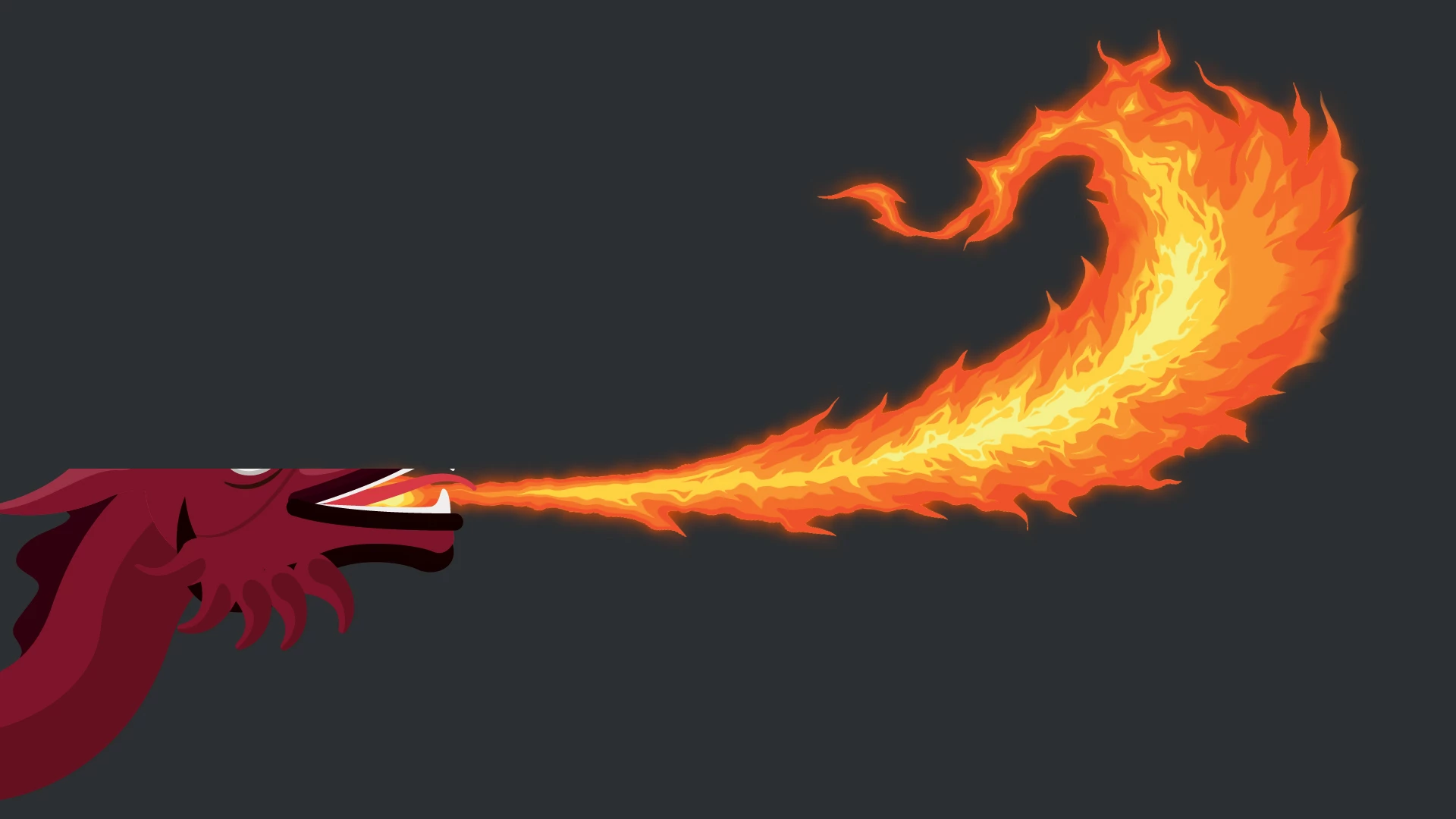
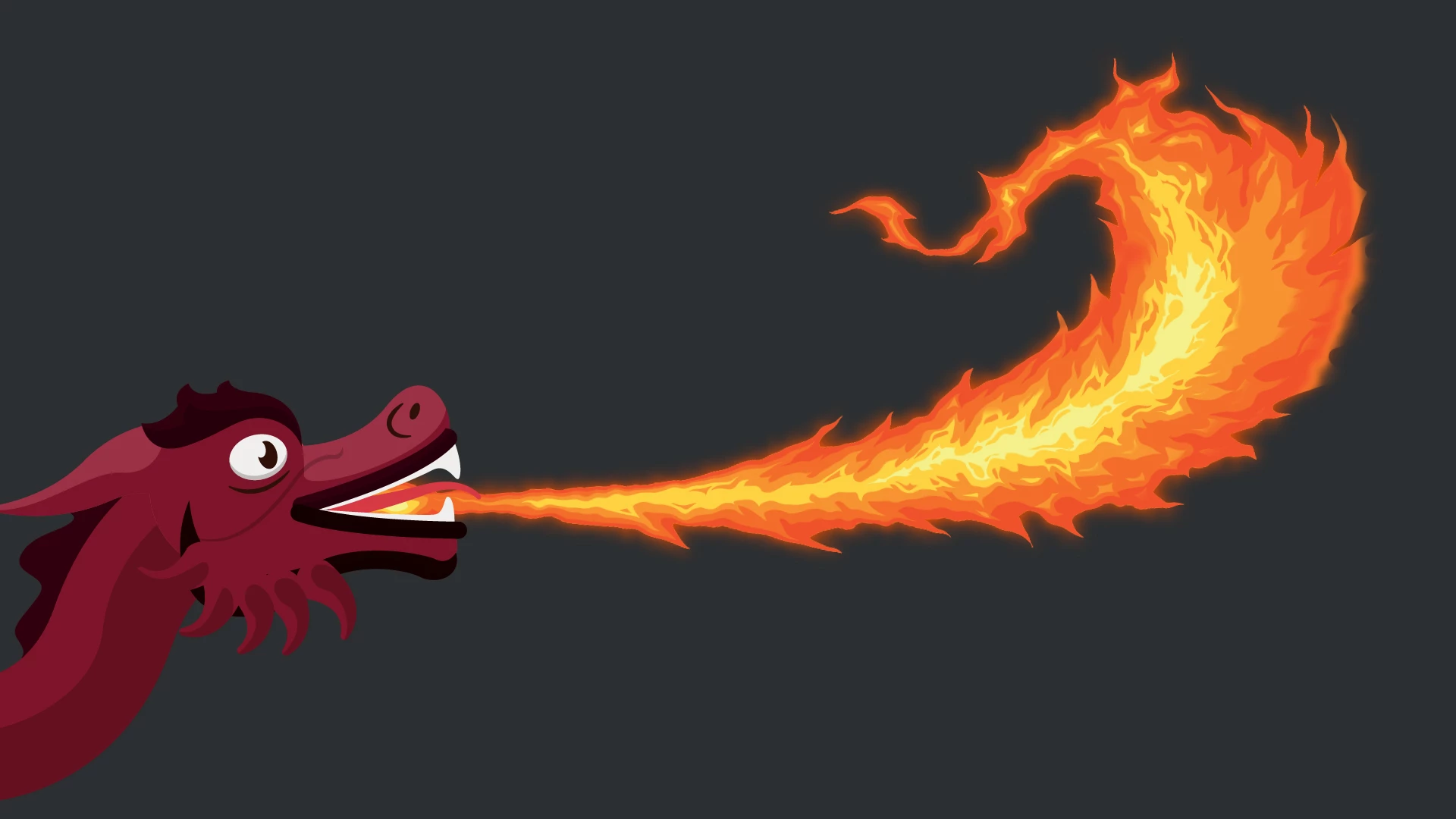
Sample images attached of most recent occurrence, showing what happens to the layer going from a rotation of -4 to -5.  The dragon is the layer that's being rotated--and part of its head is being cut off at -5 rotation, but then comes back at -6.  As far as I can tell, the -5 is completely arbitrary: it's happening at different rotation values with different layers.

Really strange and really frustrating!
    This topic has been closed for replies.
    Correct answer Roei Tzoref

    you should isolate the problem. remove other layers and effects and see again. this might help. another thing to check and what I am most suspicious about is the illustrator fine - see that it has only one artboard and that it's reasonably sized (here's a similar anomaly with a very big artboard) . Ai artboard can cause all kinds of anomalies in Ae projects. you could also create and HD preset and copy paste your layers there and import - see if you get the same behavior.

    4 replies

    Roland Kahlenberg
    Legend
    December 16, 2020

    Most pros who have an AI-to-AE or even an AE-to-AI workflow have been using the Overlord Extension.

    https://www.battleaxe.co/overlord

    Very Advanced After Effects Training | Adaptive & Responsive Toolkits | Intelligent Design Assets (IDAs) | MoGraph Design System DEV
    Participant
    December 16, 2020

    I also solved this by redrawing a new artboard in illustrator - seemed to fix it for me

    Participant
    March 18, 2023

    this worked for me, thanks so much for sharing!

    Participant
    November 18, 2017

    Hello both--thanks for your quick responses.

    To answer your point, Warren: there is no X Rotation, as it's a 2D layer.  Enabling the 3D switch removes the problem.  Also, the dark background is not a layer--just the comp background colour.

    Rick: new, full, screenshots attached.  One of my original setup, one with 3D switch enabled and a third with Continuously Rasterise unchecked; which, I've just discovered, also removes the problem.  So that leads me to think it's a Continuously Rasterise issue / limitation..?

    Roei Tzoref
    Roei TzorefCorrect answer
    Legend
    November 18, 2017

    you should isolate the problem. remove other layers and effects and see again. this might help. another thing to check and what I am most suspicious about is the illustrator fine - see that it has only one artboard and that it's reasonably sized (here's a similar anomaly with a very big artboard) . Ai artboard can cause all kinds of anomalies in Ae projects. you could also create and HD preset and copy paste your layers there and import - see if you get the same behavior.

    Participant
    November 19, 2017

    That looks like a very similar anomaly; thanks for the link.  Doesn't quite solve my problem though!  But it does give me a direction, I suppose.

    The AI artboard is actually quite big: 2764px x 7207px; so maybe that's the problem..?  Is that a known bug, in some instances, though--or just an anomaly..?  I guess I'll break the AI file / artboard into smaller pieces and save them separately.

    Thanks

    Warren Heaton
    Community Expert
    Community Expert
    November 17, 2017

    It looks like you're tilting the dragon layer (adjusting the X Orientation or the X Rotation) such that the top portion of the dragon is going behind the gray layer behind it.

    Hide the gray layer behind it (you'd probably want to set the Comp Background Color to match the gray color as a replacement) or adjust the gray layer's Z Position to a higher value to send it further back into Z space.

    -Warren

    Community Expert
    November 17, 2017

    Cropped screenshots leave us guessing. Show us the entire user interface with a modified properties of the layers giving you problems revealed. Just press the u

    key twice and print screen then paste to the forum.

    There has to be something you have set up incorrectly in the composition.