
Jan28471859ipll
Participant
March 25, 2023
Question

Importing a 3d Illustrator file into After Effects

  • March 25, 2023
  • 3 replies
  • 2578 views

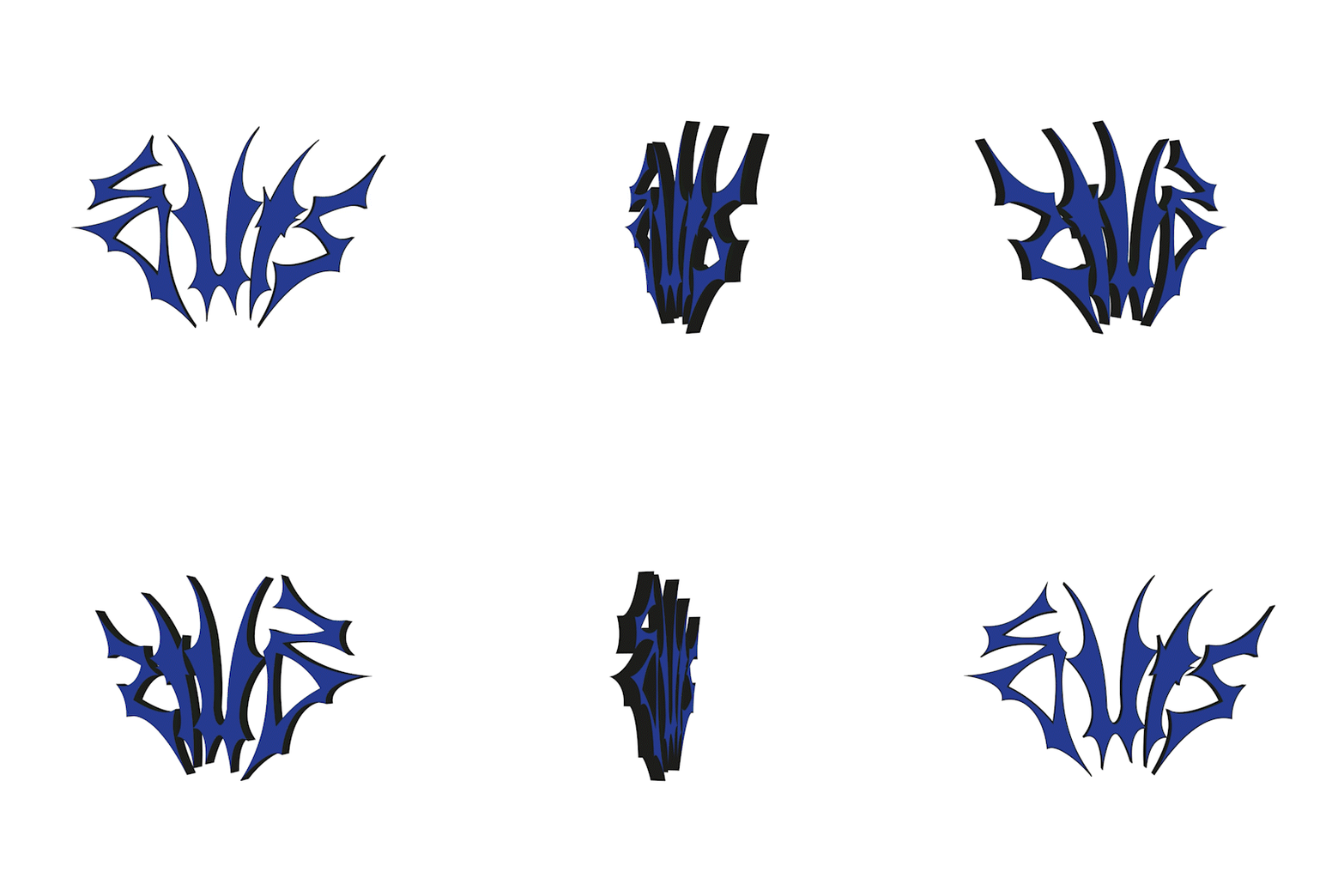
Hi everyone, I would like to ask, how to import a 3d Ai file into AE? So basically, I made a vector shape and made it 3d through effects on illustrator, I wanted to make a rotating animation of it so my first thought was AE, but when I tried the way I do it (create vector outlines) it resulted in this:
I have read somewhere that AE cannot process 3d Ai files, is there any other way around it?

Thank you for the replies in advance. ps: I have also created this thread in the Illustrator forum.

J.K.

This topic has been closed for replies.

3 replies

Community Expert
March 26, 2023

If you export an OBJ file from Illustrator - search AI Help for that workflow, you can Import the OBJ file for use in Element 3D or another 3D app, add it to a C4D lite project in AE, or use AE Beta to import the OBJ directly into the timeline using the new 3D rendering engine. You cannot directly add the textures in AE, but you can texture the 3D model in C4D lite and Element 3D and other 3rd party plugins.

Mylenium
Legend
March 25, 2023

If you need to animate a skull, find a suitable 3D object for it on some online market place like Sketchfab and animate it via Cineware or Element 3D. That fake AI 3D stuff is useless for whta you seem to have in mind.


Mylenium

Ton Frederiks
Community Expert
Community Expert
March 26, 2023

The recent 3D effect can export real 3D objects in GLTFUSD, or OBJ formats.

I don't know if that is usable in After Effects.

Mylenium
Legend
March 26, 2023

It still doesn't poduce an actual 3D skull and thus is useless for the task at hand.


Mylenium

Community Expert
March 25, 2023

An AI file with the 3D effect applied is not a 3D layer. It is a 2D layer that changes shape as you manipulate the controls. 


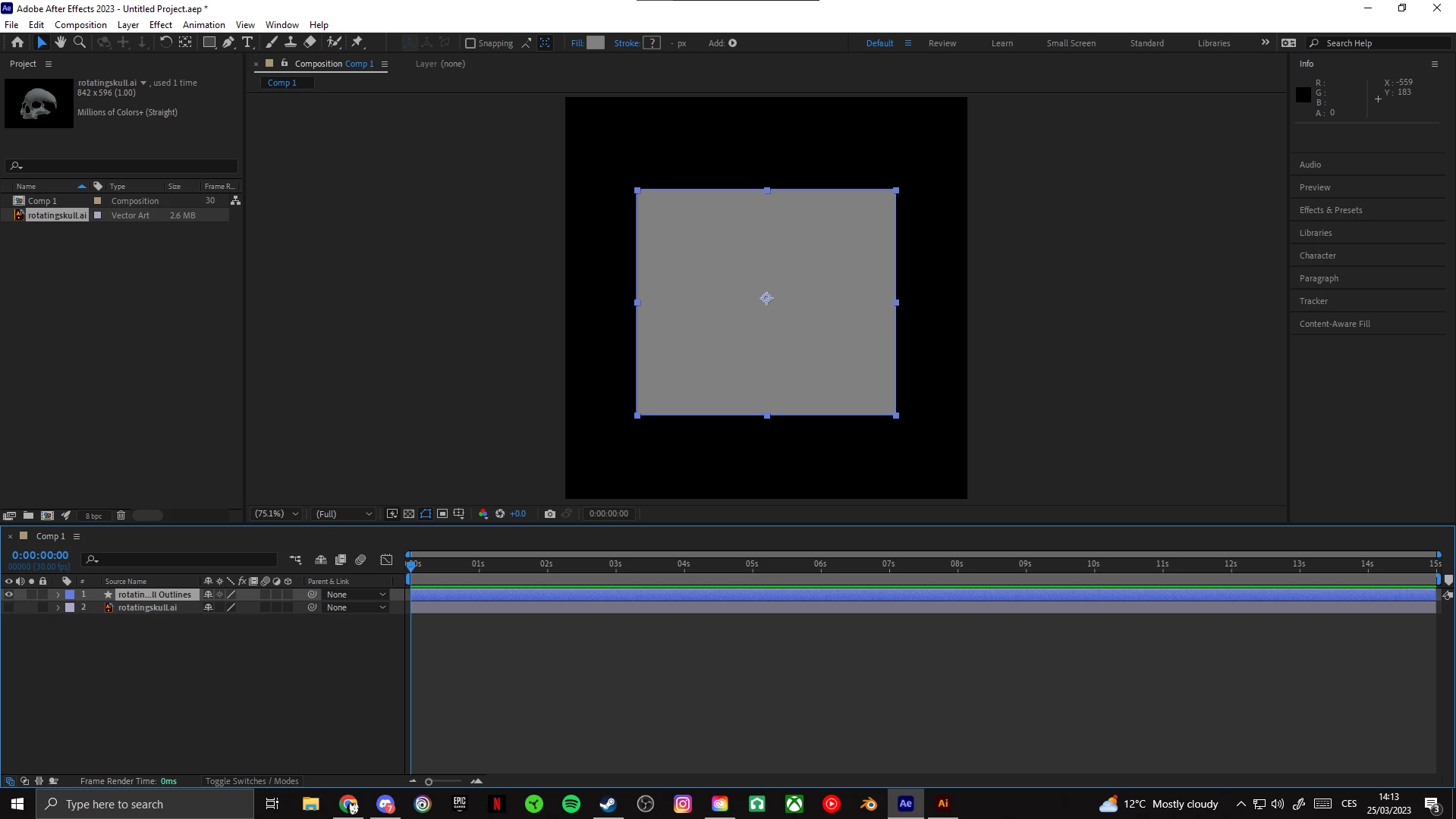
There is no reason to convert a Vector layer to a Shape layer unless you plan to animate the actual vector path, use text animators, or extrude the layer using the C4D workspace. All effects, blends, Gradients, and brushes will be converted to gray-filled closed paths, so you will have to dive into the groups and add your own gradient fills and raster effects. 


If you tell us exactly what you are trying to do, we can help guide you to the correct workflow.