Known Participant
August 11, 2025
Answered

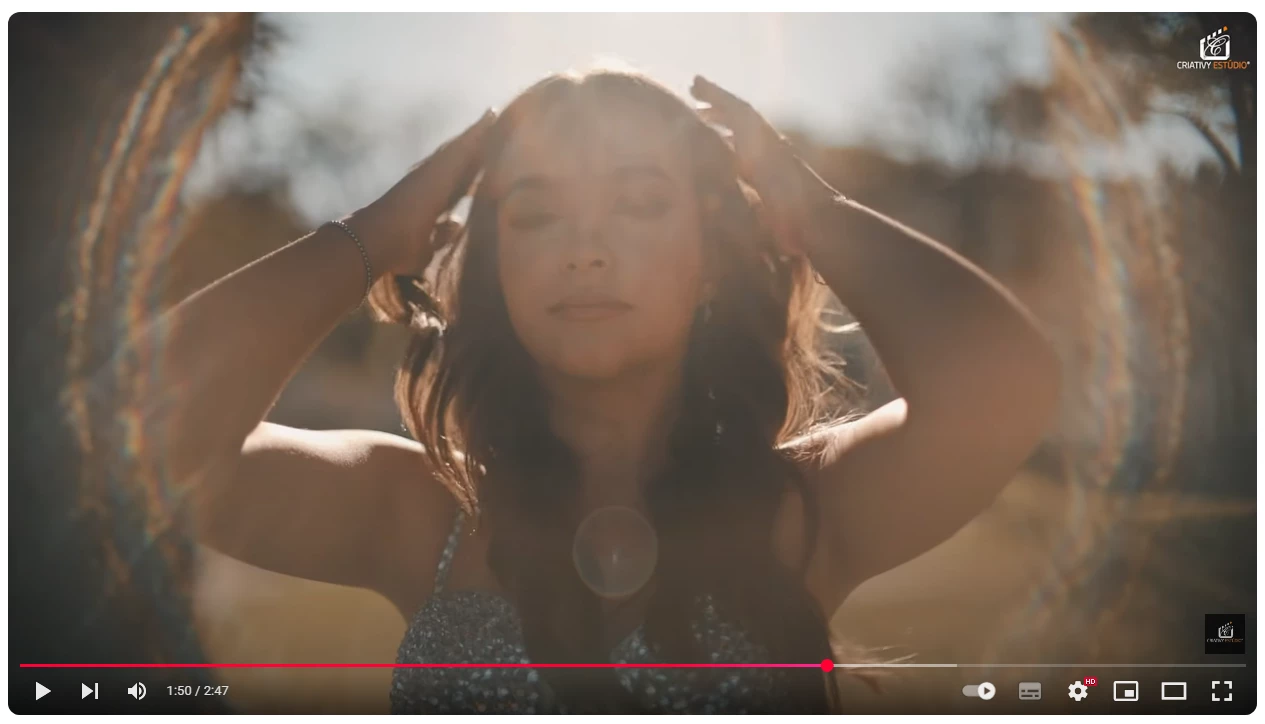
Is possible to achieve this lens look on after effects?
  • August 11, 2025
  • 3 replies
  • 558 views


Im wondering if its possible using after effect achieve this kind of look like lens, i'm doing a research and trying to figure it out, someone have a clue how ? really thank you!!

Correct answer PaulMurphy

You can try creating this with native tools in Premiere Pro:

  1. Find and import an animated radial zoom
  2. Create a circle mask
    • Select the graphic and in the Properties panel, draw a circle.
    • Turn off Fill, turn on Stroke.
    • Turn on Shadow, set Angle and Distance to 0, then increase Size to soften edges.
    • Turn on Mask with Shape to mask the radial zoom with the circle.
    • Animate the circle’s position slightly so the ring of light moves with the camera.
  3. Adjust color, blur, and distortion
    • Add the ProcAmp effect and adjust the Hue until the radial zoom turns red.
    • Add Gaussian Blur to soften the image.
    • Add Lens Distortion and reduce Curvature to bend and stretch the circle.
  4. Blend the graphic
    • In Effect Controls, set Opacity > Blend Mode to Screen.
  5. Create additional colored rings
    • Duplicate the graphic to the next track.
    • In Lens Distortion, lower Curvature more to separate the rings.
    • In ProcAmp, adjust the Hue to green.
    • Duplicate again, lower the Curvature even more, and set the Hue to blue.
  6. Add your footage and final effects
    • Place your footage on a track below the graphics.
    • (Optional) Add Lens Distortion to the footage and reduce Curvature for a wide-angle effect.
    • Add the Lens Flare effect and animate it slightly to move in sync with the graphics.

3 replies

Community Expert
August 11, 2025

Can you share the link to the video so we can see the movement of the lens effect?

derekwatson
Community Expert
Community Expert
August 11, 2025

The YouTube link is in my post

Derek Watson
Community Expert
August 11, 2025

I mean for the OP's example.

derekwatson
Community Expert
Community Expert
August 11, 2025

I wonder if this tutorial would help, the light pattern is different but the te unique is similar. 
https://m.youtube.com/watch?v=5bkg1LEbeUk 

Derek Watson
Kevin J. Monahan Jr.
Community Manager
Community Manager
August 11, 2025

Hi Daniel,

Thanks for the question. I asked the Adobe Experts this question. It would be helpful to know precisely what you are trying to achieve. I hope that you get an answer from them shortly. Sorry for the frustration.


Cheers,
Kevin


Kevin Monahan - Sr. Community and Engagement Strategist – Adobe Pro Video and Audio
Known Participant
August 12, 2025

https://www.youtube.com/watch?v=crhjSni-arg this is the reference video, at 1:50 minutes, this rounded lens flare effect is what i'm trying to emulate

PaulMurphyCommunity ExpertCorrect answer
Community Expert
August 12, 2025

You can try creating this with native tools in Premiere Pro:

  1. Find and import an animated radial zoom
  2. Create a circle mask
    • Select the graphic and in the Properties panel, draw a circle.
    • Turn off Fill, turn on Stroke.
    • Turn on Shadow, set Angle and Distance to 0, then increase Size to soften edges.
    • Turn on Mask with Shape to mask the radial zoom with the circle.
    • Animate the circle’s position slightly so the ring of light moves with the camera.
  3. Adjust color, blur, and distortion
    • Add the ProcAmp effect and adjust the Hue until the radial zoom turns red.
    • Add Gaussian Blur to soften the image.
    • Add Lens Distortion and reduce Curvature to bend and stretch the circle.
  4. Blend the graphic
    • In Effect Controls, set Opacity > Blend Mode to Screen.
  5. Create additional colored rings
    • Duplicate the graphic to the next track.
    • In Lens Distortion, lower Curvature more to separate the rings.
    • In ProcAmp, adjust the Hue to green.
    • Duplicate again, lower the Curvature even more, and set the Hue to blue.
  6. Add your footage and final effects
    • Place your footage on a track below the graphics.
    • (Optional) Add Lens Distortion to the footage and reduce Curvature for a wide-angle effect.
    • Add the Lens Flare effect and animate it slightly to move in sync with the graphics.