
Participant
January 7, 2021
Question

Is there a way to override kerning?

  • January 7, 2021
  • 2 replies
  • 233 views

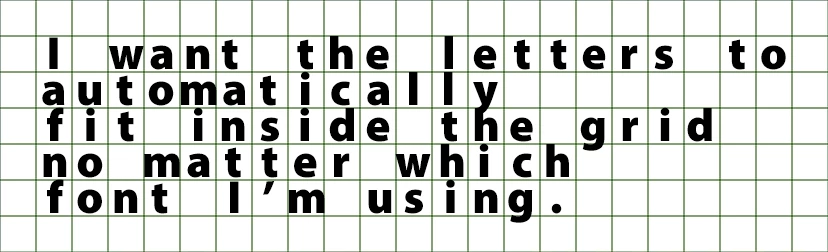
I need to fit the letters of several texts to a grid. Is there any way to avoid doing this by hand?
In other words, I need to set the letters x pixels away from each other's center point, no matter how wide each letter is.
I haven't found any way to override kerning, which I think is exactly what I need.
For this example image I had to change the tracking of each letter, which was pretty laborious.
This topic has been closed for replies.

2 replies

Community Expert
January 7, 2021

For characters to automatically fit in a grid you need a Monospaced font like Courier. Then it's just a matter of adjusting the kerning for the entire layer in the Project Panel. There is no other automatic way to just type in new text and have it line up on a grid. All other methods require manual kerning or putting each letter on a new layer. 


There are a bunch of monospaced fonts included with Creative Cloud.

Mathias Moehl
Community Expert
Community Expert
January 7, 2021

The character panel has a control for kerning right below the font size control. Just move the text curser between two letters and drag the number to control the space between them.


Another thing you could try is to

1. explode the text into one layer per letter using TextExploder

2. align the layers to the grid using GridGuide. GridGuide has no control to align layers to the center of a cell, but you could temporarily create a grid with twice as many lines, such that you have extra lines exactly in the center of your cells and then snap the anchor points of the layers to those.

Mathias Möhl - Developer of tools like BeatEdit and Automation Blocks for Premiere Pro and After Effects