
Issues editing paths on text and shape masks
I've been having this issue off and on for years, and usually just frustratingly click around until I give up, and create a new shape layer with a new path that I can make the animation in and then just copy and paste the points from it to the original layer, replacing the troublesome and un-editable path.
For some reason, I cannot find a useful guide in how to select path points after it has been added to a layer or shape layer as a path or mask. This happened to me a few months back with path in shape layers and now it's happening again with a path applied to a text layer.
Once I create the path, and make a few keyframes on the path, no matter what tool or button combination, I cannot get back to editing the path.
I am currently experiencing this on a text layer that has the path as a mask. It's a simple line that transitions from straight to angled. I had two keyframes with my two points initially, but now I can't get in to edit them.
When I have the mask's path selected, I see this for both points:
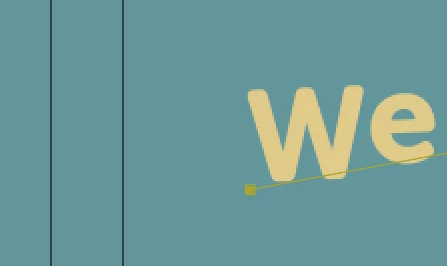
Whether I select that point with the selection tool, the pen tool, or any combination of those holding down control/command/shift, I can't edit that point and the text is selected instead. Like this:
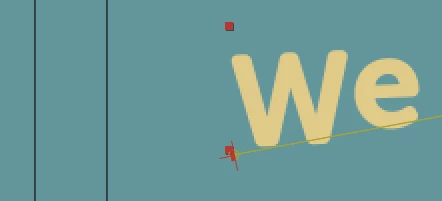
I know that little circle is usually the one I can click on to edit the point, but nothing lets me click it, it only enters editing the text or resize the whole layer, even if I shrink the line width with the red handle there to get it out of the way. When I use the pen tool, and click on the point, I just get a new mask layer, or it selects the text.
I have successfully edited a line in a shape layer, so I know it's possible, and I know it's possible for me. I'm just at a loss for why this will randomly happen and if there's something obvious I'm just not seeing. I've spent hours of time searching for the similar issue, with no luck, so I'm hoping posting my specific issue will be more helpful!
Thanks in advance!


 AdChoices