Inspiring
May 22, 2020
Answered

Keyframe Interpolation is Linear but still got the problem.

  • May 22, 2020
  • 3 replies
  • 6249 views

Hello,


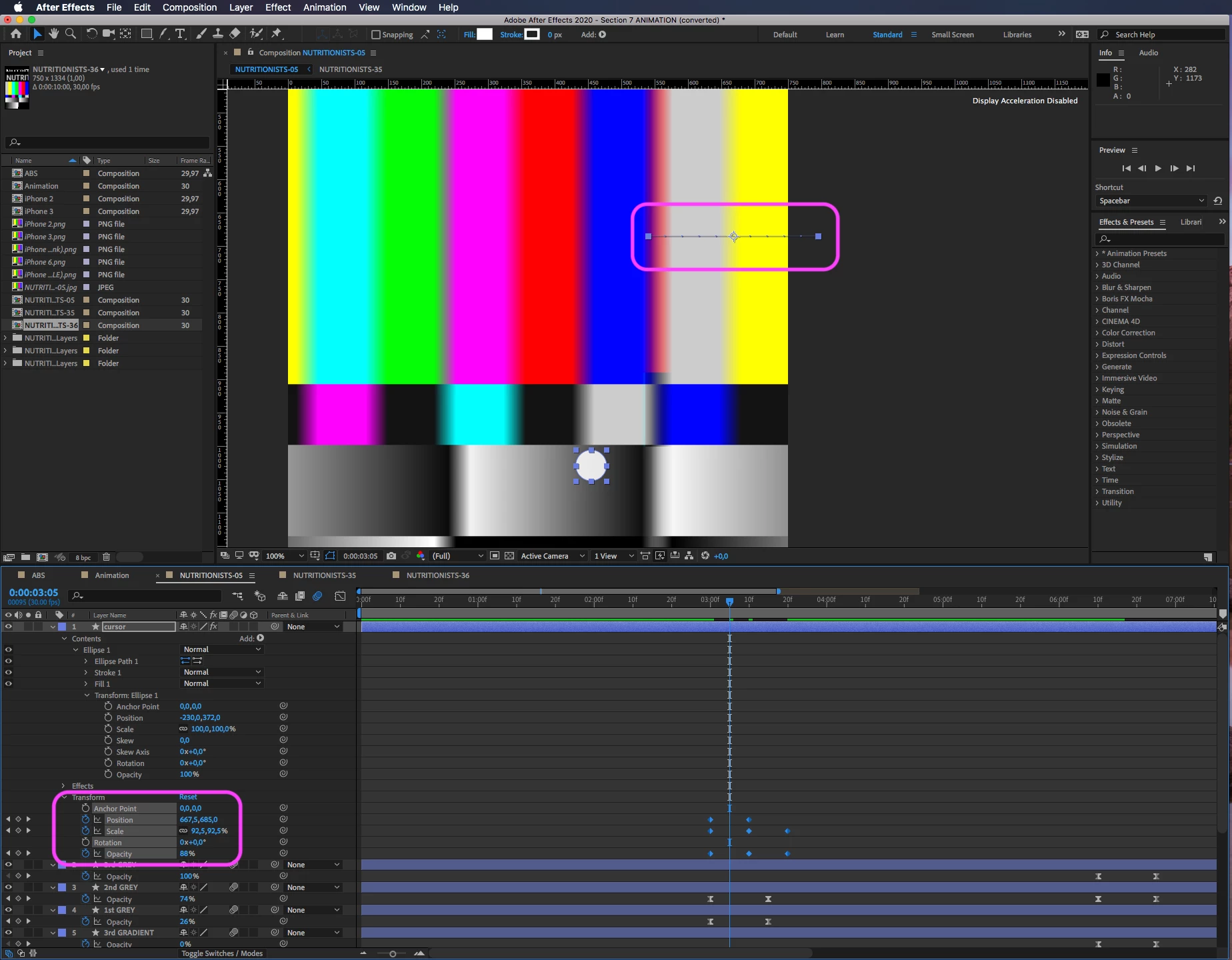
I have "that problem" (where an object moves between the keyframes without being meant to move in that direction) and I found that it's because of the Keyframe interpolation. I have object which is moving and in the same time changes it's opacity and scale. When I set it to the Position keyframes I got the Interpolation problem and I open it and set it to Linear and it's all good. But then when I add the Scale & Opacity keyframes, the problem appears again. I read that in the Graph Editor there are interpolation settings as well, so I checked the Graph Editor settings to Linear too (for every point possible) but I still got the same issue with the object moving whenever it wants. 


Anyone can help me?


Thanks
This topic has been closed for replies.
Correct answer Byron Cortez

I really think you need to take the time to learn some basic After Effects stuff. You are animating the Shape Layer, not the shape itself, so the shape is on the one hand while you are animating the properties of the Shape Layer and everything gets complicated.

3 replies

Community Expert
May 22, 2020

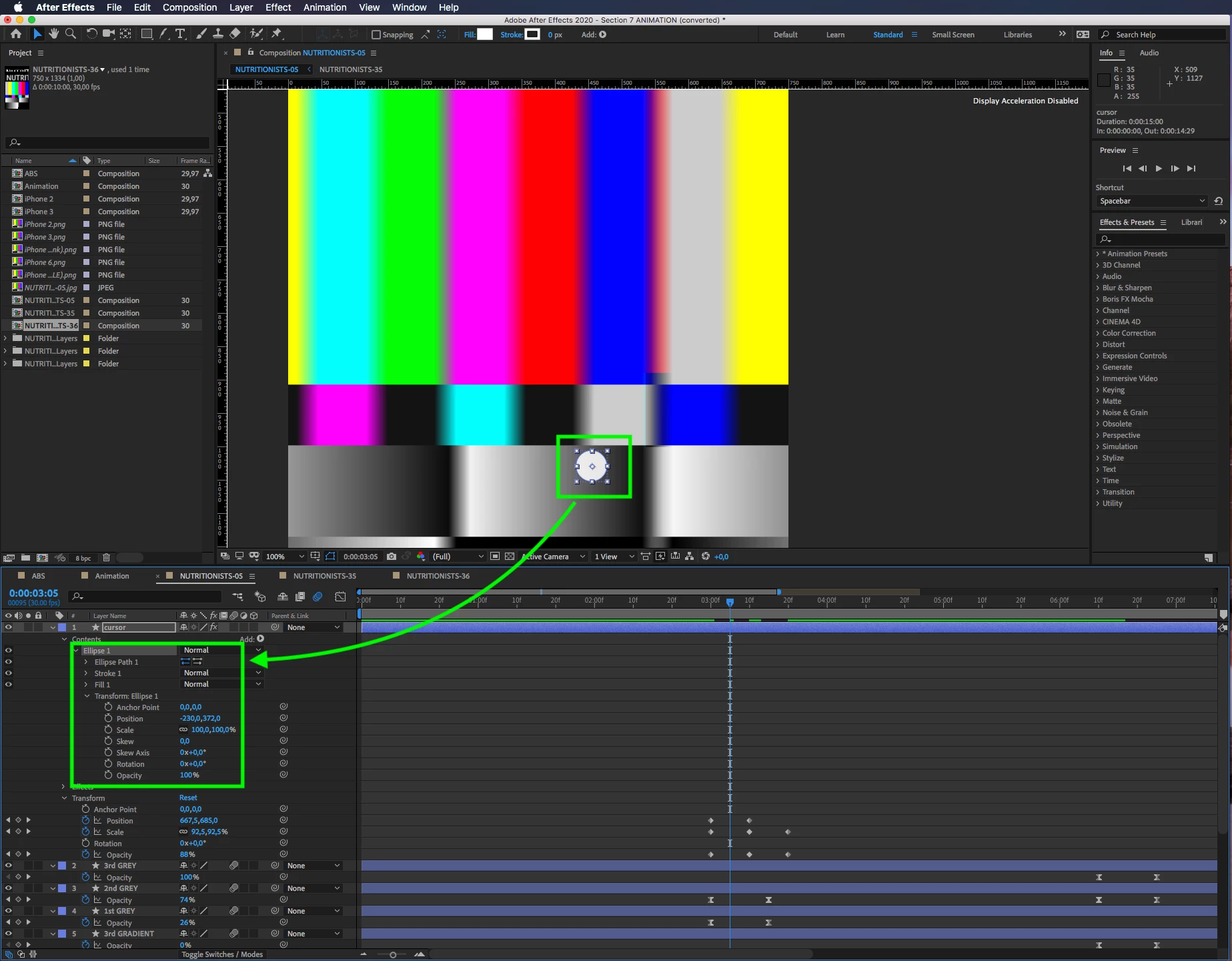
I checked your AEP and looked for keyframes. The Cursor layer seems to be the one that has the problem. I checked the motion path and there is no problem. When I soloed layer, looked at the Graph Editor will show the reference graph and show all animated properties selected I could quickly make a guess at the problem.


If you can't figure it out remind yourself what controls the center point of scale? If you said Anchor Point you are on the right track. 


I then press the U key twice to reveal all modified properties of the layer and the solution is obvious.

If the position of the ellipse is not right on the anchor point, then when you scale the layer the ellipse is going to move up and down but not turn into an oval. There are two fixes. Personally, I would fix the Transform Ellipse 1/Position problem. I prefer to have the anchor point of a shape match up with the anchor point of the layer. The other option would be to animate the Transform Ellipse 1/Scale property instead of the Layer scale.  That way you would only have set the CTI to the first scale keyframe, select all scale keyframes and cut (Ctr/Cmnd + x), then reveal the Transform Ellipse 1/Scale property, set a keyframe to make sure it is selected, then paste. If you reset the Transform Ellipse 1/Position to 0,0 you will also have to move the layer.


Either one of those will fix your motion path problem that is really a Scale/Anchor point problem.

Mathias Moehl
Community Expert
Community Expert
May 22, 2020

for an in depth explanation of how keyframes work in After Effects, see this chapter of my free Motion Graphics eBook

https://mamoworld.com/motion-graphics-ebook/content17.html

Mathias Möhl - Developer of tools like BeatEdit and Automation Blocks for Premiere Pro and After Effects
Community Expert
May 22, 2020

Activate the Convert Vertex Tool and in the Composition panel make clic on the points that are having the issue in the scale property. With this you will eliminate the handles. The idea is that you have a totally Linear animation in the keyframes of all the properties because if in Position you do not have interpolation assistants while in scale yes then there you will have a small displacement generated by the scale.

Byron.
Inspiring
May 22, 2020

I did this and still got the same issue. Does my points have to look like this after using the Vertex Tool?


Community Expert
May 22, 2020

In the Composition panel clic in vertex with the Convert Vertex Tool to eliminate Handles, but in the Timeline select all the keyframes and click it while pressing Cmd on Mac or Ctrl on Windows as many times as necessary until they become Linear keyframes like in my screenshot, this way you will eliminate the interpolation assistants. 

Byron.