
Inspiring
February 3, 2024
Question

Levels Effect not showing anything in Histogram

  • February 3, 2024
  • 7 replies
  • 1051 views

Greetings, I'm not much experienced so far in AfterEffects, nevertheless, I'm facing an issue, which I'm unable to solve.


I'm trying to create a realistic water flow. I already created the animation and paths, but when I came across the texture, I was unsuccessful in doing it. I'm halfly following this tutorial => https://youtu.be/GLwpCNil3XE?si=D70xb_fRAtc3wta3&t=1181 ... the differences, which I'm doing. 1. The water is on an object, so I'm not using CC Glass effect and 2. I created specific paths with the pen tool and then animation by Taper and Trim paths. 


I found out two problems:

1. When I click on the TrackMatte setting on the BackGround layer. I only see "No Matte" and the two layers, while there should be Four options + No Matte (Alpha Matte / Inverted, Luma Matte / Inverted). If I choose the Water flow layer. The result looks similar to the tutorial, so I'm not sure if it is a problem.

2. When I add Levels Effect on the Water flow layer. I got nothing in the Histogram and if I try to move any of the settings, it changes nothing, which is stopping me in creating the texture.
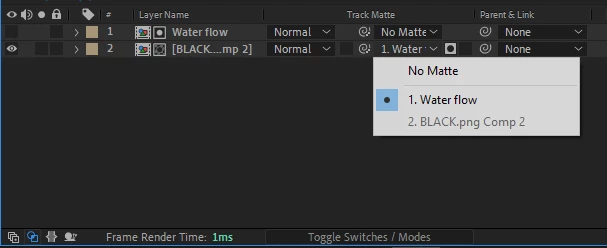
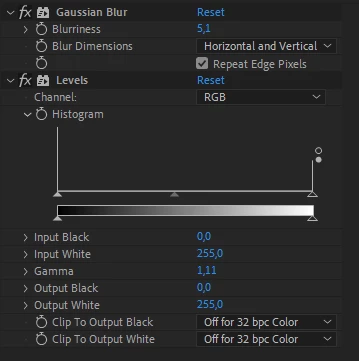


This is the content of the layer, which is showing nothing in the Levels Effect (without the black background)

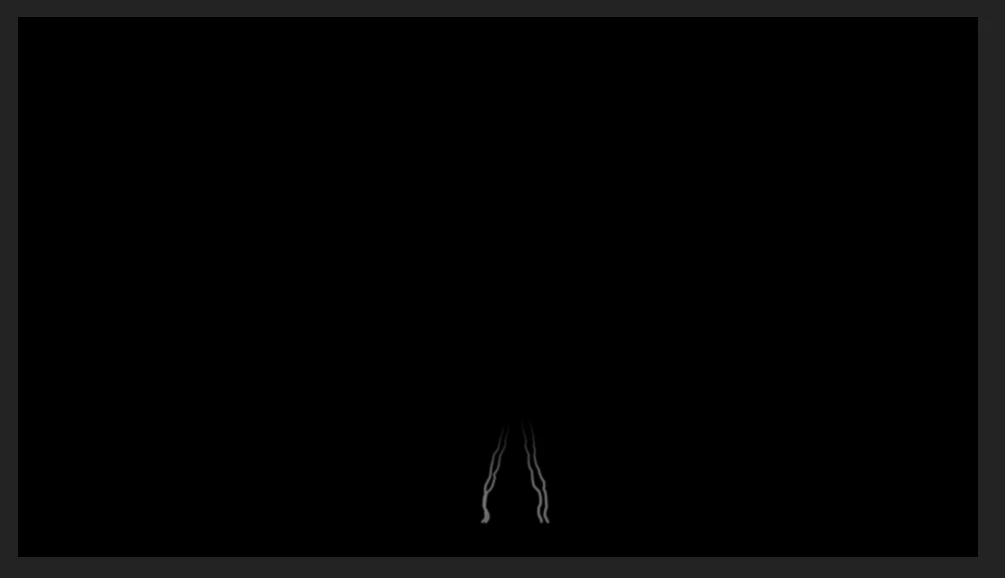


I suppose it's because of some settings, but I don't know. If someone will be able to help me, I'll be grateful. I also tried posting it into discussion forum, but looks like no one was able to help me.


I'm on Windows btw


Tygnar

This topic has been closed for replies.

7 replies

studentw78624829
Participant
May 10, 2024

You can solve this by putting a solid background in the bottom of the comp that you use Blur and then Levels on:

In my case it was Dots that was then pre-comped into Render and blurred:


The confusion is caused by After Effects showing a solid background by default, even if the comp is truly transparent. You can check it by clicking the transparency toggle at the bottom of your comp preview area. If the comp is transparent there is no color variation and levels have nothing to work on (as happened in my example above).


Adding the white solid as background allows the histogram to show the full tonal range.

Then you can clamp it to achieve the desired effect:


Community Expert
February 11, 2024

Create a small colored solid, then add the level effect to that layer. Fiddle with a gradient fill above the Levels effect. You should see something like this:

If all you have is black and a little bit of white on a layer, you'll only see this:

The height of the bar represents the percentage of pixels in the frame. The position of the peaks tells you the colors. I don't think there is anything wrong. 


What are you trying to accomplish?


YuriwexyAuthor
Inspiring
February 19, 2024

Yeah, I understand that ... I want to accomplish a water texture for the white lines.

Community Expert
February 19, 2024

If you have a bunch of white lines, you can add some blur, pre-compose, then set the blend mode to screen or add to simulate reflections. You can also use the pre-comp as a displacement map. I'm not sure what kind of workflow you are trying to use, but I don't think adding levels will change much. You can only make the white edges a little thinner if there is a blur. 

YuriwexyAuthor
Inspiring
February 10, 2024

Hi,


I don't want to sound rude, but I really need to solve this problem and I hoped I could get some help here, but it's been already 6 days from the last respond.

YuriwexyAuthor
Inspiring
February 4, 2024

Which layer do you have in mind? I have now these two


White solid = The white added square

Water flow = The original 

Together they make a layer to the main project


Community Expert
February 4, 2024

What happens when you put the Levels effect on the same layer that has the image or shape?

YuriwexyAuthor
Inspiring
February 4, 2024

Hi,


I added a solid layer above the white lines and a fill effect (which worked), unfortunately, it still doesn't see anything.


On the info panel I can normaly see the RGB + A values, while I have my cursor on top of the white lines.


I also tried to draw something in a complete new composition and there was the same problem


Community Expert
February 4, 2024

Put something else in the frame temporarily or add a Fill effect to the layer. I don't think there are enough white pixels to show up, and I don't see any other values. You might want to open the Info panel and check the color values as you drag the selection tool over the white areas.