
Participating Frequently
February 1, 2018
Answered

Linear interpolation is not linear! It's bezier! Why?

  • February 1, 2018
  • 2 replies
  • 3440 views

I have a point control in my comp. And I want to go from 0 to about 1000 000 000 000.

I add a starting point of 0, and endpoint of 1000 000 000 000. So far so good. Interpolation is how I would expect it to be.

Now I add a point in between of a value of 50. And now the values between 0 and 50 go to minus!!! Why? I did not set any bezier curve or any easing interpolation.

Is this just problem of big numbers?

The value graph shows me the same. Any explanation?

(Check the images for more information).

It drives me crazy. I need this control, because I have an expression, where I want to display a sextillion in text – respectively it should count up from 0.

A Slider control does not go above 100000, so I switched to the point control. But if it goes to negative numbers in between, it's all for nothing...

From 0 to 10^12.

Just linear points.

Also in between no negative values:

The point in the middle represents a value of 50.

Now the values between 0 and 50 go to negative numbers:

Which is also seen in the value graph. (the green line is below 0.
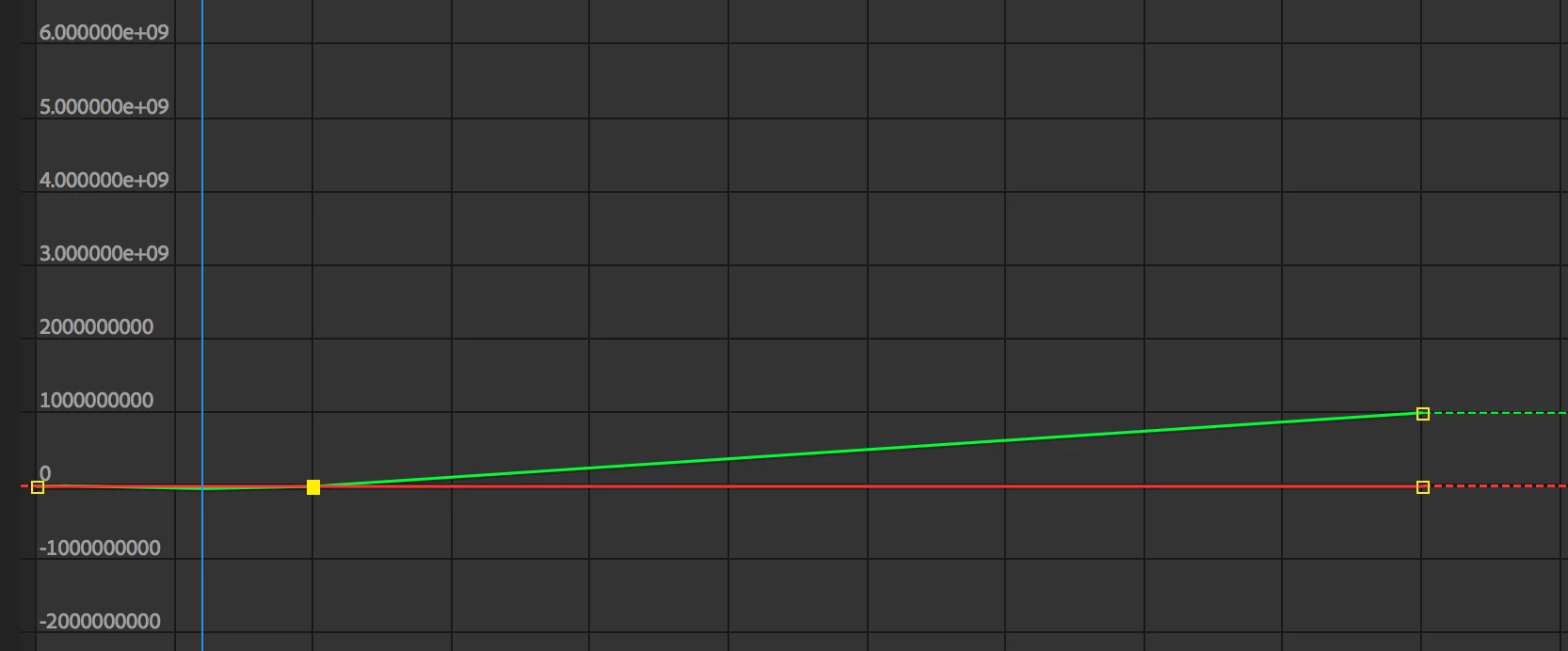
I do not understand this at all!

Thanks for some help here.

Cheers

J

This topic has been closed for replies.
Correct answer Mike_Abbott

Select your three points in the timeline, right click > Keyframe interpolation. Are the top two menus - temporal and spatial interpolation both set to Linear? If not, set them to that. Does that help, or not?

2 replies

Mike_Abbott
Mike_AbbottCorrect answer
Legend
February 1, 2018

Select your three points in the timeline, right click > Keyframe interpolation. Are the top two menus - temporal and spatial interpolation both set to Linear? If not, set them to that. Does that help, or not?

boldusainAuthor
Participating Frequently
February 1, 2018

This did indeed help. I do not understand why it sets continuous bezier in the first place, and I further don't understand why clicking on this:

does not change the graph:

...
I think I don't understand one aspect of it...

Mike_Abbott
Legend
February 1, 2018

A few things to note:

1. As Mylenium notes - the interpolation for both time (the temporal aspect) and space (the spatial aspect) of a keyframe can be set independently in AE - hence the dialog box you used above.

2. By default AE sets bezier interpolation for the spatial aspect of position. You can change that default in preferences:

Preferences > General > Default Spatial interpolation to linear.

Have a look in the help file to understand the difference between speed and value graphs.

Mylenium
Legend
February 1, 2018

AE treats spatial and positional interpolation separately. Switch to the speed graph and adjust it as well.

Mylenium

boldusainAuthor
Participating Frequently
February 1, 2018

Thanks.
I did do that. But I would expect it to be non-bezier as well.

But it does this:

No I can try to edit those beziers, but I can't make them go away:

This is the smallest bezier I could have in the speed graph:

This would not make the negative values in the value graph go away. The stay. Also clicking on «convert selected keyframes to linear» does not help...