Inspiring
March 6, 2023
Answered

Make music reactive elements more extreme

  • March 6, 2023
  • 3 replies
  • 1310 views

Im using an audio amplitude layer so that I can create music-reactive graphics.

I've used the following code on one of my elements to reset the scale to 100% while it is animating:

temp = thisComp.layer("Audio Amplitude").effect("Both Channels")("Slider"); [temp, temp] + [100,100]

But I'd like it to be more extreme.

If I simply add '*2' at the end of the code, it also amplifies the lower end of the scale, meaning the whole thing is bigger.

Id like it so that there is more contrast between the lower and upper ends of the scale... if that makes sense.

This topic has been closed for replies.
Correct answer Rick Gerard

Creating reactions to the Audio Levels keyframes is best handled by deciding what range of values you want to work with and then converting the Audio Levels keyframe values to fill the range of values you want as the last result. A linear interpolation method is usually the place you want to start.


If the range of your Audio Levels keyframes if from 0 to 18, and you want to change another value from 20 to 200, and you want the reaction to the changing values to start at 2 and reach the maximum at 6, the expression to do that would look like this:


t = thisComp.layer("Audio Amplitude").effect("Both Channels")("Slider");
v = linear(t, 2, 18, 20, 200);
[v, v]


The output will be 20 until the audio amplitude reaches 2, then it will expand in a linear method to 200 when the audio amplitude reaches 6 and never go higher than 200. The linear method looks like this: linear (t, tMin, tMax, value1, value2)


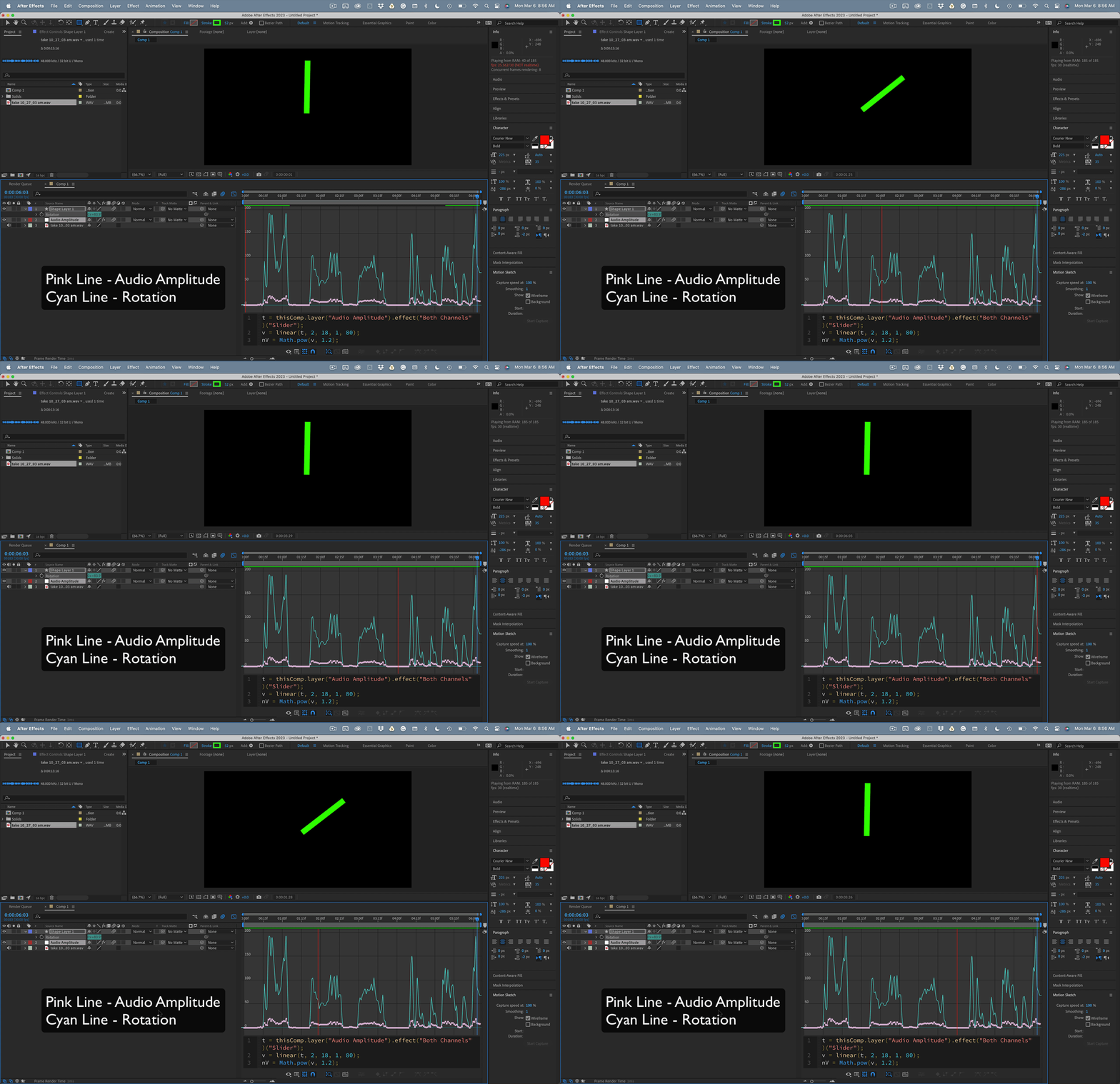
If you want a more exponential expansion of the values, you can do a little math and multiply the value by some power. You just have to work backward from the maximum ending result. For example, if you still wanted the maximum value to be 200 but you wanted exponential scaling, then the square root of 200 would be the value2 maximum value. The new expression would look like this:


t = thisComp.layer("Audio Amplitude").effect("Both Channels")("Slider");
v = linear(t, 2, 18, 1, 14.1421356237);
nV = Math.pow(v, 2);


You don't need the array if you apply the value to rotation. You can also change the exponent in Math.Pow(v, 2) to 1.2 or some other value to get the results you want.



3 replies

Rick GerardCommunity ExpertCorrect answer
Community Expert
March 6, 2023

Creating reactions to the Audio Levels keyframes is best handled by deciding what range of values you want to work with and then converting the Audio Levels keyframe values to fill the range of values you want as the last result. A linear interpolation method is usually the place you want to start.


If the range of your Audio Levels keyframes if from 0 to 18, and you want to change another value from 20 to 200, and you want the reaction to the changing values to start at 2 and reach the maximum at 6, the expression to do that would look like this:


t = thisComp.layer("Audio Amplitude").effect("Both Channels")("Slider");
v = linear(t, 2, 18, 20, 200);
[v, v]


The output will be 20 until the audio amplitude reaches 2, then it will expand in a linear method to 200 when the audio amplitude reaches 6 and never go higher than 200. The linear method looks like this: linear (t, tMin, tMax, value1, value2)


If you want a more exponential expansion of the values, you can do a little math and multiply the value by some power. You just have to work backward from the maximum ending result. For example, if you still wanted the maximum value to be 200 but you wanted exponential scaling, then the square root of 200 would be the value2 maximum value. The new expression would look like this:


t = thisComp.layer("Audio Amplitude").effect("Both Channels")("Slider");
v = linear(t, 2, 18, 1, 14.1421356237);
nV = Math.pow(v, 2);


You don't need the array if you apply the value to rotation. You can also change the exponent in Math.Pow(v, 2) to 1.2 or some other value to get the results you want.


Mathias Moehl
Community Expert
Community Expert
March 6, 2023

You need to multiply the temp only:

temp = thisComp.layer("Audio Amplitude").effect("Both Channels")("Slider"); 
temp = temp * 2; // here we make temp twice as big.
[temp, temp] + [100,100]


Also note that BeatEdit for Ae is a very powerful tool for animating elements in sync with music - see here what its beat wiggle can do, for example:


Mathias Möhl - Developer of tools like BeatEdit and Automation Blocks for Premiere Pro and After Effects
mttplbkpAuthor
Inspiring
March 6, 2023

Thank you! i've realised however that the temp variable doesn't appear to show when using a rotation property?

thisComp.layer("Audio Amplitude").effect("Both Channels")("Slider")
mttplbkpAuthor
Inspiring
March 6, 2023

Figured it out:

temp = thisComp.layer("Audio Amplitude").effect("Both Channels")("Slider");
[temp*5, temp*5] +[100,100]
Mathias Moehl
Community Expert
Community Expert
March 6, 2023

Oh, yes, that's effectively the same as the solution I suggested. My solution is a bit more lengthy, but has the advantage that you only need to change one number instead of two.

Mathias Möhl - Developer of tools like BeatEdit and Automation Blocks for Premiere Pro and After Effects