
tester123_
Participant
April 17, 2021
Answered

Making a 3D Extruded object rotate from its center

  • April 17, 2021
  • 3 replies
  • 3672 views

I'm working on a project and need this 3D logo rotating 360 degrees in perpetuity. This logo was imported from Illustrator as a 2D object then converted to 3D and extruded. To make this rotate, I am using a basic keyframe command for 360 rotation on the object's Y-axis.


This succeeds in making the object rotate 360 degrees, but not from its center. It instead rotates with the anchor in the back portion of the logo. It's as if one side is the anchor and the other side is moving clockwise around that, but the object itself isn't rotating from its center as I need it to.


As I thought about this while I was at work, I now suspect this is because the thickness of this object is coming from its extrusion depth, and the anchor point of the Y-axis is remaining in the location of its 2D form, instead of being in the center of the 3D extrusion (not sure that I'm right about that).


In any case, every tutorial I've looked at for this really simple effect uses virtually the same method, but I can't figure out how to circumvent this little issue and it's driving me nuts. Am I missing something or is this a system limitation? I've used Cinema4D for this effect in the past (with a literally identical method) and didn't run into this issue, which is why I'm so confused.


Anyway, I attached some files for a visual. Thanks in advance.
Correct answer Rick Gerard

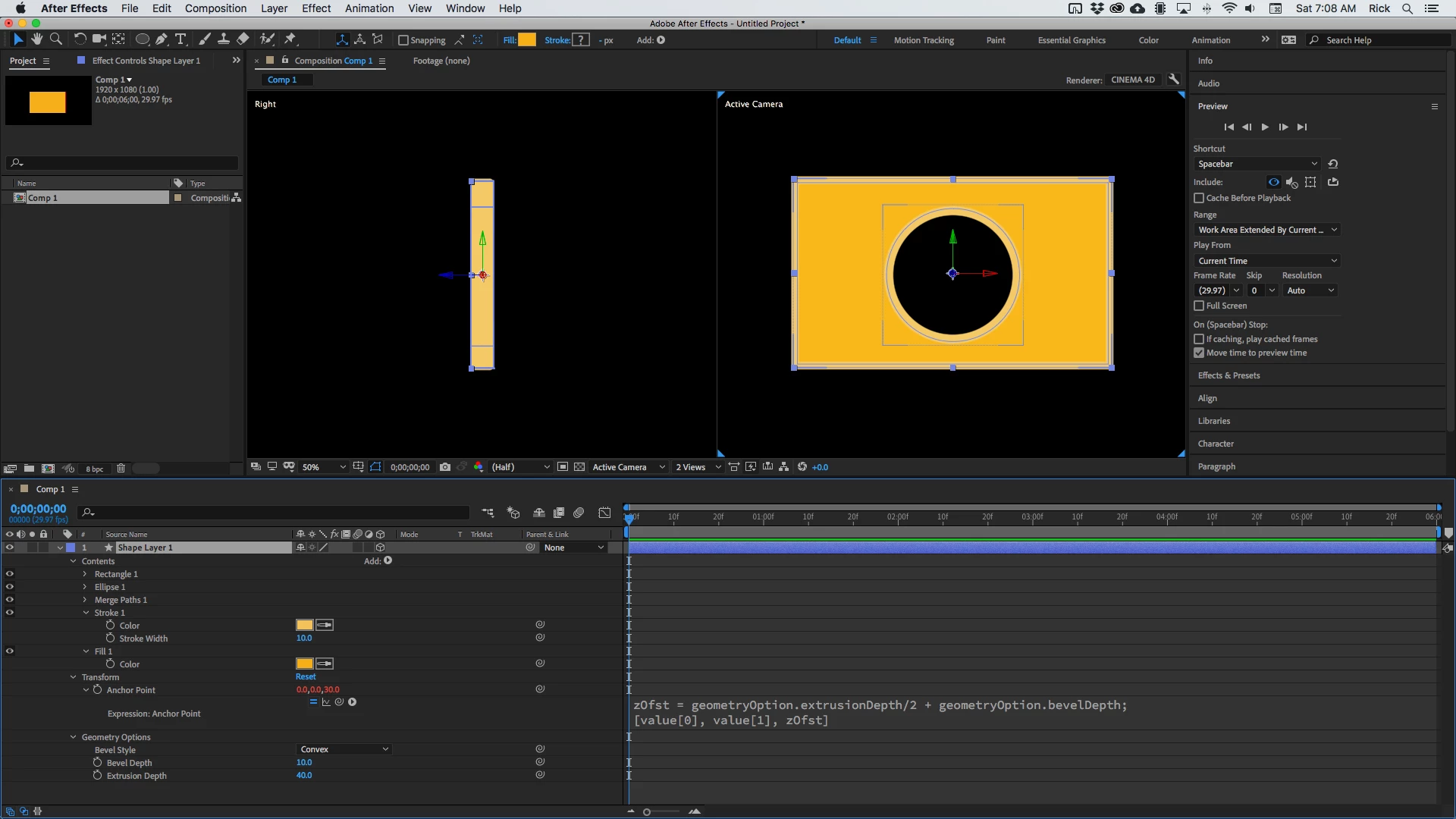
You have to compensate for both Bevel Depth and Extrusion Depth. Add this expression to the shape layer Anchor Point:


zOfst = geometryOption.extrusionDepth/2 + geometryOption.bevelDepth;
[value[0], value[1], zOfst]


I have this saved as an animation preset because I use it almost every time I extrude a layer.  

3 replies

Rick GerardCommunity ExpertCorrect answer
Community Expert
April 17, 2021

You have to compensate for both Bevel Depth and Extrusion Depth. Add this expression to the shape layer Anchor Point:


zOfst = geometryOption.extrusionDepth/2 + geometryOption.bevelDepth;
[value[0], value[1], zOfst]


I have this saved as an animation preset because I use it almost every time I extrude a layer.  

tester123_
Participant
April 18, 2021

Sweet, thanks!

Jose Panadero
Community Expert
Community Expert
April 17, 2021

What you can do is to set the anchor's z axis exactly at the same value of your extrusion divided by 2. For example: if you are using a value of 100 for the extrusion, set the anchor's Z to 50. Then you can rotate your 3D layer in the same way you do it in any other 3D app.


Another way to do it is to parenting your 3D layers to a 3D null object but with the Z position for this null exactly at the half of the value of the extrusion

tester123_
Participant
April 17, 2021

Made a small error in my little demonstration, updating for clarity.