Inspiring
November 14, 2025
Answered

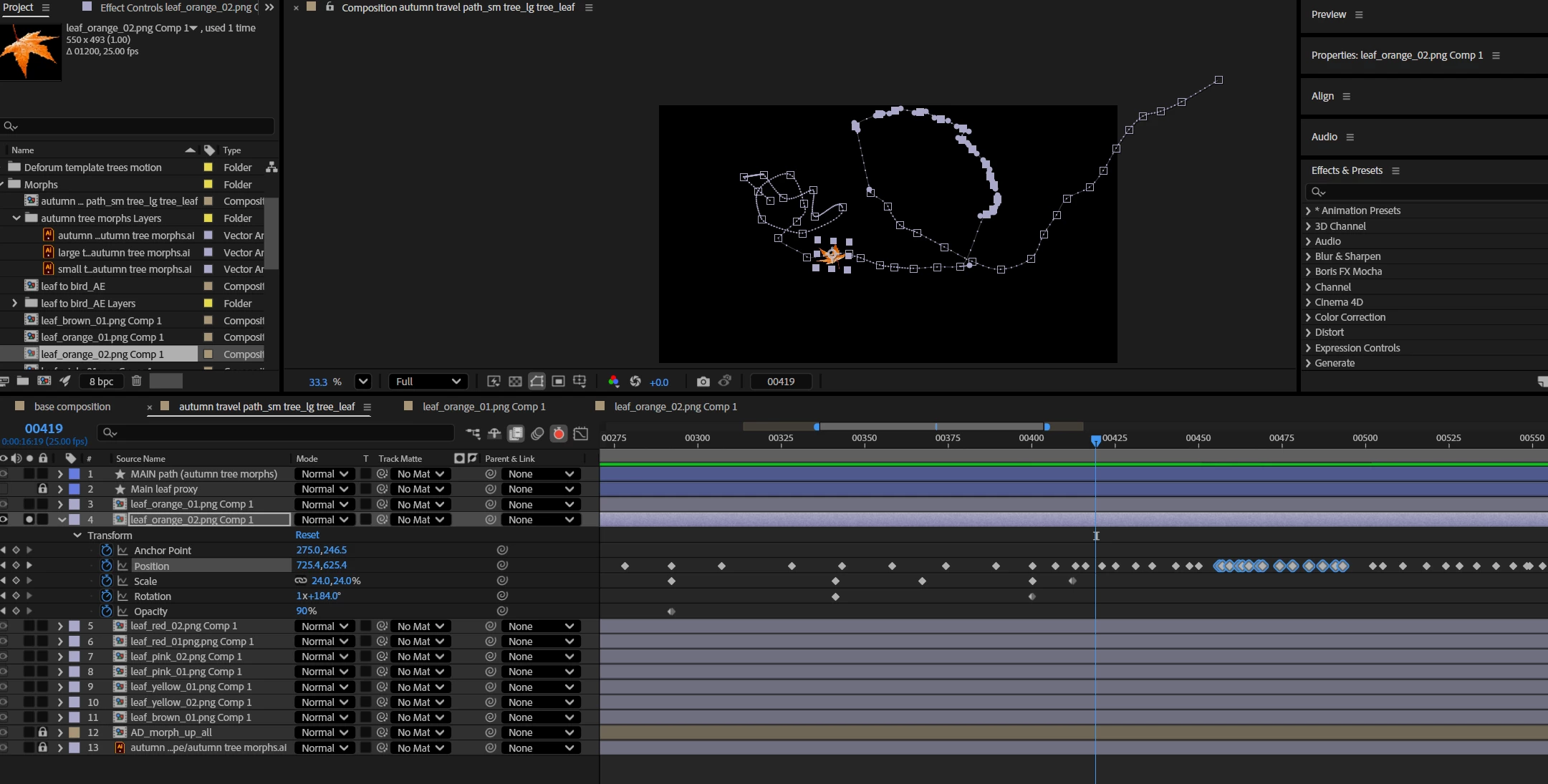
Manipulate path points as a group in a precomp?

  • November 14, 2025
  • 3 replies
  • 176 views

Hi,

I would like to be able to select a group of path points in a precomp and then manipulate them as a group -- rotating the group for example.  Is this possible?  Thanks!  
Correct answer Kyle Hamrick

Directly, there's no way to do this with points on a motion path. There are less-direct methods that might work for what it looks like you're trying to do here, though. 

Use the pen tool to draw out a path that you want your layer to follow, creating a shape layer. You can disable the visible Stroke and just use this layer as a holder for this path, though the visible Stroke can make it easier while working. If you then select multiple points on this path, you can double-click any of them to transform them all in the manner you're requesting. 
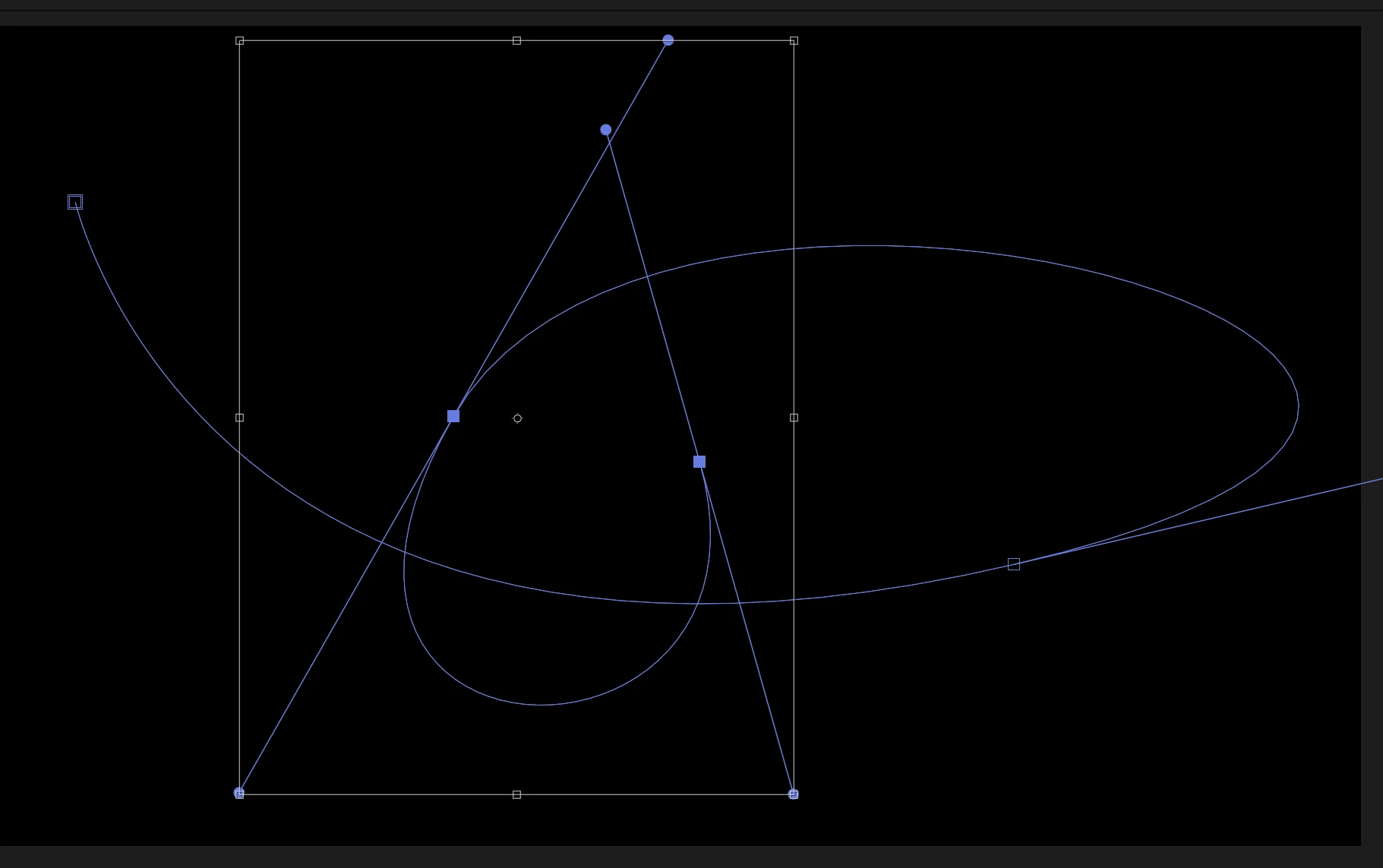
To avoid rebuilding what you've already built, you could just copy that existing motion path (i.e. copy the Position property), and paste it directly into the Path property of this newly-created shape layer. It's possible you'll need to re-position the entire layer, but it'll bring your path over intact.


Now, you can't link your layer directly to this separate path, but you CAN link it easily. 
Right-click on Path Property > Keyframe Assistant > Null Tracing Along Path

This creates a Null Object that traces along the path, and keyframes for you to control the progress along this path. This is aware of any changes made to the path, even if it animates over time. Simply remove the Position keyframes from your visible layer and parent it to this new Null. (Shift-Parent to snap it to precisely the Null's Position). 


While probably overkill for your example, you could also connect each path point to its own Null for even more control (and the ability to parent those together, or to additional nulls) - See Null Controllers for Path Points within that same submenu referenced above. 

3 replies

Roland Kahlenberg
Legend
November 14, 2025

I have a script, Path Transformer, that rotates, scales, re-positions and even flips motion paths - very useful for creating perfect geometric duplicates of motion paths. Unfortunately, it currently only affects the entire motion path and not a sub-set, selected set of keyframes. 

You may want to look at using a Null as a parent - you then place the Null at the pivot point for the rotation and rotate the Null - logically it will work but I've been known to be illogical - so thread carefully and no refunds are allowed.

Take a look at this quick screen recording - the mid-section is where I show the set up including using a Point Control to provide a visual and then numeric guide for the Nulls position before you parent to it.


Very Advanced After Effects Training | Adaptive & Responsive Toolkits | Intelligent Design Assets (IDAs) | MoGraph Design System DEV
ZafferAuthor
Inspiring
November 14, 2025

Thanks nishu_kush, Kyle Hamrick and Roland Kahlenberg for your timely answers.  You have given me some interesting things to try.

Zaffer

Roland Kahlenberg
Legend
November 15, 2025

You're welcome Zaffer. Hopefully one or more of the proposed solution solves your issue and it will be good if you shared your results so that we have finality or perhaps more input is required. Regardless, it will be good to know if you solved your issue in case someone else in the future has a similar/identical issue. 

Have a good day ahead!

Very Advanced After Effects Training | Adaptive & Responsive Toolkits | Intelligent Design Assets (IDAs) | MoGraph Design System DEV
Kyle Hamrick
Community Expert
Kyle HamrickCommunity ExpertCorrect answer
Community Expert
November 14, 2025

Directly, there's no way to do this with points on a motion path. There are less-direct methods that might work for what it looks like you're trying to do here, though. 

Use the pen tool to draw out a path that you want your layer to follow, creating a shape layer. You can disable the visible Stroke and just use this layer as a holder for this path, though the visible Stroke can make it easier while working. If you then select multiple points on this path, you can double-click any of them to transform them all in the manner you're requesting. 

To avoid rebuilding what you've already built, you could just copy that existing motion path (i.e. copy the Position property), and paste it directly into the Path property of this newly-created shape layer. It's possible you'll need to re-position the entire layer, but it'll bring your path over intact.


Now, you can't link your layer directly to this separate path, but you CAN link it easily. 
Right-click on Path Property > Keyframe Assistant > Null Tracing Along Path

This creates a Null Object that traces along the path, and keyframes for you to control the progress along this path. This is aware of any changes made to the path, even if it animates over time. Simply remove the Position keyframes from your visible layer and parent it to this new Null. (Shift-Parent to snap it to precisely the Null's Position). 


While probably overkill for your example, you could also connect each path point to its own Null for even more control (and the ability to parent those together, or to additional nulls) - See Null Controllers for Path Points within that same submenu referenced above. 

ZafferAuthor
Inspiring
November 20, 2025

Thanks Kyle -- this is a very cool feature to know about!

Zarrer

nishu_kush
Community Manager
Community Manager
November 14, 2025

Thanks for writing in, Zaffer.


I don't think it's possible. You can edit multiple motion path anchor points at the same time using Graph Editor but it'll be limited.

I hope it helps.


Thanks,
Nishu
