Ezzo Petair
Participant
July 25, 2016
Answered

Mask background turns black in After Effects – Help!

  • July 25, 2016
  • 2 replies
  • 34181 views

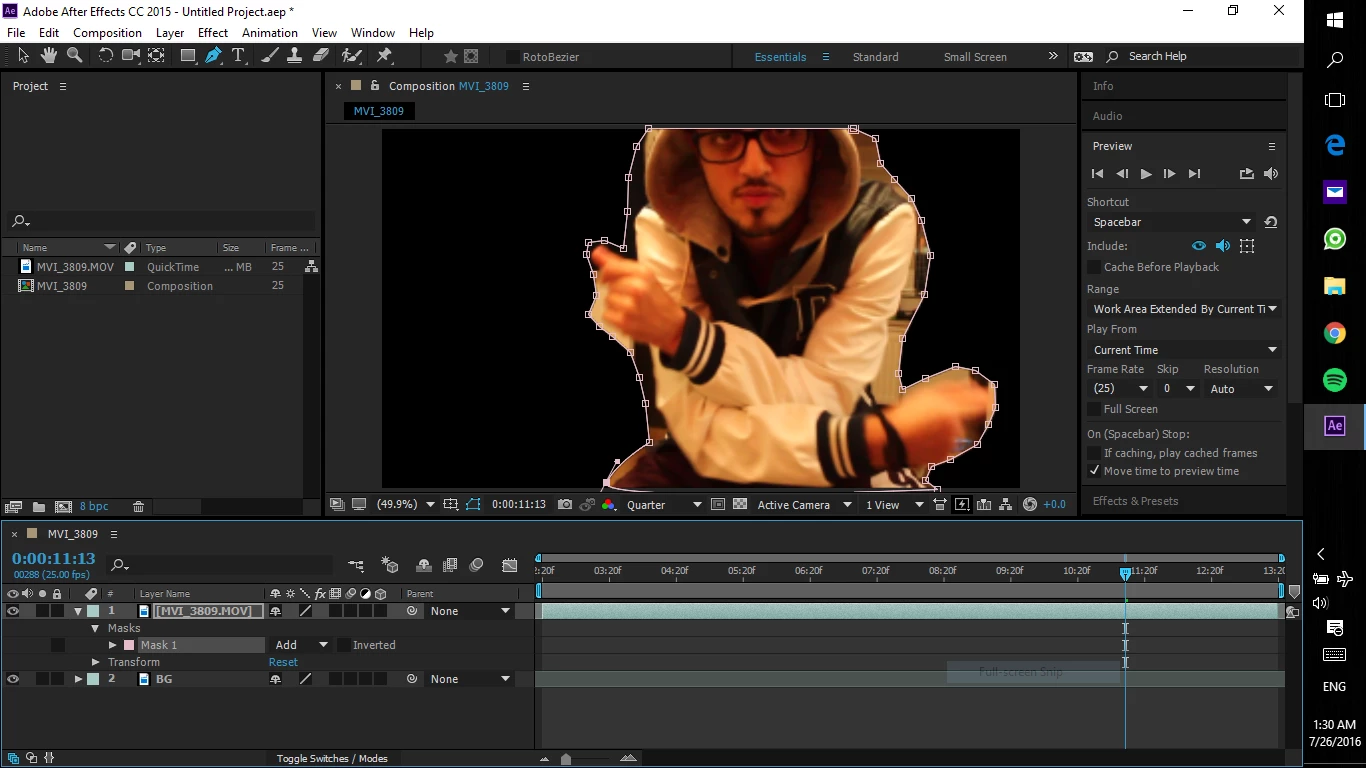
So basically i wanted to Mask myself using the Pen Tool so i can do some effects on me, I started to connect the points and when i'm done suddenly all the background changes to Black !

could you please help me !


This topic has been closed for replies.
Correct answer Roei Tzoref

the mask is changing but you don't see the result because the Render is turned OFF. if you want to see the result you need to tick the Render option
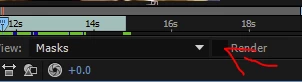
now you will see the layer cut on black (which is your background color)

another way to work with masks is to choose one of these modes
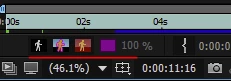
this will show you the result on top of the layer itself, or a transparent background, or the composition background color

if you want to see THE RESULT COMPOSITE , you need to click on the composition window
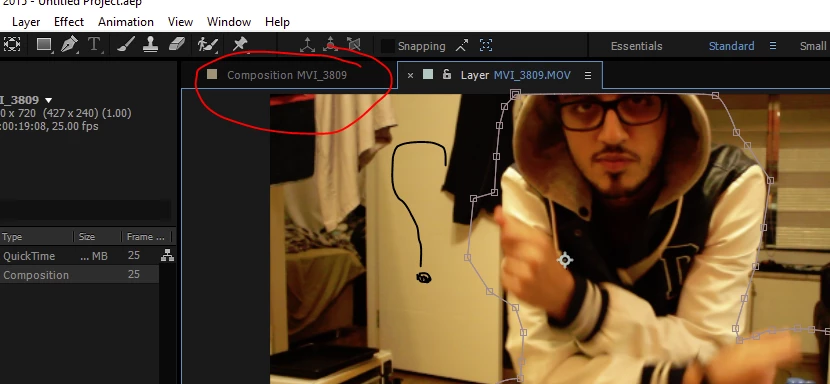
now you will see the layer cut on top of your background

another way to explain:

the Layer window - this is where you can edit your mask and use different ways to see it - but not in the context of your composition. it is a place where you can work on your layer in the context of itself. you can choose to "Render" (tick the "Render") the mask or any effect or not (untick the "Render"). but this is just the layer. it's not your Composition. you can only see the layer cut on itself, on black, on transparent, on red, and a luma matte. that's it.

if you want to see the layer you cut in the context of your composition, you need to get back to your composition window here:

a good practice would be to set BOTH windows side by side and get the best out of both worlds - cut the mask in one window, see the result on top of the background plate in the other.

or like I wrote before, you can choose the other, less complicated, but more limited way of working - in the composition window you set your mask to NONE, do the work and when you are done, set it back to ADD.

see if you get it

2 replies

Participant
May 16, 2020

Well i also have that problem i have the render off, i tried putting none, mask, rothobrush and it jut keep black the new background that I want to use is on composition and the layer appears also in composition.. But black

Community Expert
May 17, 2020

It sounds to me like you are poking around in the UI without any understanding of how AE works. Please start your training here: User Guide.


Nothing in the workflow you describe sounds efficient. I looked for the tutorial you were following and it is typical of a tutorial prepared by an enthusiast with good intentions and a pretty shakey workflow. I give ti a D. The nearly 400 thousand views do not mean this is a good workflow. Every problem you are having is directly related to the poor explanation and inefficient workflow in the tutorial. If you had a good handle on the basics in the User Guide you would be able to work through the problems in the tutorial. You've got to vet your trainers. Most enthusiasts that post AE tutorials don't really know how to teach or what they are doing.

Participant
February 26, 2022

How do you know he hasn't gone through the training and can't find the answer!?  I have.

It seems the solution might be something you already posted here - https://community.adobe.com/t5/after-effects-discussions/rgb-alpha-not-working/m-p/10791896#M99136


Not everyone wants to spend days learning the basics first, I used AE years ago and now want to do something more advanced and came across the same issue, I'm sure it's a simple resolution, but I'm certainly not going to waste hours / days learning the basics.  I have neither the time or tenacity!  It might be I need to pay someone on Fiverr to do it for me, but as it's I'm sure simple (export to Premier Pro) I'm going to try that first.

I have managed to create (attached video) following a tutorial (linked at the bottom), AE I haven't worked as much as other Adobe software, but this particular issue "Black background keep rendering in my comp"...stumped me so far.

https://www.youtube.com/watch?v=reSXGxkyr0k&t=301s

Roei Tzoref
Legend
July 25, 2016

Hey Ezzo this is how masking works in Ae. you closed the masks so now it's in "Add" mode, meaning it's doing what it's set to do - cut the image.  if you want to edit the mask without seeing the final result you can do this it 2 ways:

1. set the mask to "None"

2. better - click twice on your footage and in the Layer view you can toggle "Render" off and work on your masks with seeing all the footage.

BTW I am looking at your masks and it does not look promising there's a lot more to Rotoscoping (cutting masks out of a live video) then just moving the vertices of  the masks, make sure you read through the first part about Rotoscoping here:

Managing and animating shape paths and masks in After Effects

here's a quickstart tutorial:

After Effects CC tutorial: Rotoscoping with paths | lynda.com - YouTube

you might consider using Rotobrush for cutting an image.

try reading here here

Roto Brush and Refine Matte in After Effects

quick start tutorial:

Adobe After Effects CS5- Rotoscope with Rotobrush - YouTube

Ezzo Petair
Participant
July 25, 2016

Hey Roei thanks for the reply

first of all the cutting is not important how accurate it is, because what i'm trying to do is Ink Smoke disappear

and i did the second way you gave me which is to double click on my layer and toggle off Render and i got rid of the black background

but the problem now is when i change the values of the Mask it doesn't make any change !!          

i'll show you 2 pictures

the first one is mine and the second one is from a guy that i'm trying to follow his tutorial

Roei Tzoref
Roei TzorefCorrect answer
Legend
July 26, 2016

the mask is changing but you don't see the result because the Render is turned OFF. if you want to see the result you need to tick the Render option

now you will see the layer cut on black (which is your background color)

another way to work with masks is to choose one of these modes

this will show you the result on top of the layer itself, or a transparent background, or the composition background color

if you want to see THE RESULT COMPOSITE , you need to click on the composition window

now you will see the layer cut on top of your background

another way to explain:

the Layer window - this is where you can edit your mask and use different ways to see it - but not in the context of your composition. it is a place where you can work on your layer in the context of itself. you can choose to "Render" (tick the "Render") the mask or any effect or not (untick the "Render"). but this is just the layer. it's not your Composition. you can only see the layer cut on itself, on black, on transparent, on red, and a luma matte. that's it.

if you want to see the layer you cut in the context of your composition, you need to get back to your composition window here:

a good practice would be to set BOTH windows side by side and get the best out of both worlds - cut the mask in one window, see the result on top of the background plate in the other.

or like I wrote before, you can choose the other, less complicated, but more limited way of working - in the composition window you set your mask to NONE, do the work and when you are done, set it back to ADD.

see if you get it