Participant
April 24, 2020
Question

Masks and layers

  • April 24, 2020
  • 2 replies
  • 447 views

Hello

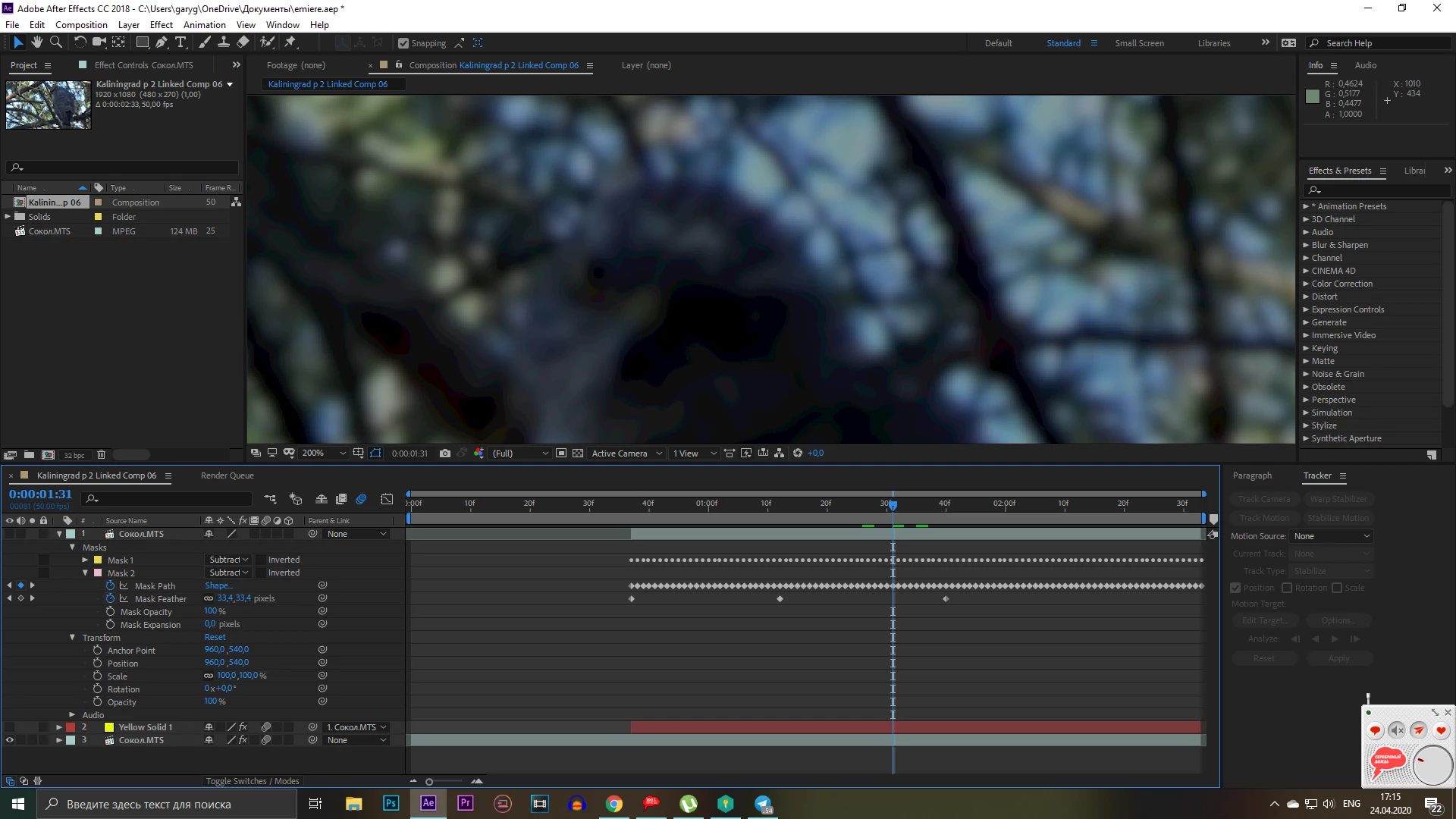
I have a problem with masks - I have one layer with two masks on it, yellow solid under it and a video layer under all. 

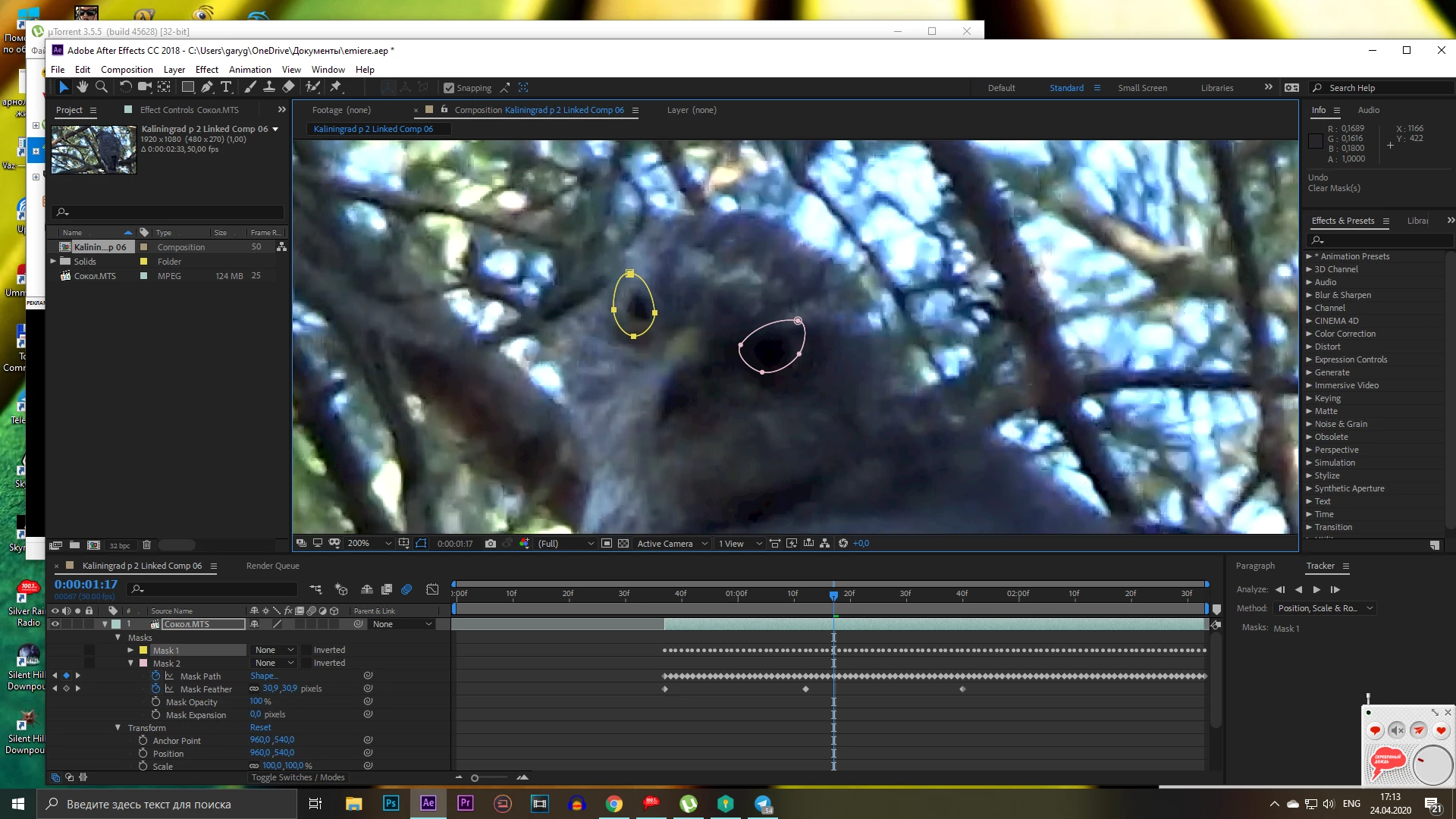
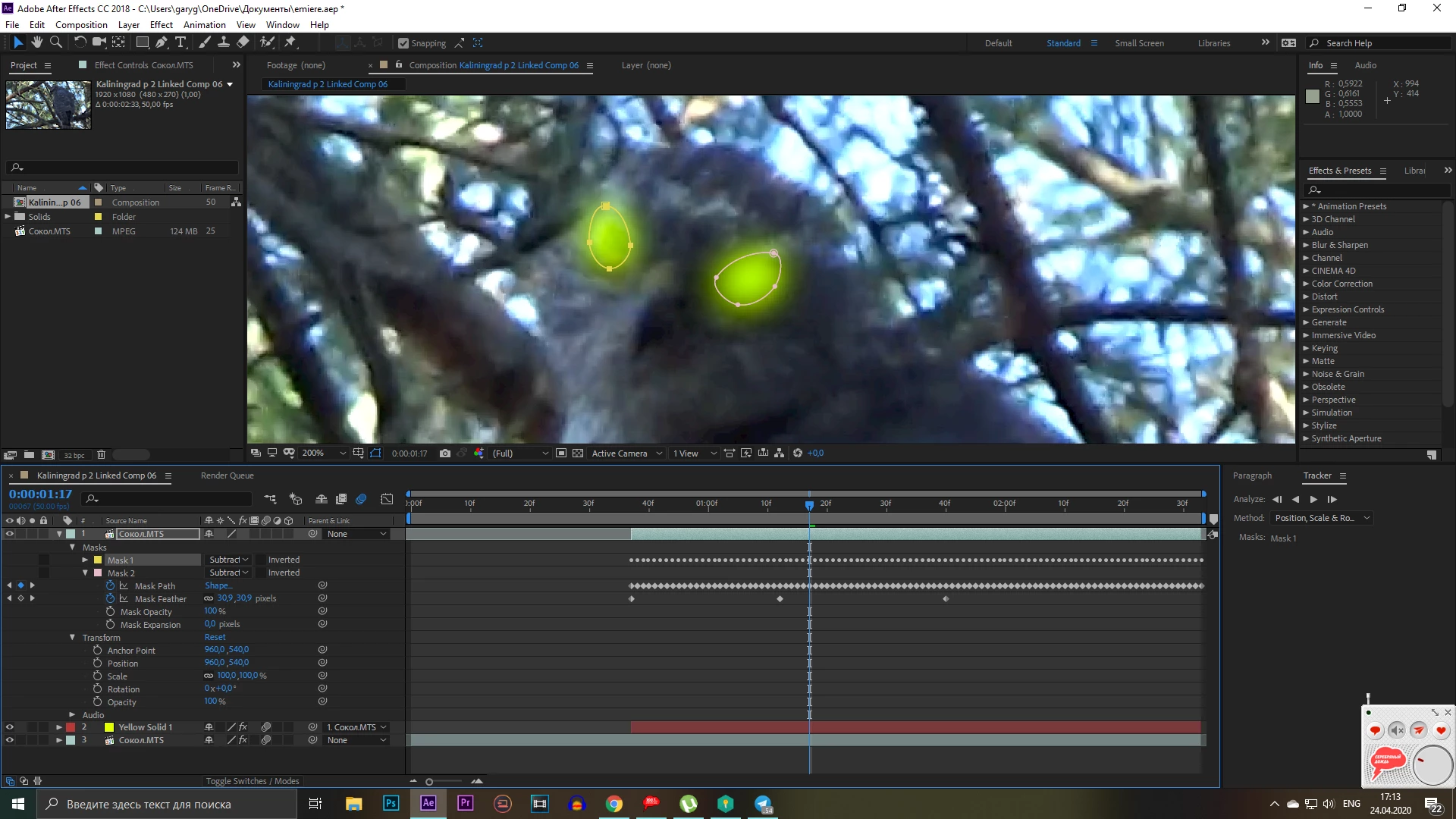
My problem is - the masks are drawn on the upper layer as you can see, and I thought they were supposed to remove the rest of the picture from this layer, but they didn't. I mean, I wanted them to reveal only what's within their region, in this case - the eyes of the bird.

So my goal is - to leave the glowing eyes of the bird on top of the lower layer, and the lower layer must take care of the rest of the picture. As a result it must look like the bird is getting blurred and faded, but not the eyes. 
 

This topic has been closed for replies.

2 replies

Community Expert
April 24, 2020

Your workflow and your thinking has flaws. In the final comp you have 3 layers. Layer 1 and 3 are the same footage. Here is what is happening in all 3 layers in the last screenshot:

Layer 1 - masks set to subtract means holes are cut in the layer. The visibility is off, which may be normal if the Layer 1 is used as a track matte for Layer 2, the yellow solid. That seems to make sense when you look at the second screenshot but it is only a guess because I cannot see the Modes column that shows blend modes and track mattes.

Layer 2 - Is a yellow solid that has at least one Effect applied but it is turned off so the layer and the effect have nothing to do with the comp. Even if Layer 2 was an adjustment layer, turning it off will have no effect on layer 3. If layer 3 was trying to use Layer 2 as a track matte that won't work either because the result of the track matte from layer 1 will disappear because of rendering order. Layer 2 is parented to Layer 1 but I don't know why or what that contributes to the project.

Layer 3 - Has at least one effect applied to the layer. If you are not using Set Matte to pull the alpha channel from another layer the effects will be applied to the entire layer. The only layer that is contributing to the composition is layer 3.


If you want to see through the holes in Layer 1 created by the masks turn the layer on.

If you want to add some color to the composite from Layer 2 try turning it on and changing the blend modes

If all you want is to see the blurred eyes, just turn on Layer 1. or turn layer 2 back on and make it an adjustment layer with the blur applied.


I probably would have just masked around the eyes on the top copy of the footage, added a blur and then played with blend modes and opacity to get some glowing blurry eyes. If needed a tint or correction could be applied. This would give fewer pixels for the blur to calculate and make the project render a little faster. 


If that does not fix your problem we need a lot better description of your design goals. Something like "I want to add yellow glowing eyes to this footage" would do.

v3t3rAuthor
Participant
April 25, 2020

Thank you I used some of your advise and it worked

Community Expert
April 24, 2020

Select all Layers / right click / Pre-compose... then apply the blurred and faded effect in this precomposed Layer.

Byron.