
Participating Frequently
November 20, 2017
Answered

Minimize Render Time After Effects CC 2018

  • November 20, 2017
  • 1 reply
  • 10640 views

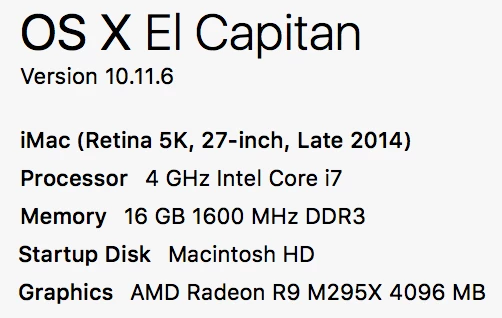
Recent AE CC 2018 projects of mine have rendered extremely slowly, taking between 3-5 hours to render 30 sec motion graphic projects. I've been using both Mac and and PC with the following specs:

Mac
PC:

Windows 10

3.2 Core i5

32GB RAM

4G video (NVIDIA Geoforce TX 980)

Common effects used are particles (all AE native), fractal noise, turbulent displace, colorama, CC sphere, curves, radial fast blur, fast blur, stroke and CC bend it.  There are others but these are typical.  I need to work in 32 bit and am typical working with 32 bit PSD files that are quite large (5000 x 5000ppi).  I can drop this down, however, I really can't lose any vibrancy/quality with the color.  I often use expressions and I often use DUIK. 

My issue is that I need to render these projects out to a ProRes 422 and they take hours and hours to complete.  I'm wondering what I can do to reduce these render times?  It's even worse I've noticed when I queue it to media encoder and render it there--typically that takes three times as long.  And this happens when I'm not doing anything else on the computer so all the RAM, in theory, should be allocated to rendering.  I will add that on either my Mac or PC the render times are the same.  I can upgrade the iMac but I'm not sure if that will really improve much here.  The PC will be my last one purchased, too many issues with windows...

I understand what I do can cause slowness, however, these projects are only 30 seconds and typically only use the classic 3D renderer.

    This topic has been closed for replies.
    Correct answer Casey_D

    In your render queue, underneath the blue "loading" bar: on the left-hand side is an arrow called "Current Render." Once your render starts, click "Current Render" to twirl down a detailed progress of your render. AE will tell you exactly what layer / effect / comp it is processing as it renders.

    This can give you a clue as to what effect is slowing your render down. For example, if AE burns through everything in 3 seconds (but then takes 27 seconds to process your PSD layer) you will know what you need to reduce.

    Another possible way to speed up your render times is by running a multi-image sequence. You can use a 3rd party plugin like Background Render and just run the script multiple times. This will let you pump out 3 - 4 frames at once on your computer, depending on CPU power. Then, just re-render the image sequence as a ProRes when complete.

    You can also set this up yourself with some quick scripting in Terminal.

    1 reply

    Roei Tzoref
    Legend
    November 20, 2017

    See if this helps:

    Improve performance in After Effects

    regarding your high pixel count psd files- when working with raster files, work as large as you need it but not much more. The more pixels, the more resources Ae needs.

    try to use GPU acceleration in the project settings if you haven't already.

    Participating Frequently
    November 21, 2017

    Thanks, I do several of things mentioned in that section of the users guide but I'll double check everything that I can.  I agree these high resolution raster files are cumbersome to work with, especially with a 32bit project, but I wonder how people work with 4K then.  In most cases, I need quite a bit of resolution to animate properly but I don't always crop the files down when I pull them into AE--just so I have more wiggle room--but I guess this is slowing things down in the long run.

    Casey_D
    Casey_DCorrect answer
    Inspiring
    November 21, 2017

    In your render queue, underneath the blue "loading" bar: on the left-hand side is an arrow called "Current Render." Once your render starts, click "Current Render" to twirl down a detailed progress of your render. AE will tell you exactly what layer / effect / comp it is processing as it renders.

    This can give you a clue as to what effect is slowing your render down. For example, if AE burns through everything in 3 seconds (but then takes 27 seconds to process your PSD layer) you will know what you need to reduce.

    Another possible way to speed up your render times is by running a multi-image sequence. You can use a 3rd party plugin like Background Render and just run the script multiple times. This will let you pump out 3 - 4 frames at once on your computer, depending on CPU power. Then, just re-render the image sequence as a ProRes when complete.

    You can also set this up yourself with some quick scripting in Terminal.