Known Participant
January 25, 2024
Answered

.mogrt Problem

  • January 25, 2024
  • 1 reply
  • 1197 views

Hello
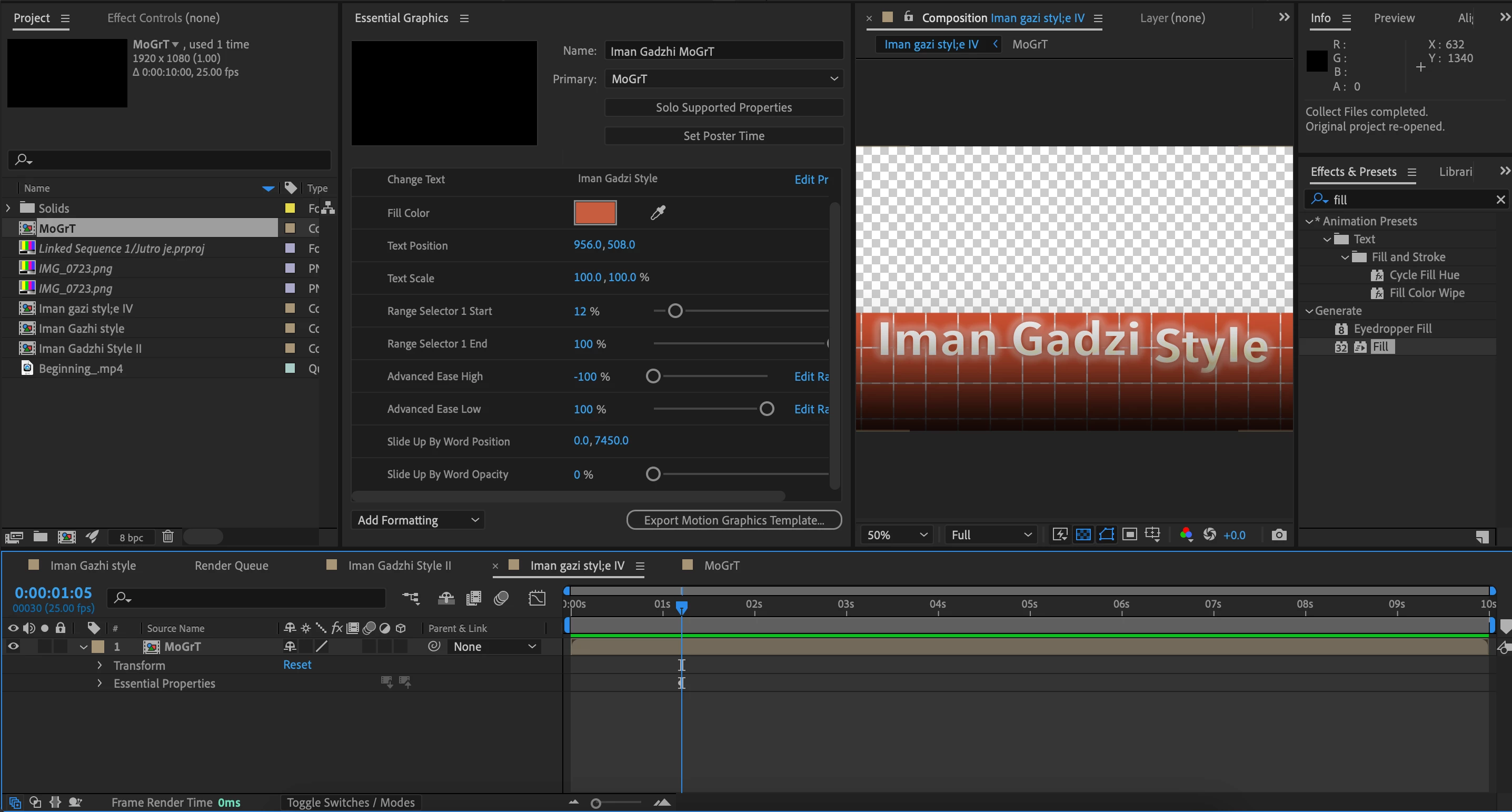
I managed to create a customisable template in Ae for use in Pr. But in Pr, I cannot customise effects such as 'Range selector' and 'Ease' (under the Slide up by word effect in Ae) in Pr.
Is it because the Slide up by word effect is native only to Ae that's why it is not working in Pr?

Please help
Thanks

Attaching screenshots
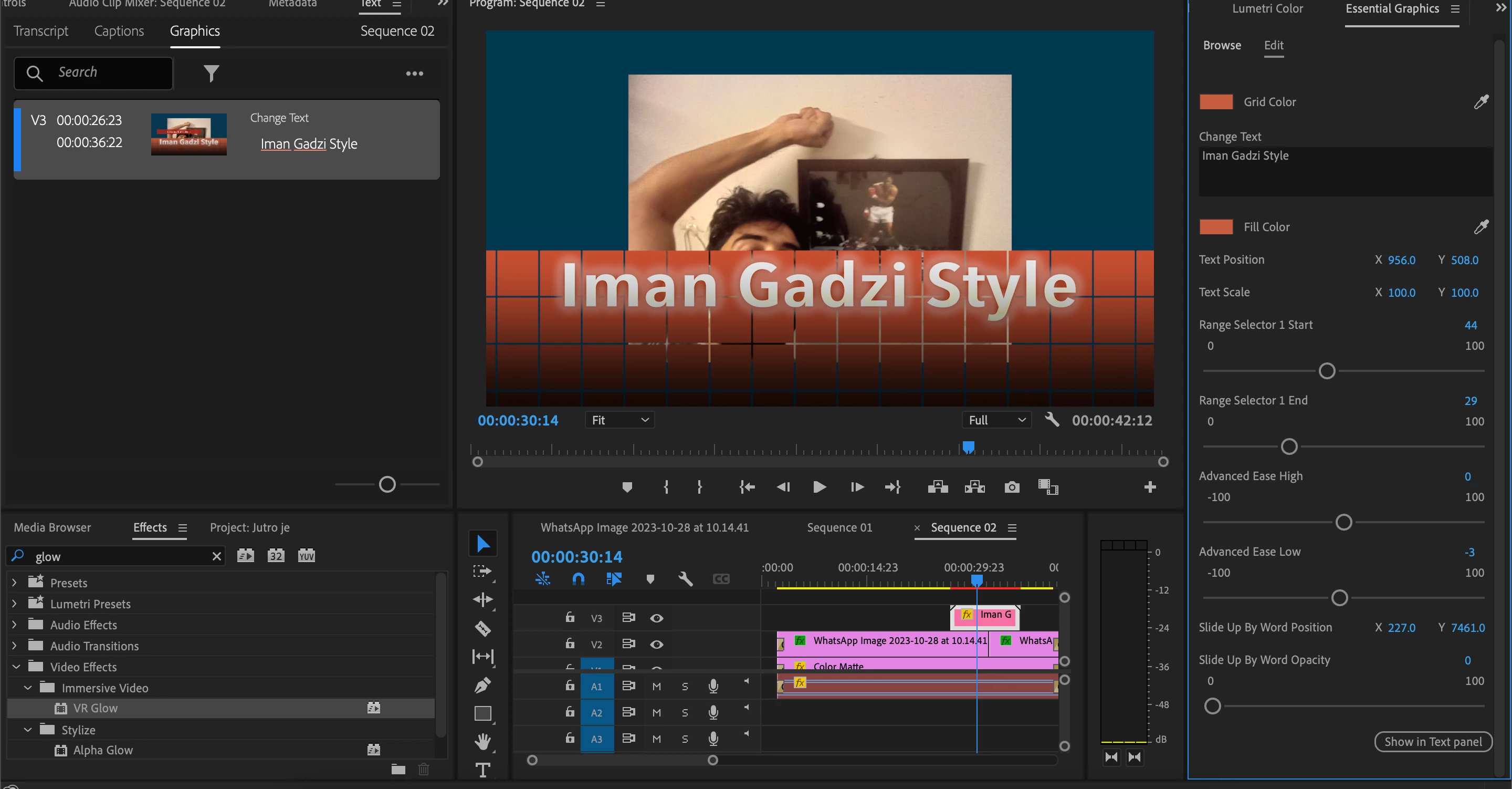
 

Mod note: Title changed slightly ".mogrt"

This topic has been closed for replies.
Correct answer Theresa Rostek

What's the name of the layer you have your 3 slider controls on? That layer name must match the expression we've set up.

Also, I see that your controls are named a little differently. You'll want to update your expressions to match the names:


var x = thisComp.layer("Controls").effect("Slider Control Start")("Slider");
var y = thisComp.layer("Controls").effect("Slider Control End")("Slider");
var t = thisComp.layer("Controls").effect("Animator")("Slider");

ease(t, 0, 100, x, y)


1 reply

Theresa Rostek
Community Manager
Community Manager
January 26, 2024

Hi @Adooby-doobie,

(Great username!)

I think the issue you're running into here is that controls with keyframes can't be used as controls. Premiere Pro doesn't know which keyframe you want to apply the new value to, so it can't. But there is a way to make it work. You need to pass the values to Slider Controls and use expressions. 


  • You'll need to create three slider controls on a Null layer
  • Name the null Controls
  • Name one Slider Control Start, the other End, and the other Animator
  • On your text layer's Range Selector end property (which probably has your animation keyframes), click the stopwatch while holding alt.
  • Add in the following expression:


  • var x = thisComp.layer("Controls").effect("Start")("Slider");
    var y = thisComp.layer("Controls").effect("End")("Slider");
    var t = thisComp.layer("Controls").effect("Animator")("Slider");
    
    ease(t, 0, 100, x, y)
  • On the Animator, add a 0 to 100 animation. Position these keyframes how fast or slow you want your animation to happen.
  • In the Essential Graphics panel, delete the Range Selector 1 Start control and Range Selector 1 End control
  • Add the new Start and End slider controls to the Essential Graphics panel
  • For any other controls that have keyframes that you want as a control, you'll need to replicate this and make sure you name your new controls differently.
  • Export your mogrt and check that it works in Premiere Pro


I created a project of the above. Let me know how you do!

Cheers,

Theresa

Motion Graphics, Premiere Pro
Known Participant
January 26, 2024

Waoh!

Thanks so much for such a detailed reply Theresa. Will try and let you know.

Thanks again!