
Participant
March 27, 2023
Question

MOGRT responsive textbox

  • March 27, 2023
  • 3 replies
  • 3016 views

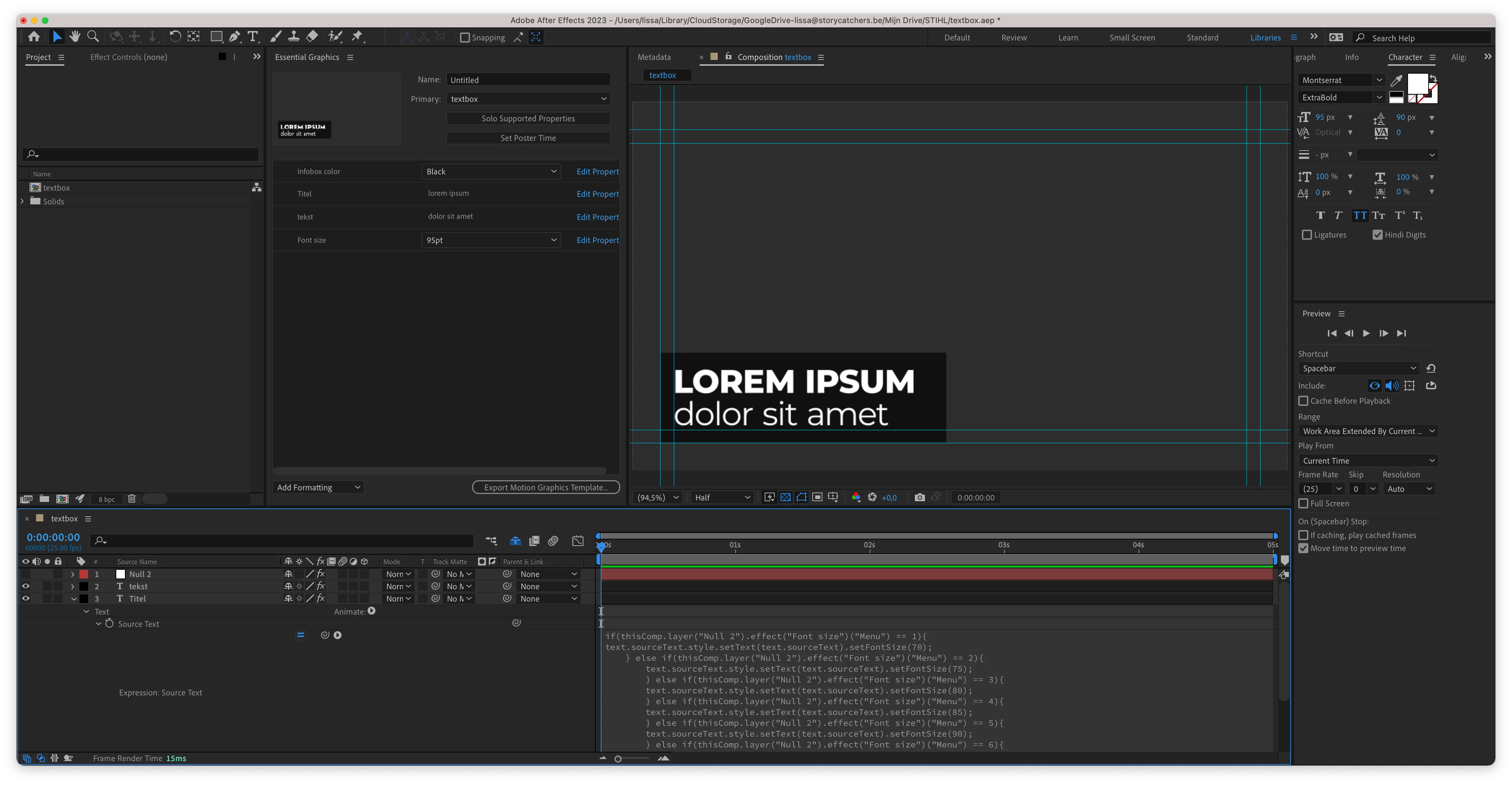
Hi, I've been trying to make this textbox responsive but I'm stuck. I am very new to mogrts, the essential graphic panel and expressions.

- The text box needs to have the exact same padding for each font size

- You need to be able to change the text even if one line of text becomes 2 (and the textbox needs to expand to that new text)

- When a new line of text is added the textbox need to go up, because the complete text needs to stay in the bottom left corner

- Needs to be outlined to the left. (box and text)


I followed a bunch of tutorials on youtube, but none of them really help me with this exact problem so please help me
 

3 replies

Community Expert
May 26, 2023

I took some time this evening to throw together an AEP file that you can look at. As long as the Anchor Point is in the center of your background layer, and the text is center justified, these expressions will work for the Title Layer:

// Title Position
l3 = thisComp.layer("Background");
l2size = thisComp.layer(index + 1).sourceRectAtTime();
bgP = l3.position;
bgS = l3.sourceRectAtTime();
pad = 30; // caption padding
tLsize = sourceRectAtTime();
ttlY = tLsize.height + l2size.height + pad;
[bgP[0], bgP[1] - ttlY/2 - tLsize.top]


// Title Scale
tlW = sourceRectAtTime().width;
subW = thisComp.layer(index + 1).sourceRectAtTime().width;
txtW = Math.max(tlW, subW);
bgW = thisComp.layer("Background").sourceRectAtTime().width * .8;
ratio = bgW/tlW;
if (tlW < bgW){
	x = 100;
}
else{
	x = 100 * ratio;
}
[x, 100]

I have set the max text width to 80% of the background layer size.


These are the expressions for the Caption Layer:

// Caption Position
l1 = thisComp.layer(index - 1);
box = l1.sourceRectAtTime();
y = box.top + box.height;
pad = 30; // percent of padding
tLyr = sourceRectAtTime();
tlTop = tLyr.top - pad;
p = l1.position;
p + [0, y - tlTop]

// Caption Scale
tlW = sourceRectAtTime().width;
subW = thisComp.layer(index - 1).sourceRectAtTime().width;
txtW = Math.max(tlW, subW);
bgW = thisComp.layer("Background").sourceRectAtTime().width * .8;
ratio = bgW/tlW;
if (tlW < bgW){
	x = 100;
}
else{
	x = 100 * ratio;
}
[x, 100]

As a text layer gets bigger, it starts to scale down when it approaches 80% of the width of the Background. The position of the Background layer drives the position of the Title layer. There is a padding value that offsets the Tltle layer from the Caption layer. The position of the Caption layer is driven by the position of the Title layer. 


I hope this points you in the right direction. I'm only scaling the text in X, but you could also scale in Y if you want by driving both values by the result of the if statements. 


Community Expert
March 28, 2023

This is the basic workflow that I would follow and the expressions. 


The idea:

Tie the position of the second text layer to the position of the top text layer and offset it by the height of the second text layer. It would also be a good idea to compensate for paragraph justification and baseline shift in both text layers. Padding as a percentage of the height of the top text layer should also be added to the formula. Here is the expression that accomplishes that task:

mstr = thisComp.layer(index - 1);
p = mstr.position;
b = mstr.sourceRectAtTime();// text box
l = b.left;
t = b.top;
h = b.height;
tl = sourceRectAtTime();// this layer text box
tll = tl.left;
tlh = tl.height;
tlt = tl.top;
sp = h * .3;

[p[0] + l - tll, p[1] + t + h - tlh - tlt + tlh + sp]

The expression starts by identifying the master text layer as the layer above the current layer. The position of the top text layer is retrieved as the variable "p." It then defines the left, top, width, and height of the master text layer. Padding as a percentage of the height of the master text layer is retrieved. The next lines define the left height and top of the current layer. 


The final line takes the current X position of the master layer, adds the left, value of the master layer, and subtracts the left value of the current layer to keep the layers lined up on the left edge no matter what the paragraph justification is. The Y position of the master layer is now added to the top plus the height of the master layer, and then the current layer height plus the top is subtracted, and the space is added between the layers. 


The expression keeps the two layers lined up on the left edge and puts the second text layer below the first. 


The first part of the problem is solved. You could add a slider control and do a little math to make it easy to adjust the size of the space between layers. 


The next step is to create a shape-layer rectangle that is big enough to cover both text layers plus horizontal and vertical padding while tying the position of the shape layer to the position of the master text layer. To start, just use the pickwhip to tie the shape layer's position to the top text layer with this simple expression:

thisComp.layer(index - 2).position

The next step is to create a rectangle that is the size of the two text layers plus some horizontal and vertical padding. Here's the expression for that:

l1 = thisComp.layer(index - 2);
b = l1.sourceRectAtTime();// text box
w = b.width;
h = b.height;
lp = b.height * .3;
l2 = thisComp.layer(index - 1);
l2b = l2.sourceRectAtTime();
l2w = l2b.width;
l2h = l2b.height;
x = Math.max(w, l2w);
hPad = 80;
vPad = 40;
[x, h + l2h + lp] + [hPad, vPad];

The l1 and l2 variables refer to the two text layers. I retrieve the width and height of both layers plus the padding between layers (lp). To find the widest text layer I use the Math.max(v1, v2) function to tell me which layer is wider. Then the x width is retrieved and the height of both layers plus the padding (lp) is added, then the horizontal and vertical padding are added to the rectangle. 


Again, the hPad, vPad, and lp can be attached to sliders. The result of this expression is a rectangle that will be the same size as the two text layers, plus the padding and line spacing.


The last step is to modify the Rectangle 1/Position property with this expression. Again you have to use the top and left values for the master text layer and factor in the padding and the size of the rectangle so that the top left corner of the Rectangle is positioned at the top left corner of the master text layer (index - 2) and offset that value by the horizontal and vertical padding.


Here's the expression for that part of the project:

b1 = thisComp.layer(index - 2).sourceRectAtTime();
b2 = thisComp.layer(index - 1).sourceRectAtTime();
t = b1.top;
h = b1.height;
l = b1.left;
w = Math.max(b1.width, b2.width)/2;
sh = content("Rectangle 1").content("Rectangle Path 1").size[1]/2;
vPad = 40/2;
[l + w, t + sh - vPad]

Again I use the Math.Max(layer 1 width, layer 2 width) to find the widest layer. and the left + width and top + the rectangle size minus half the vPad (vertical padding) are used to position the rectangle.


So you end up with three relatively complex expressions to tie text layers and a shape layer to the combined size of two text layers and one simple expression to tie the position of the shape layer background to the master text layer. I hope this helps. 


There is a tutorial in the works that explains the workflow in detail, and it will come with some sample files and a set of Animation presets. 

I've included a project file for you.

Participant
March 28, 2023

Hi, I haven't yet been able to go through your whole reply and try it out, but I just wanted to thank you already for your time and for trying to help me solve my problem.

Community Expert
March 27, 2023

I don't see a background layer. The Comp should be the same size as your Premiere Pro sequence. If you are stacking text layers, you need to retrieve the size of the top text layer and move the bottom text layer below it. You use top and left in addition to height and width from sourceRectAtTime() to control the position of the bottom text layer. If the bottom text layer might be empty and you want to move the top text layer down, you'll also need an if/else statement in the top text layer's position.


Trying to control the font size of the bottom text layer by reading the font size of the top layer is not going to return the same results as using sourceRectAtTime because of the ascenders and descenders in the text. 


You have opened another can of worms if you want to keep the background the same size as the font size changes. 


Please explain your design goal in detail. It looks like you have a very small comp size and two text layers that have no controls attached to their position.

Participant
March 27, 2023

Hi thank you for your reply, I forgot to mention that the text also needs to be able to adjust in size with the dropdown menu that I already created, hence why the height also needs to adjust, when the font is smaller the top stays in the same place now. 


The background layer isn't visible because I have the source text expression opened. 

My text layers indeed don't have any controls attached to their position.

Community Expert
March 27, 2023

I don't have time to explain the expressions right now. I'm on mobile. I'll try later. 


You tie the size of the background shape layer to the position of the top text layer and add the height and padding to the Y size of the two text layers plus padding between the layers. You use the max width operator to determine the wider of the two layers so the background is always wide enough. To keep things simple, both layers should have the same paragraph justification. Your sample shows Left. 


I'll try and get to it later today. I have an animation preset that does this kind of thing all the time.