
Inspiring
August 31, 2020
Answered

Mogrt rounded corner scale settings issue

  • August 31, 2020
  • 1 reply
  • 1244 views

Hi guys, 

I have issue in retaining the curve shape when setting up a .mogrt file for a lower third animation. 

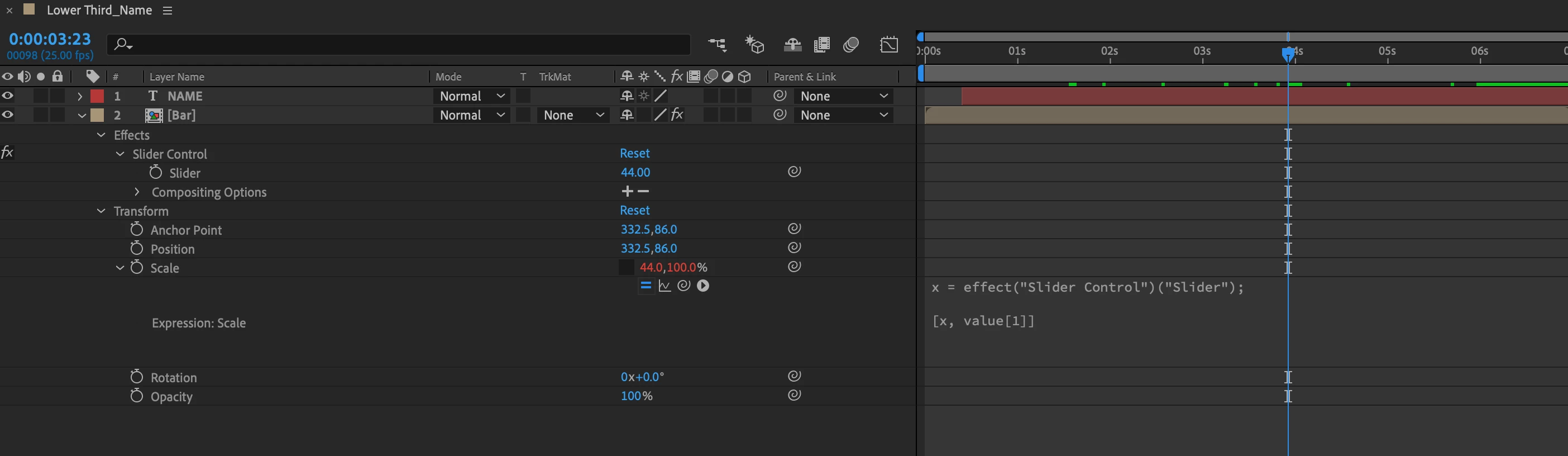
I wanted to adjust the width using slider but the curve is distorted. I'm not too familiar with expression and wondering if anyone knows how to solve this?


Below is my current settings:
 

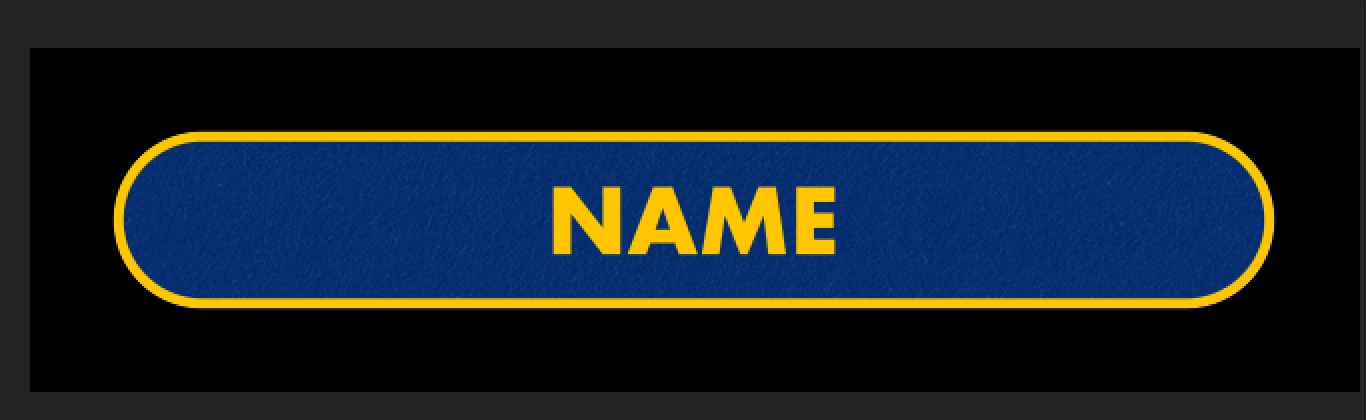
How the curve suppose to look:
 

The issue: Distorted curve once the width changes 

 

This topic has been closed for replies.
Correct answer Roland Kahlenberg

I suggest you restart and create the Shape Layer in the same comp as the Text Layer, for better interactive performance and easier pickwhipping to create Expressions.


The 'normal' Rectangle Shape Layer contains a Roundness property. If you link the Roundness value to the height of the Rectangle Shape Layer, you should always obtain properly curved edges. In fact, as long as Roundness is at least 1/2 of the Rectangle Shape Layer's height, you should be fine too.


1 reply

Community Expert
August 31, 2020

Don't use Scale, use a shape layer with a rounded rectangle. Using Scale will always distort a layer unless you keep X and Y scale values identical. 


Your background is in a nested comp. You can still access the properties in a nested comp (pre-comp), but for this kind of work, it is a lot more efficient to use sourceRectAtTime() to automatically size a rectangle and position it properly on the text layer than it is to try and use a Slider Control. 


I set up and X and Y padding sliders, a slider for baseline shift, and a slider for roundness, and then add expressions to Content/Rectangle 1/ Size, Roundness, the Rectangle Transform Anchor Point, and Position, and the shape layer Anchor Point and Position. Most of them are just [0, 0] to keep things from moving, but the expressions for the Contents (group) Rectangle Path 1 Size and Position are a little more complicated. The roundness is pretty straight forward, 0 to 100 on the slider gives you square corners to a smooth radius no matter what size the box is. 


I saved this all to an animation preset and I use it all the time to create morts. It's universal and always works if you put the shape layer right below the text layer. 


Here's the animation preset for you to play with. Just create a text layer, then make sure no layers are selected and apply the animation preset, then drag the new shape layer below the text layer and you should have a text box that matches the text. The only thing that can foul this up is a baseline shift in the source text layer. This Animation Preset is for Centered Text. I also have one for Left Justified and Right justified text. If you carefully study the expressions you should be able to work out the changes in the code that is necessary to line up the magic text box with left or right justified text layers.


These are the expressions:


// Rectangle size
txt = thisComp.layer(index - 1);
s = txt.sourceRectAtTime();
padX = effect("Pad X")("Slider");
padY = effect("Pad Y")("Slider");
txtScale = txt.scale * .01;
txtBox = [s.width, s.height] + [padX, padY];
[txtBox[0] * txtScale[0], txtBox[1] * txtScale[1]]

// Rectangle Position
txt = thisComp.layer(index - 1);
s = txt.sourceRectAtTime();
padX = effect("Pad X")("Slider");
padY = effect("Pad Y")("Slider");
txtScale = txt.scale * .01;
descFix = effect("Baseline Correction")("Slider");
txtBox = [s.width, s.height] + [padX, padY];
correction = content("Text Box").content("Rectangle Path 1").size;
[txtBox[0] * txtScale[0], (txtBox[1] + (s.top/2) + descFix)  * txtScale[1]] - correction

// Rectangle Roundness
yRadius = content("Text Box").content("Rectangle Path 1").size[1]/2;
radiusComp = yRadius * effect("Roundness")("Slider")* .01

// Transform Text Box Position, Anchor Point and shape layer Anchor Point
[0, 0]

// Layer/Transform/Position;
txt = thisComp.layer(index -1).position


This is what it looks like. I selected the Shape layer, pressed UU to show you everything that I modified so you should be able to reproduce the setup.


MlynziraAuthor
Inspiring
September 1, 2020

Hi Rick, thank you so much for this. Took few brain cells for me to understand how the code works.

I do find another problem when I have a keyframes animation on the shape layer. It works when it's only static but the keyframes don't correspond with the code.
