Known Participant
August 25, 2022
Answered

MOGRT Shape Reveal Text Problems

  • August 25, 2022
  • 2 replies
  • 1152 views

My goal is to create a motion graphics template for a title reveal with a solid underneath, like the kind used on many social media videos. I have been referncing this ECAbrams tutorial: https://www.youtube.com/watch?v=EG7m3j1X9hQ&t=792s

I used his expression to make the rectangle fit whatever text is typed. The difference is, I would like to reveal the text and have the solid go from left to right instead of from the center. 


When I try using the rectangle contents' scale property, I have to adjust the corner anchor point each time, or else the rectangle reveal doesn't start from the very left.


I tried using the linear wipe effect, but the 0-100% controls don't correspond to the length of my rectangle. Also, I haven't been able to make the rectangle's transition completion dictate the rectangle alpha matte's completion. This way, I would have to include the linear wipe properties for both rectangles in the essential graphics pannel and constantly re-keyframe, which defeats the time-saving purpose of a template.


Am I missing a simpler solution? Thanks for your help!

This topic has been closed for replies.
Correct answer Rick Gerard

You need to tie the position of the shape layer to the position of the Text layer and compensate for paragraph styles by using sourceRectAtTime().left and baseline shift using soruceRectAtTime().top.


You also have to tie the Rectangle/Position to the size of the rectangle with an expression. Roland gave you the format for doing that with Anchor Point, but I prefer to keep it all in the Contents/Rectangle section of a shape layer. 


This is how I do it. Because the text layer is always above the shape layer rectangle, I use (index - 1) instead of the text layer name, and I have a bunch of animation presets I saved, so I don't have to enter the expressions by hand.  I have also added horizontal and vertical padding sliders and a roundness slider. 


If you want to use a text animator to reveal the line or lines of text, you also need to add a time something like this: sourceRectAtTime(thisLayer.inPoint + .5) so that the size of the shape layer background is taken after the text has been revealed. You can also use the half-second (.5) if the text animates in from the left side.


I also always compensate for text layer scale. Here are the expressions:


// Rectangle/Size
src=thisComp.layer(index - 1);
ref = sRc.sourceRectAtTime();
refScale = sRc.scale * .01;
pad = 20; // ten pixel padding
x = ref.width + pad;
y = ref.height + pad;

[x * refScale[0], y * refScale[1]]

// Rectangle/Position Compensates for paragraph justification and baseline shift
src=thisComp.layer(index - 1);
box = src.sourceRectAtTime();
refScale = src.scale * .01;
x = box.width / 2;
y = box.height / 2;
t = box.top;
l = box.left;

[(x + l) * refScale[0], (y + t) * refScale[1]]

// Rectangle/Roundness - adds curved edges
src=thisComp.layer(index - 1);
maxR = sRc.sourceRectAtTime().height / 2;
rndRatio = .5;
rVal = maxR * rndRatio;

//Shape Layer/Transform/Position - ties the rectangle to the text layer.
src=thisComp.layer(index - 1);
sRc.position;


You can't really do what you are trying to do with just one expression. I always use at least 3. If there are text animators, you'll need to add a time value for sourceRectAtTime(thisLayer.inPoint + time in seconds)


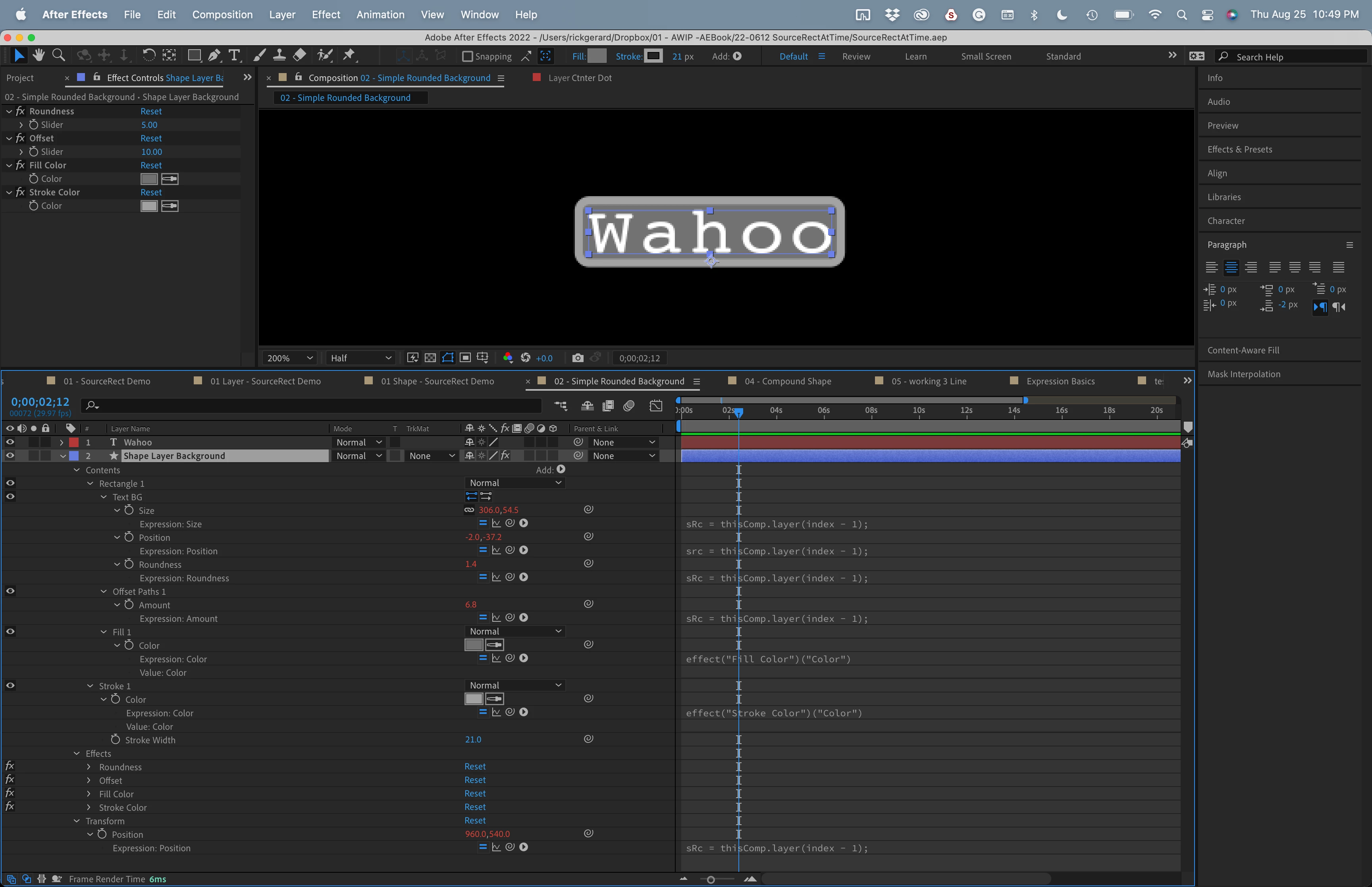
This is a screenshot from an upcoming tutorial series I am working on showing all of the modified properties of the shape layer. I've added Offset Paths, sliders to control things, and even background and stroke color controls. 
 

I hope this helps.

2 replies

Rick GerardCommunity ExpertCorrect answer
Community Expert
August 26, 2022

You need to tie the position of the shape layer to the position of the Text layer and compensate for paragraph styles by using sourceRectAtTime().left and baseline shift using soruceRectAtTime().top.


You also have to tie the Rectangle/Position to the size of the rectangle with an expression. Roland gave you the format for doing that with Anchor Point, but I prefer to keep it all in the Contents/Rectangle section of a shape layer. 


This is how I do it. Because the text layer is always above the shape layer rectangle, I use (index - 1) instead of the text layer name, and I have a bunch of animation presets I saved, so I don't have to enter the expressions by hand.  I have also added horizontal and vertical padding sliders and a roundness slider. 


If you want to use a text animator to reveal the line or lines of text, you also need to add a time something like this: sourceRectAtTime(thisLayer.inPoint + .5) so that the size of the shape layer background is taken after the text has been revealed. You can also use the half-second (.5) if the text animates in from the left side.


I also always compensate for text layer scale. Here are the expressions:


// Rectangle/Size
src=thisComp.layer(index - 1);
ref = sRc.sourceRectAtTime();
refScale = sRc.scale * .01;
pad = 20; // ten pixel padding
x = ref.width + pad;
y = ref.height + pad;

[x * refScale[0], y * refScale[1]]

// Rectangle/Position Compensates for paragraph justification and baseline shift
src=thisComp.layer(index - 1);
box = src.sourceRectAtTime();
refScale = src.scale * .01;
x = box.width / 2;
y = box.height / 2;
t = box.top;
l = box.left;

[(x + l) * refScale[0], (y + t) * refScale[1]]

// Rectangle/Roundness - adds curved edges
src=thisComp.layer(index - 1);
maxR = sRc.sourceRectAtTime().height / 2;
rndRatio = .5;
rVal = maxR * rndRatio;

//Shape Layer/Transform/Position - ties the rectangle to the text layer.
src=thisComp.layer(index - 1);
sRc.position;


You can't really do what you are trying to do with just one expression. I always use at least 3. If there are text animators, you'll need to add a time value for sourceRectAtTime(thisLayer.inPoint + time in seconds)


This is a screenshot from an upcoming tutorial series I am working on showing all of the modified properties of the shape layer. I've added Offset Paths, sliders to control things, and even background and stroke color controls. 


I hope this helps.

Known Participant
August 29, 2022

@Rick Gerard, thank you very much for the detailed explanation. The sourceRectAtTime(left) and sourceRectAtTime(top), along with pick whipping the position to size did the trick! I still have to try out those other expressions you shared, like adding curved edges along with the time-saving (index-1) with presets method.


I'm still scratching the surface with expressions and sourceRectAtTime seems like a very powerful tool.

Roland Kahlenberg
Legend
August 25, 2022

You need an Expression to set the anchorPoint for Contents>Scale Prop - 

const mySize = content("Rectangle 1").content("Rectangle Path 1").size;
[-mySize[0]/2,0]


Very Advanced After Effects Training | Adaptive & Responsive Toolkits | Intelligent Design Assets (IDAs) | MoGraph Design System DEV
Known Participant
August 29, 2022

Thank you, @Roland Kahlenberg. Your response along with Rick's pointed me in the right direction!