Participant
March 11, 2019
Answered

Motion Blur Moves Location of Shape!?

  • March 11, 2019
  • 3 replies
  • 1006 views

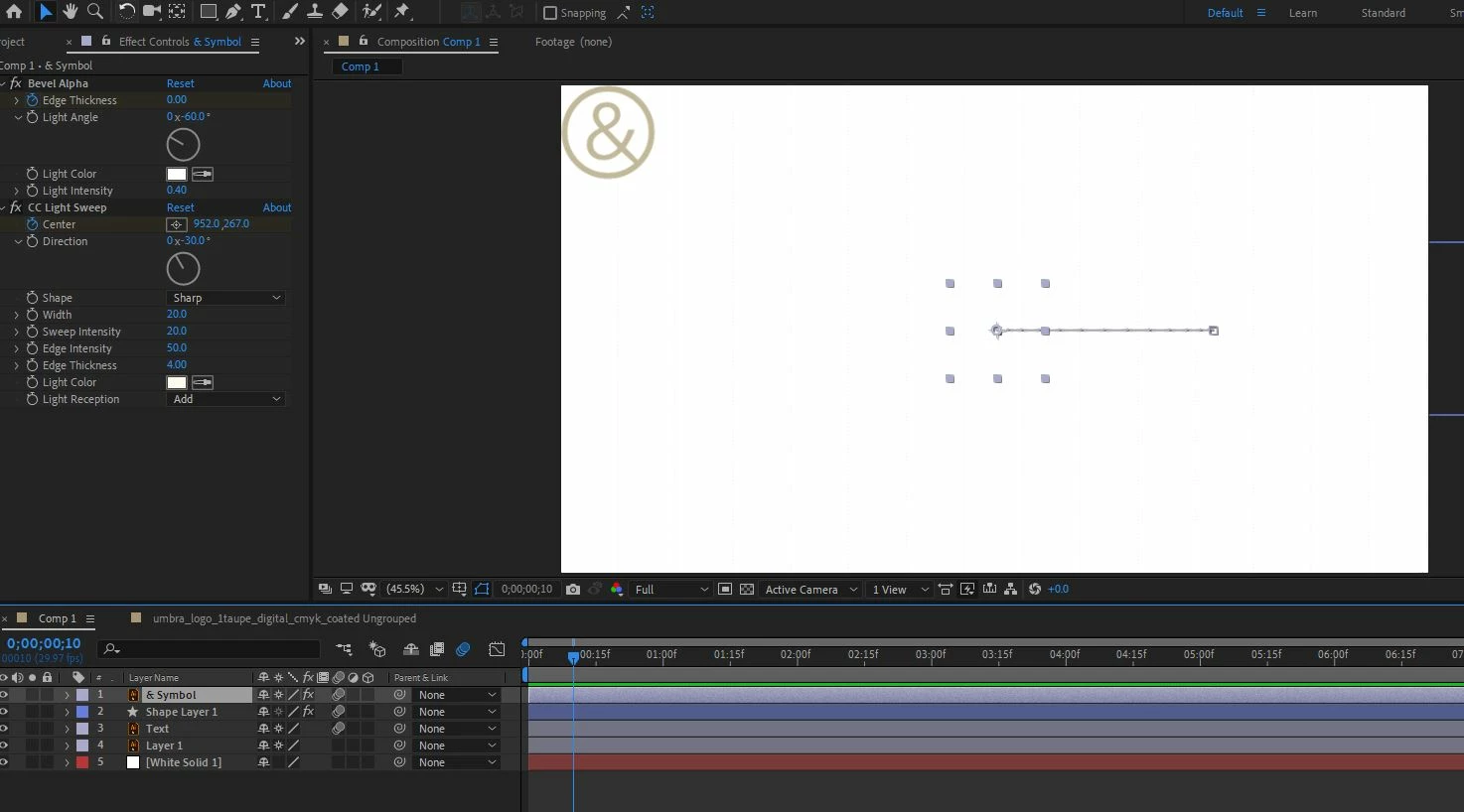
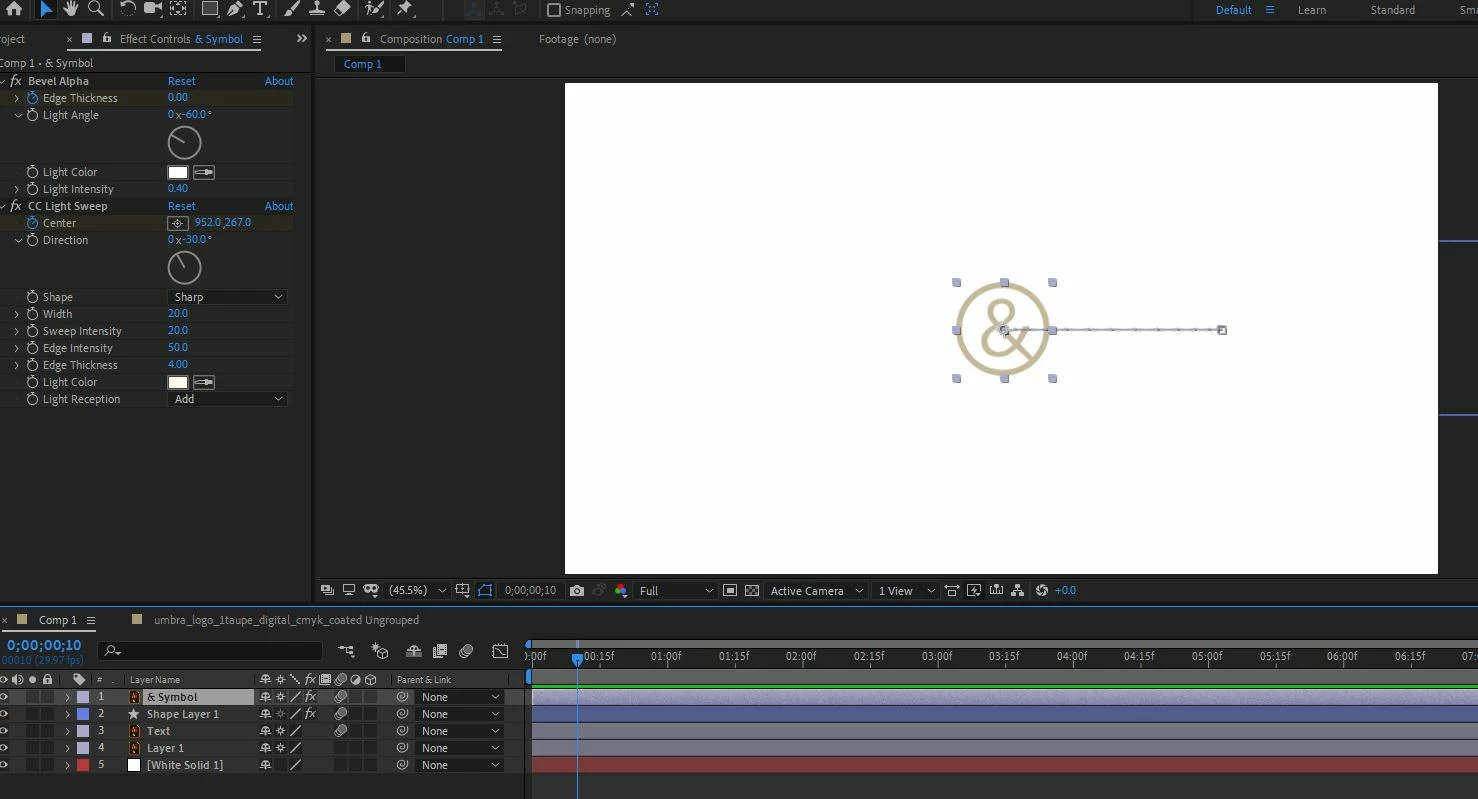
I've created this short animation in After Effects and I've come to add some motion blur but when I tick the motion blue box for the whole composition, the location of the & symbol in the logo moves!?  See screen shots below - the & jumps from centre to the top left hand corner...

Please can someone help?
This topic has been closed for replies.
Correct answer Harry1718

Thanks Rick

Good strategy - that found the issue fast.  It was the Bevel Alpha effect... don't know why yet but as soon as I turned this off the issue went away! 

I'm pretty new to Ae so not too used to trouble shooting yet... any ideas where I should go next to find what the issue is with this effect?

Thanks

3 replies

Community Expert
March 11, 2019

Try adding bevel alpha on an adjustment layer and pre-composing or try just re-ordering the effects. There is a workaround.

I could not reproduce the problem with a text layer but I like Light Sweep below Bevil Alpha better. Here's everything modified in the comp a couple of frames before the motion stops.

Mylenium
Legend
March 11, 2019

Disable GPU-accelerated rendering. this happens when your graphics hardware isn't up to standard and can't correctly calculate the sub-samples and transparencies.

Mylenium

Community Expert
March 11, 2019

The first thing I would do is solo the layer giving you problems and then turn off the effects applied to the layer one at a time. If the problem goes away when you turn off an effect you have narrowed down the problem.

If that does not help then check the Preview settings for the Comp Panel. If changing that to final quality does not fix the problem press uu to reveal all modified properties of the soloed layer. Start resetting things there.

If the layer is still giving you problems then create a new composition, use one of the presets, make sure that the Advanced and Render settings are all normal, copy and paste the problem layer to the new comp.

If you still can't figure out what is causing the problem reboot, start a new AE project, create a new comp, add the Illustrator layer with the @ symbol, animate the movement and apply the same effects you applied in the problem comp. 

Harry1718AuthorCorrect answer
Participant
March 11, 2019

Thanks Rick

Good strategy - that found the issue fast.  It was the Bevel Alpha effect... don't know why yet but as soon as I turned this off the issue went away! 

I'm pretty new to Ae so not too used to trouble shooting yet... any ideas where I should go next to find what the issue is with this effect?

Thanks

OussK
Community Expert
Community Expert
March 11, 2019

i never see something like this!! first did you try to create a new comp and copy and past your layer in side it? and did you use any expression?

anyway try to show us more about you work flow like key frames composition setting and the plugin you use even on the other layers