


Participating Frequently
April 27, 2026
Question

Motion Path Questions

  • April 27, 2026
  • 1 reply
  • 11 views

I did simple Position keyframing to make a star move from the lower left to the upper right. The screenshot with the properties can be seen.
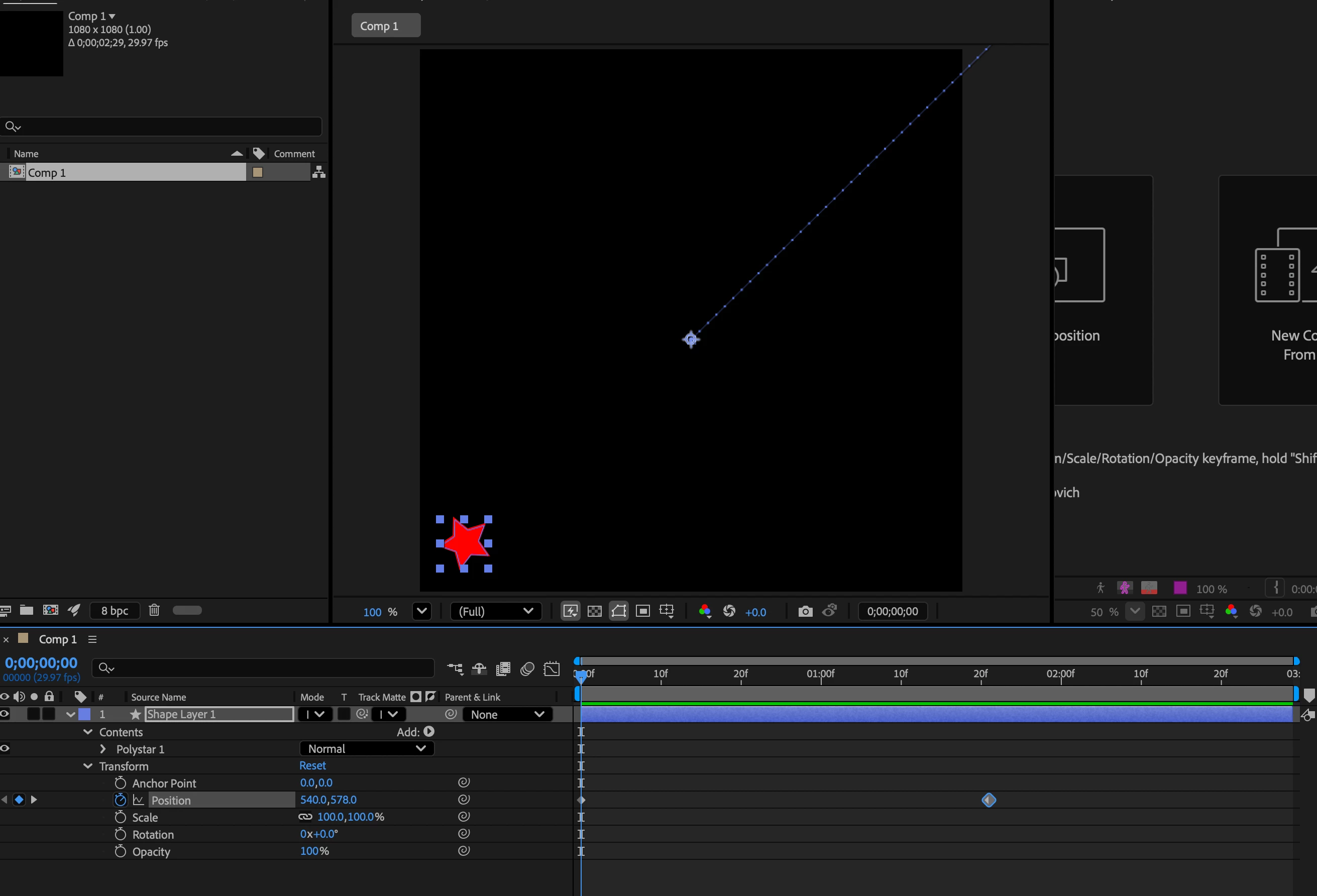


  1. If I add the keyframes to the Position property under Transform: Polystar 1 layer there is no motion path. If I add the keyframes to Position under  the Transform layer then the motion path displays. What is the difference between using the Position property and adding keyframes these two different ways?
  2. After doing the Position keyframes to the Transform layer, I am having an issue with the Center Point for the Motion Path not being in the center of my shape so the motion path does not display for it properly as can be seen in the first screenshot. If I use the Pan Behind tool I move the center point to the center of the shape and then the motion path displays properly. Why is it not doing this by default?
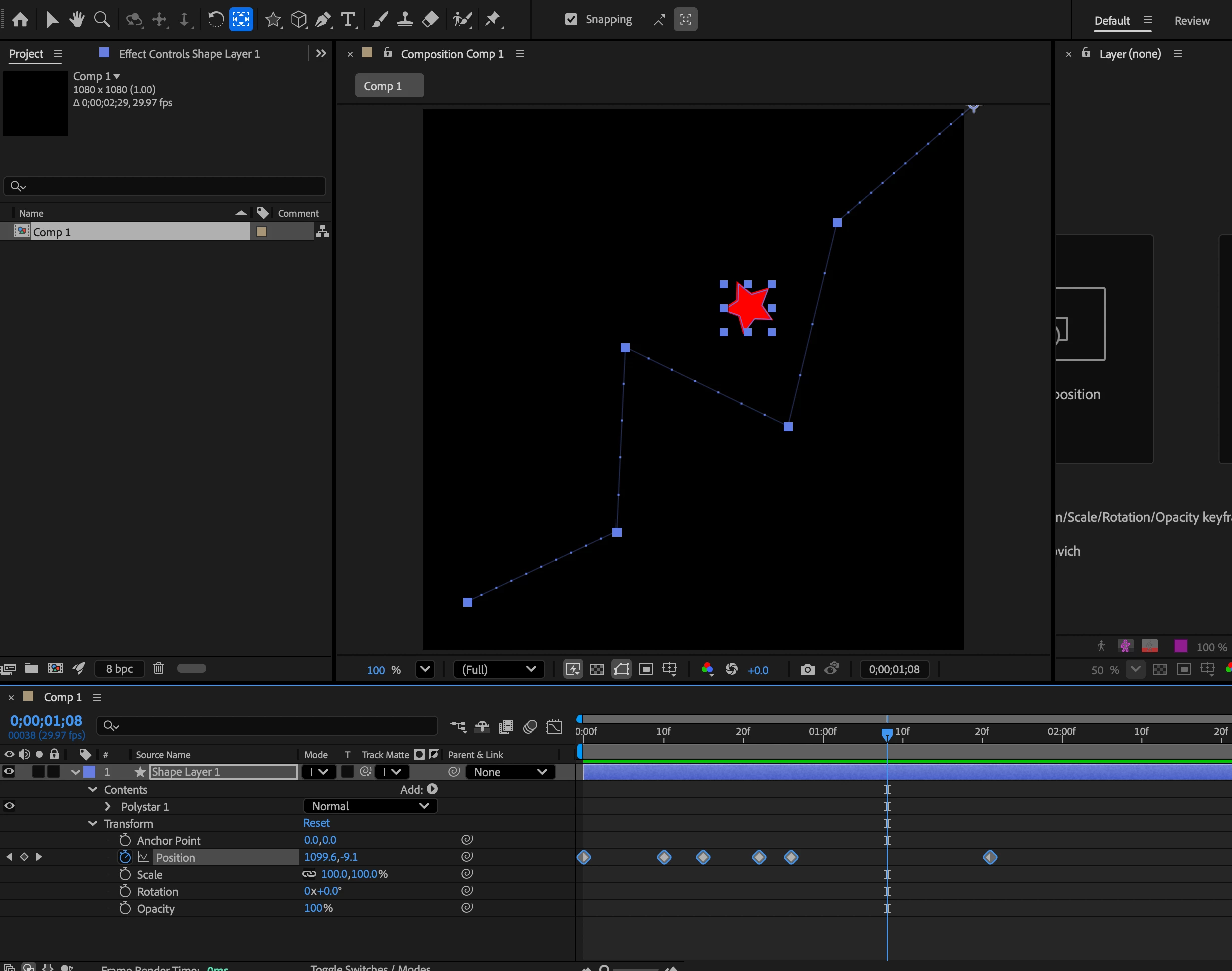
  3. The shape is still not moving exactly along the motion path as can be seen in the second screenshot, how do I get it to do this? The only thing I did was drag on the anchor points on the motion path to change how the shape moves.


Thanks

    1 reply

    OussK
    Community Expert
    Community Expert
    April 27, 2026

    Shape Layer Position & Anchor Points

    1. Two Position properties

    Shape layers have nested transforms. Transform: Polystar 1 moves the shape inside the layer's contents. The bottom Transform moves the whole layer in the comp. Motion paths only display for the layer-level Position because that's the one in comp space. Always use the bottom Transform for animating across the screen.

    2. Anchor point not centered

    New shape layers anchor at 0,0 of the comp (top-left), not at the shape's center. The motion path draws from the anchor, which is why it looks offset.

    Fix: Layer, then Transform, then Center Anchor Point in Layer Content (Ctrl+Alt+Home on Windows, Cmd+Opt+Home on Mac). Do this before keyframing. Moving the anchor afterward shifts the shape's apparent position.

    3. Star not following the path

    Usually one of these:

    Anchor still off-center. The path is correct, but the eye tracks the star's center while the anchor follows the path.

    Uneven keyframe timing. Even on a smooth path, irregular spacing looks jumpy.

    Too many keyframes. Extras get added when dragging handles.

    Fix:

    1. Center the anchor (Ctrl+Alt+Home).
    2. Easy Ease the keyframes (F9) for smooth motion.
    3. To make the star point along the path: Layer, then Transform, then Auto-Orient, then Orient Along Path.
    4. Delete extra keyframes you didn't intend.