Narey
Participating Frequently
March 3, 2017
Answered

Motion Tracking Hands In A Golf Swing

  • March 3, 2017
  • 3 replies
  • 1589 views

Hi,

I'm wanting to track hands in a golf swing during the various stages.

The problem is that the hand will change the appearance during the swing as it has to rotate in 3 dimensions. Normal motion tracking simply goes offline as the track point changes state.

Would it be just easier to track the hand frame by frame or is there yet an easier automatic method?

Source material: Luke Donald - slow motion golf swing - YouTube

Cheers!

    Correct answer Rick Gerard

    You can use Track Motion to speed things up. When I Track Motion on a difficult shot the first thing I do is go into Preferences>Display and turn set      This gets you from this mess:

    To this kind of a display where you can actually see, without confusion, where your attach point actually is.
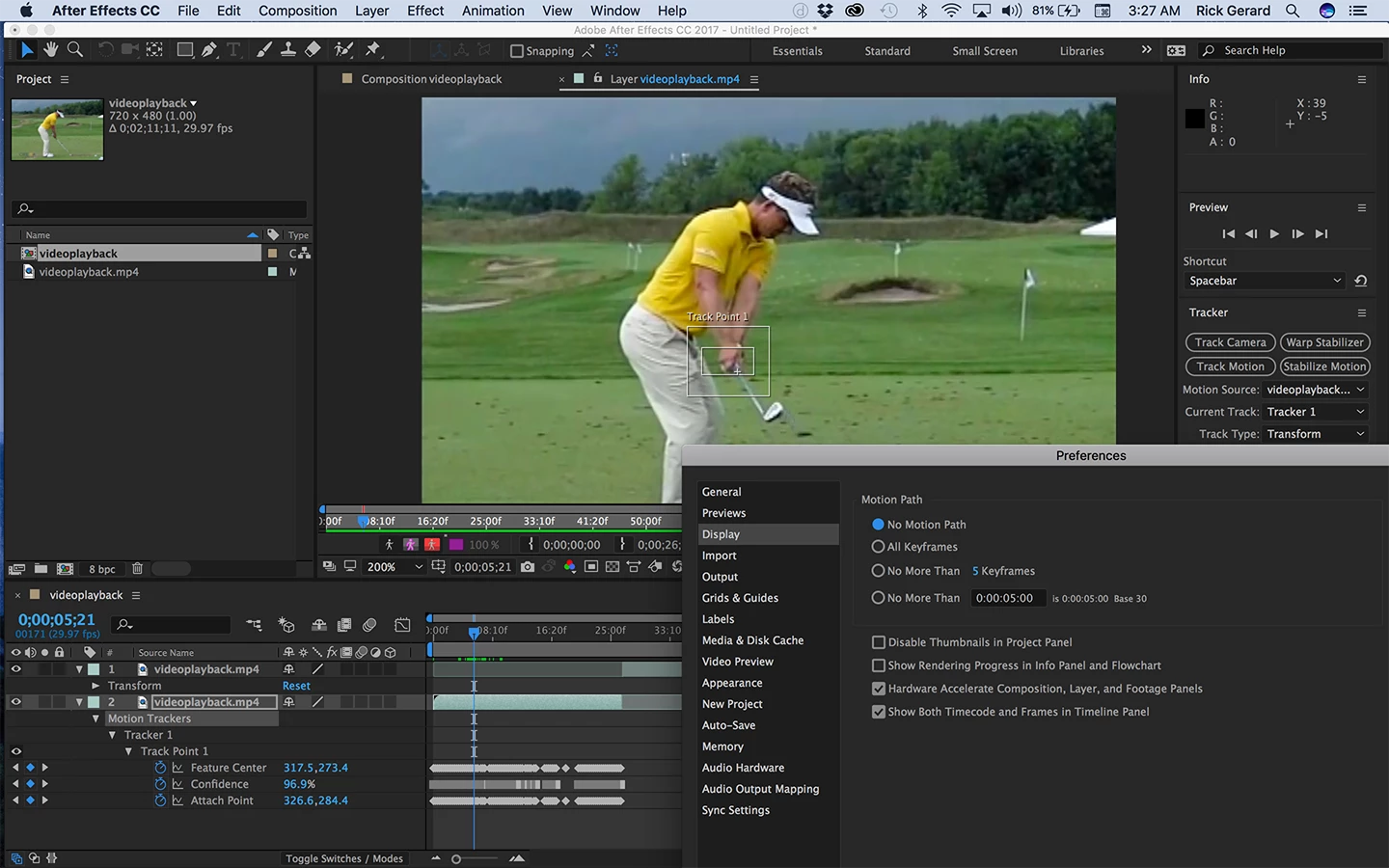
    I pick an area of detail that I think will work pretty well for quite a few frames then I let the tracker run, keeping my finger on the stop button. As soon as the tracker looses position I stop, then I go back and check a few frames to see where the tracker fails. I click drag around the keyframes between the last good position and where I stopped the track, delete them, adjust the position of the tracker and the attach point on the last keyframe and start again. When I get to parts that I know won't track well I just skip ahead and move the tracker and the attach point to a new position. I then check between the keyframes and if necessary I make adjustments. This usually goes very quickly. The first part of your sample shot took me less than 5 minutes to track. I zoomed in on the timeline so you can see the big holes in the tracking where I just set the keyframes by hand.
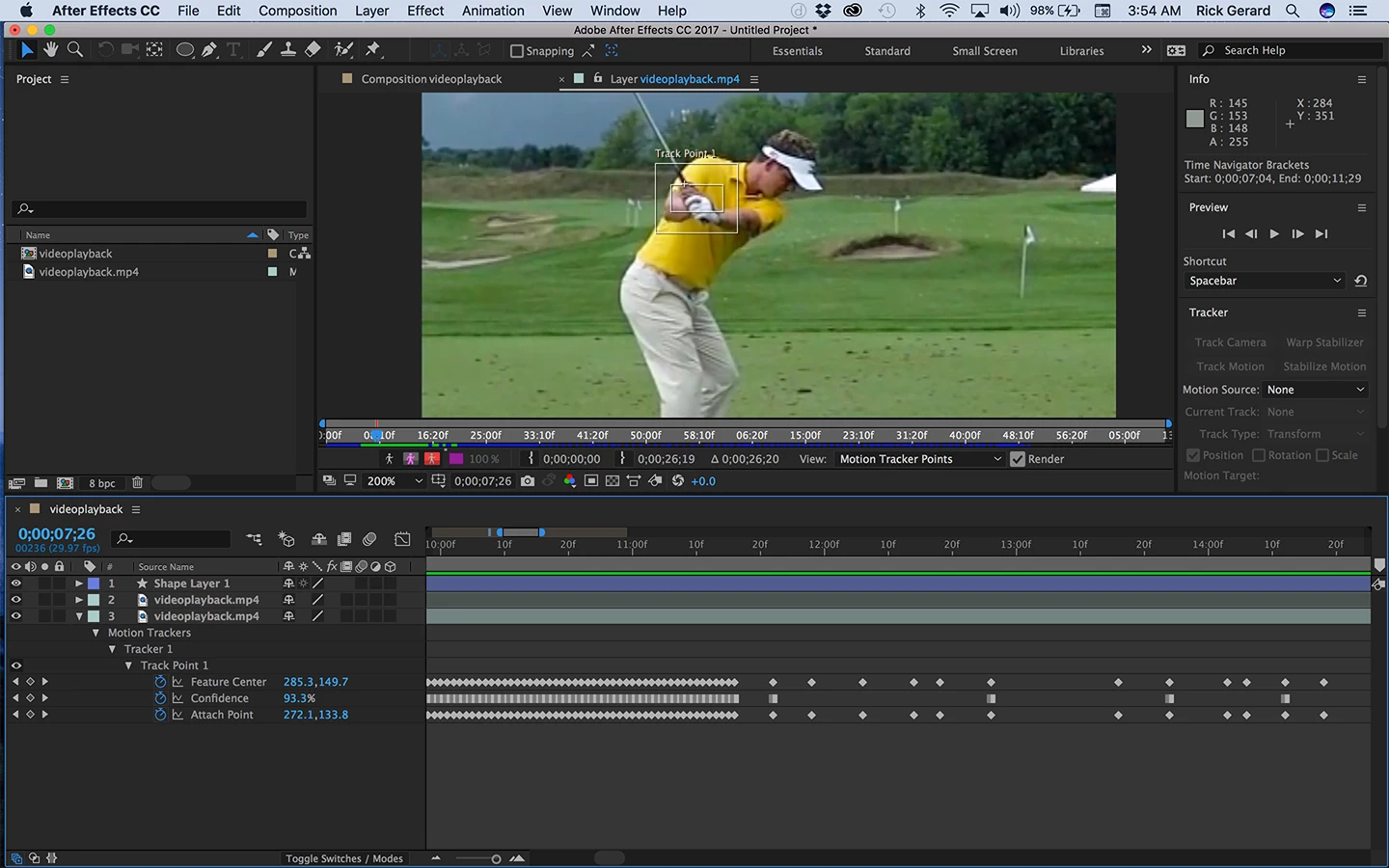
    I then attach my graphic to the attach point either through a null or through an expression by typing value + then dragging the pickwhip to the attach point. This allows me to add a few additional keyframes for the graphic to adjust the position throughout the shot.

    I hope this gives you some ideas. When I'm through with the tracking I go back and turn on All Motion Keyframes in preferences. Used properly AE's motion tracker does a pretty good job. For this specific shot Track Motion was a better choice than trying to Track in Mocha AE. If the shot was framed differently Mocha AE would probably be a better option. There is no one best solution for all shots.

    3 replies

    Participant
    August 24, 2024

    ### Motion Tracking Hands in a Golf Swing

    Motion tracking technology has become an invaluable tool in modern golf, especially when analyzing the mechanics of a golf swing. By focusing on the hands, golfers can gain insights into critical aspects of their swing, such as timing, speed, and path. Here's a closer look at how motion tracking works and why it's essential for improving your game.

    #### **How Motion Tracking Works:**
    Motion tracking involves using cameras or sensors to capture the movement of a golfer's hands throughout the swing. These devices create a 3D model of the swing, allowing for a detailed analysis of the hand’s position at every stage—from the takeaway to the follow-through.

    Advanced systems can measure:
    - **Hand Path:** The exact trajectory of your hands, which helps in understanding if you’re swinging on-plane.
    - **Hand Speed:** How fast your hands are moving, which directly correlates with clubhead speed and overall distance.
    - **Hand Timing:** The synchronization of your hands with the rest of your body, critical for consistent ball striking.

    #### **Why It's Important:**
    - **Improving Accuracy:** By understanding the exact motion of your hands, you can identify and correct errors that lead to slices, hooks, or other mishits.
    - **Enhancing Power:** Tracking the speed and movement of your hands allows you to optimize your swing for maximum power, translating into greater distance.
    - **Consistency:** Consistency in your hand motion is key to maintaining a reliable swing that holds up under pressure.

    #### **Application in Training:**
    Many professional golfers use motion tracking as part of their training regimen. Coaches analyze the data to provide targeted feedback, helping golfers refine their technique. This technology is now becoming more accessible to amateur players as well, offering insights that were once only available to the pros.

    For more detailed golf tips and to stay updated on the latest in golf technology, visit Golferguideline. Whether you're a beginner or a seasoned player, understanding your swing can make all the difference in your game.

    Narey
    NareyAuthor
    Participating Frequently
    March 3, 2017

    Thanks for the reply. Yeah that's the problem - it doesn't work. I need the track to be rather precise as I want to essentially have graphics that track the hands to help demonstrate certain movements in both the takeaway and the downswing.

    If it's off and starts to stray it wouldn't look good especially if I want to have some HUD like spinning circles following the hands path.

    If you could recommend anything that would be amazing!

    Cheers!

    Dave_LaRonde
    Inspiring
    March 3, 2017

    Someone might be able to offer alternative tracking techniques, but I think I might use a null object.   I'd place at the starting position, make a position keyframe, then move it where the subject's swing makes any kind of change in direction... yeah, the motion's supposed to be a nice, smooth arc, but it may not look so circular in 2D.  In other words, you don't have to keyframe every frame.

    Once you've made the first pass through,  parent a marker -- or your HUD thingy -- to it and tweak the null's motion path as necessary.

    Rick GerardCommunity ExpertCorrect answer
    Community Expert
    March 4, 2017

    You can use Track Motion to speed things up. When I Track Motion on a difficult shot the first thing I do is go into Preferences>Display and turn set      This gets you from this mess:

    To this kind of a display where you can actually see, without confusion, where your attach point actually is.

    I pick an area of detail that I think will work pretty well for quite a few frames then I let the tracker run, keeping my finger on the stop button. As soon as the tracker looses position I stop, then I go back and check a few frames to see where the tracker fails. I click drag around the keyframes between the last good position and where I stopped the track, delete them, adjust the position of the tracker and the attach point on the last keyframe and start again. When I get to parts that I know won't track well I just skip ahead and move the tracker and the attach point to a new position. I then check between the keyframes and if necessary I make adjustments. This usually goes very quickly. The first part of your sample shot took me less than 5 minutes to track. I zoomed in on the timeline so you can see the big holes in the tracking where I just set the keyframes by hand.

    I then attach my graphic to the attach point either through a null or through an expression by typing value + then dragging the pickwhip to the attach point. This allows me to add a few additional keyframes for the graphic to adjust the position throughout the shot.

    I hope this gives you some ideas. When I'm through with the tracking I go back and turn on All Motion Keyframes in preferences. Used properly AE's motion tracker does a pretty good job. For this specific shot Track Motion was a better choice than trying to Track in Mocha AE. If the shot was framed differently Mocha AE would probably be a better option. There is no one best solution for all shots.

    Dave_LaRonde
    Inspiring
    March 3, 2017

    I wouldn't hesitate to use AE's built-in motion tracker on a shot like that.  What's the worst that could happen?  It wouldn't work well.

    But here's a more fundamental question: how would you USE such a track?  There may be other solutions.