
Participating Frequently
December 24, 2018
Answered

Move imported shape's elements in 3D

  • December 24, 2018
  • 4 replies
  • 979 views

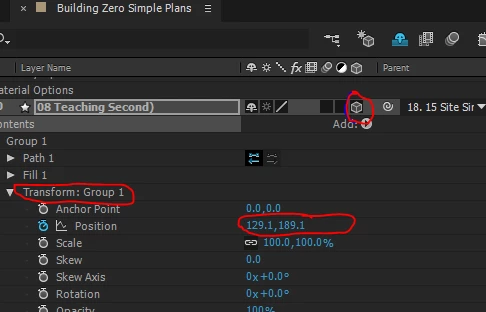
Hi, I've imported an illustrator file, and converted the contents to shape layers. I've made the layers 3D to animate a 3D site plan.

I seem to be able to move the overall layer's position in 3D, but once I open up the layer to view the various shape groups, the individual Position controls only allow two axes of movement. Is there a way to convert the shapes to separate layers allowing for 3D animation?
    This topic has been closed for replies.
    Correct answer Mike_Abbott

    Yes - you can only work in 2D within a shape layer.

    If the elements you want to seperate out are on their own top-level layers in the illustrator file... Import that as a composition. Find the 'Import as' menu in your import dialog and change it from 'footage' to 'Composition - retain layer sizes'. This will import your Ai file as a pre-built composition contaning all the individual elements of your layered Ai file. You can then select all those layers and Menu : Layer > Create > Create shapes from vector layer.  You'll then have individual shape layers (with 3D position capability) for each element.

    If you're doing this a lot you might also want to look at:

    Explode Shape Layers 3 - aescripts + aeplugins - aescripts.com

    Hope that helps,

    4 replies

    Participating Frequently
    January 2, 2019

    Updating now - thanks!

    Participating Frequently
    January 2, 2019

    Thanks, I figured it'd be something like that.

    I'm extruding the shapes to animate with the ray-traced option, so need them as shapes. Unfortunately there's quite a lot, hence wanting to group them into sub-layers.

    Oh well - looks like I'm going to have lots of layers...

    Mike_Abbott
    Legend
    January 2, 2019

    Derek,

    Ray-traced 3D?  That's "depreciated" - ie: end of life, and has been for quite a few years. That plus lot's of layers doesn't sound a good option to me. It will be as slow as treacle in December.

    I'd seriously consider looking at other options as well. Would the Cinema 4D rendering engine in AE meet your needs? That would be much faster. Alternatively you could use the inbuilt C4D Lite +Cineware plugin - or go to a full 3D program like Blender (https://www.blender.org/) - which is open source and free.

    I just don't want you to get stuck down a very deep hole here...

    Hope this helps.

    Participating Frequently
    January 2, 2019

    Yep, it's certainly slow!

    We're an architecture firm, so used to working in 3D packages, but starting to get into animation. I'm just getting started in AE, to see what it can do for us, so this is all really useful info.

    How do I access the Cinema4D engine? The tutorials I've watched so far suggest I needed to use ray-traced due to the extruded shapes (imported from the original CAD drawing via Illustrator). I can only see Ray-trace or Standard in the comp rendering options...

    Community Expert
    December 24, 2018

    The easiest thing to do is to arrange the AI file so that each element you want to animate is on a separate layer, then import as a composition retaining layer sizes.

    Unless you are using shape layer animators, animating the actual path, or trying to extrude the layer using the C4D or Ray-traced rendering option, there is absolutely no reason to convert vector artwork to shape layers. It is probably one of the most misunderstood and ill-used workflows in After Effects. I'm laying AI files all over AE's 3D world all the time and I can probably count on one hand the number of times it was necessary to convert a vector layer to a shape. You ought to think about it.

    Mike_Abbott
    Mike_AbbottCorrect answer
    Legend
    December 24, 2018

    Yes - you can only work in 2D within a shape layer.

    If the elements you want to seperate out are on their own top-level layers in the illustrator file... Import that as a composition. Find the 'Import as' menu in your import dialog and change it from 'footage' to 'Composition - retain layer sizes'. This will import your Ai file as a pre-built composition contaning all the individual elements of your layered Ai file. You can then select all those layers and Menu : Layer > Create > Create shapes from vector layer.  You'll then have individual shape layers (with 3D position capability) for each element.

    If you're doing this a lot you might also want to look at:

    Explode Shape Layers 3 - aescripts + aeplugins - aescripts.com

    Hope that helps,