Inspiring
August 7, 2025
Answered

Move path vertex to another's object anchor point

  • August 7, 2025
  • 1 reply
  • 508 views

So, I create I single vertex path using the Pen Tool. I want to move that vertex to exact pixel perfect location of a shape objects center point.
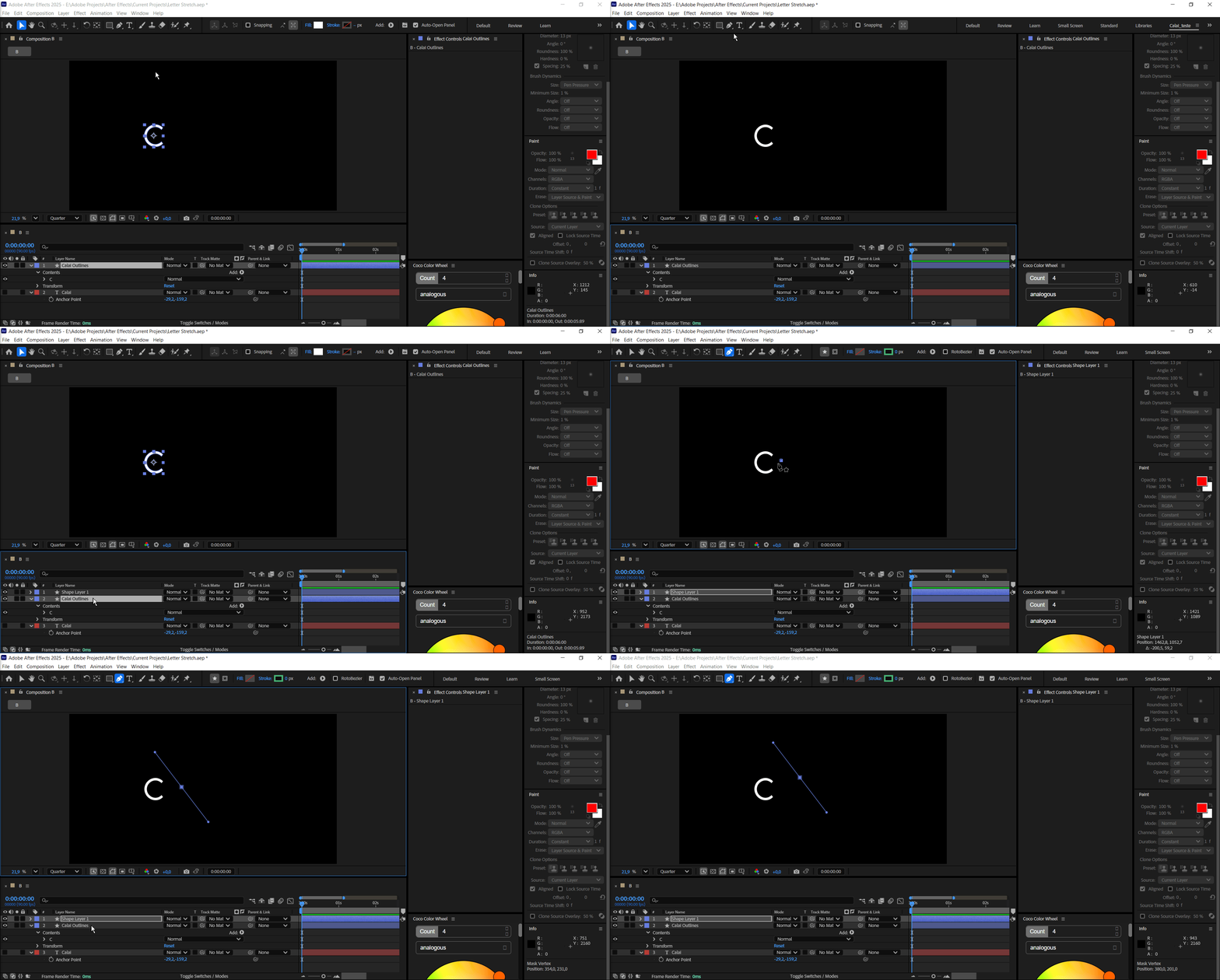
 

What have I tried:

Method 1: Snap Path Point to Another Object’s Anchor Point

Step-by-step:

  1. Enable Snapping

    • At the top of the UI, click the Snapping icon (magnet) or press Shift + S.

    • Optionally, enable the drop-down next to it and check:

      • Snap to Layers

      • Snap to Anchor Points

      • Snap to Guides (optional)

  2. Select Your Shape Layer’s Path

    • Expand the layer: Contents > Shape > Path 1 > Path

    • Click on “Path” to select it.

    • In the comp viewer, select the first vertex (small square) of the path.

  3. Drag the Vertex with Snapping

    • Now click and drag the vertex, and it will snap to nearby anchor points (including the target object’s anchor).

    • When it "snaps," it’ll feel magnetic and jump to that anchor point precisely.


🧲 Method 2: Type the Anchor Point’s Coordinates Manually

If you want perfect alignment, use this:

  1. Select the Target Layer (the one with the anchor point you want to align to).

  2. Press A to show its Anchor Point.

  3. Note the exact position or copy it (e.g., 960, 540).

  4. Now select your Path vertex, and in the Info Panel, watch the coordinates as you move it — or use the Layer > Transform > Position panel to set things precisely using expressions.


🧠 Bonus Tip: Use Expressions for Dynamic Linking

You can link the path point to follow another object’s anchor point, like this:

  1. Add a single point shape (like a Line Path with one vertex).

  2. Alt+Click the Path stopwatch.

  3. Use an expression like:

    javascript
    CopiarEditar
    var pos = thisComp.layer("YourTarget").toComp(thisComp.layer("YourTarget").anchorPoint); createPath([pos])
     
    I still can't get it to work
Correct answer ShiveringCactus

This work! Thanks!
Listen, Nishu. I don't want to abuse your patience but since I have you here I'll try you for a follow up question.

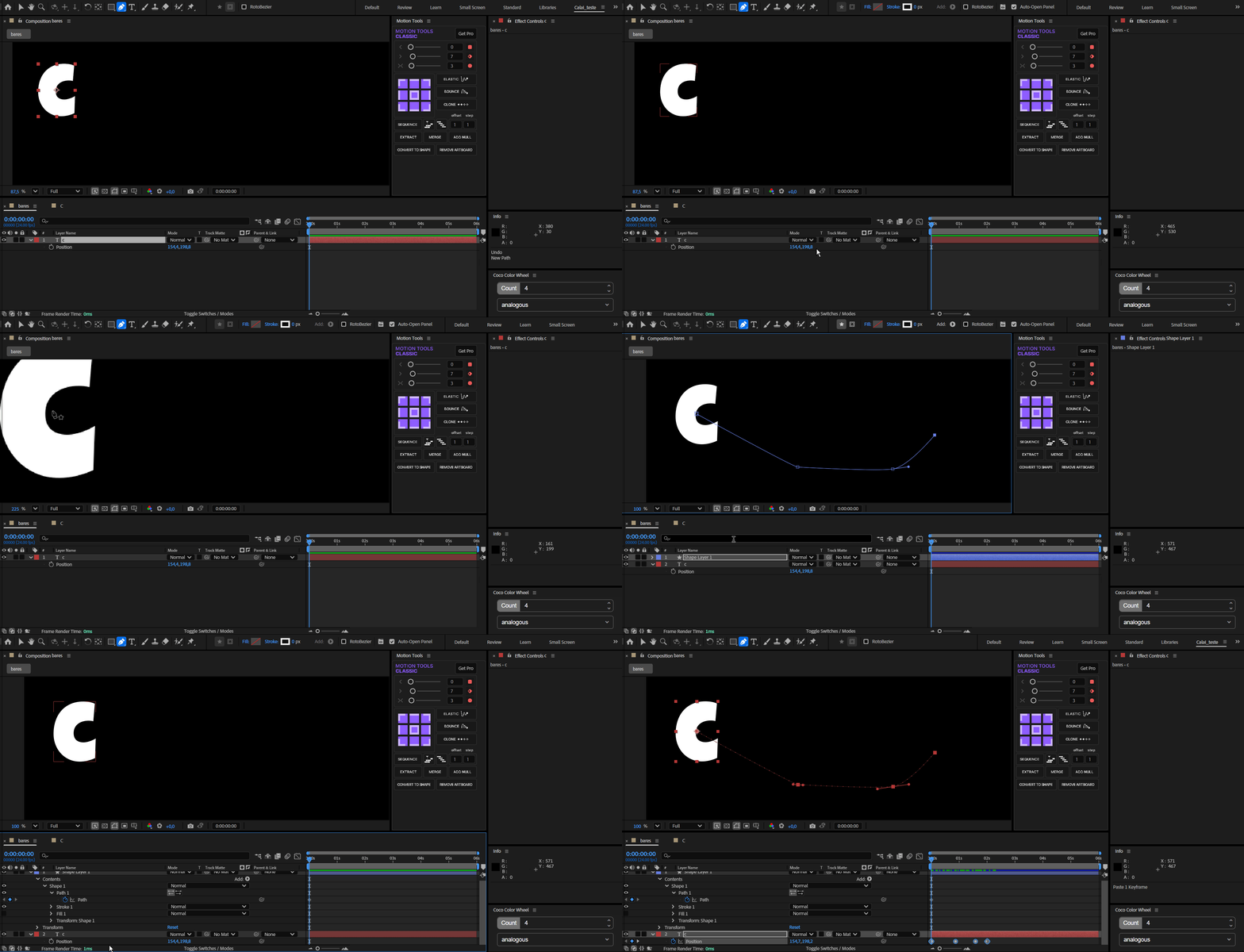
What I'm trying to achieve here is having a single letter C to follow a Pen Tool (0 stroke 0 fill) path.

I'll create a vertex on top of that letter's anchor point, then draw a path, keyframe it. Then copy said keyframe and paste it on the letter's Position property. This works and I can have a letter fly a certain path:

This is good but I have to rely on manual mouse precision for that first vertex to be centered on the letter

Your solution is ideal because of the snapping so I know for sure I'm pixel perfect.
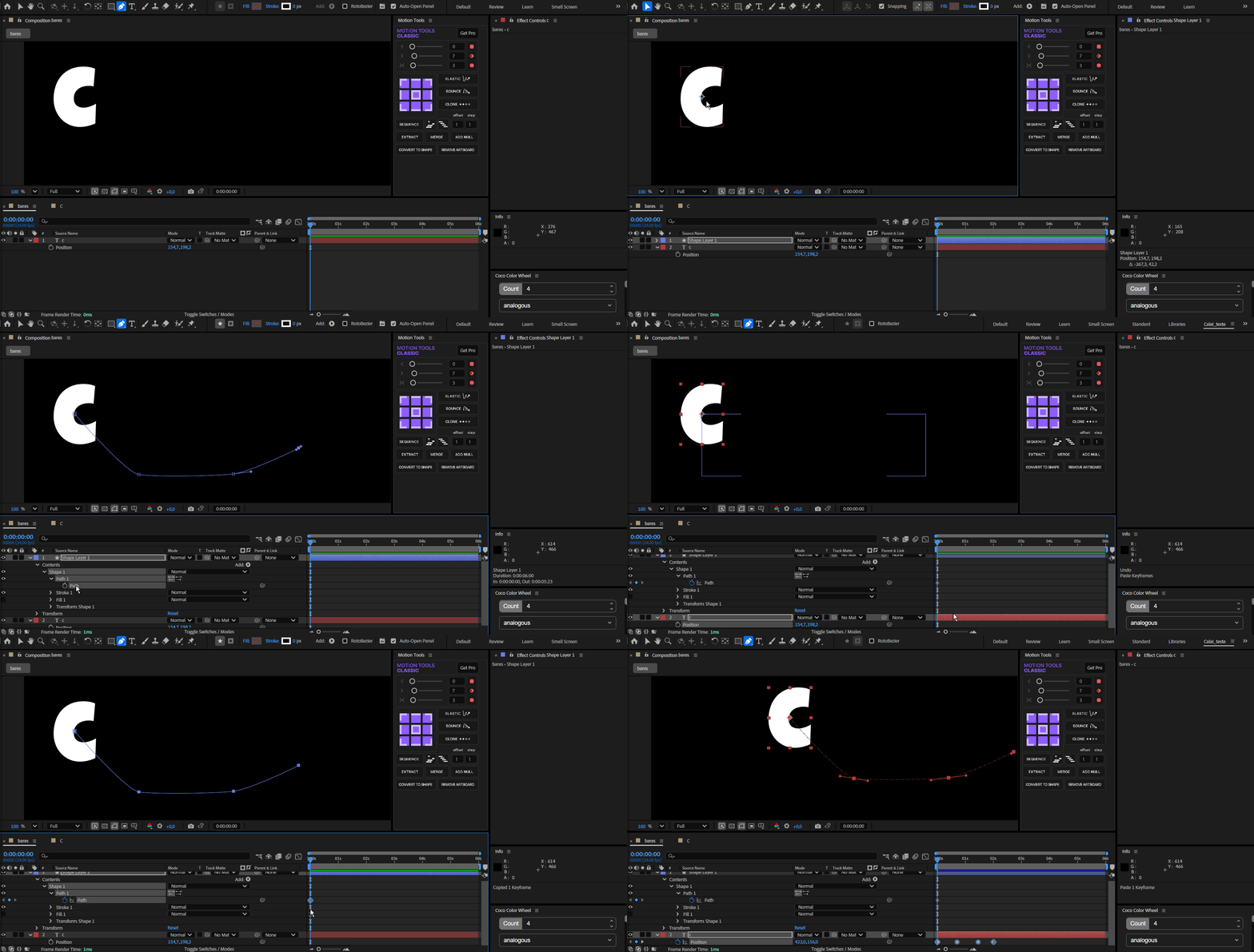
But then the strangest thing happen. Same procedure but when I paste the path's keyframe on the letter's position, it tosses said letter away for a reason I can't fathom:


Any suggestions?


If you select your vertex path, then go to Window... Create Nulls from Path, AE will run a script to generate a null for each vertex point.  The first null's position can then be matched exactly to the position of the letter.

1 reply

Inspiring
August 7, 2025

Ok, I've found a solution but is not pixel perfect: 
I open the Info Panel so I can see the pixel position of the cursor. Then I can place the first vertex on the object's Anchor Point. But it turns out that object position has pixel's decimals. So I need to find 1080,2 but the Info Panel will show 1080 only and not its decimals. It's a just a tiny bit but still a compromise "shakes" my object a little.

 At the end of the video when I zoom in, you can see how the object moves 1 or 2 pixels thanks to that .2 I can't find.

nishu_kush
Legend
August 7, 2025

Try this - In the After Effects Preferences > General > and check "Center Anchor Point in New Shape Layers". Now, when you create your vertex, the anchor point will match its position. You can now enable Snapping in the toolbar and move the anchor point of the vertex in place. It'll snap with the anchor point position of the shape layer.

Hope it makes sense. Let me know how it goes.


Thanks,
Nishu

Inspiring
August 14, 2025

This work! Thanks!
Listen, Nishu. I don't want to abuse your patience but since I have you here I'll try you for a follow up question.

What I'm trying to achieve here is having a single letter C to follow a Pen Tool (0 stroke 0 fill) path.

I'll create a vertex on top of that letter's anchor point, then draw a path, keyframe it. Then copy said keyframe and paste it on the letter's Position property. This works and I can have a letter fly a certain path:

This is good but I have to rely on manual mouse precision for that first vertex to be centered on the letter

Your solution is ideal because of the snapping so I know for sure I'm pixel perfect.
But then the strangest thing happen. Same procedure but when I paste the path's keyframe on the letter's position, it tosses said letter away for a reason I can't fathom:


Any suggestions?