


Inspiring
February 16, 2024
Answered

move same layer (on timeline) in multiple compositons at the same time

  • February 16, 2024
  • 2 replies
  • 1225 views

Hi,

Question: can this be done faster?


I have 20 compositions with 1 idential layer in all of them.

I want to move this identical layer on the timeline in all compositions.

I can open up each composition and move the layer on the timeline. But this is anoying, when the move action is the same in each composition.


But maybe there is a faster way?  Sort of "master properties", but then for moving layers on timeline.
This topic has been closed for replies.
Correct answer Airweb_AE

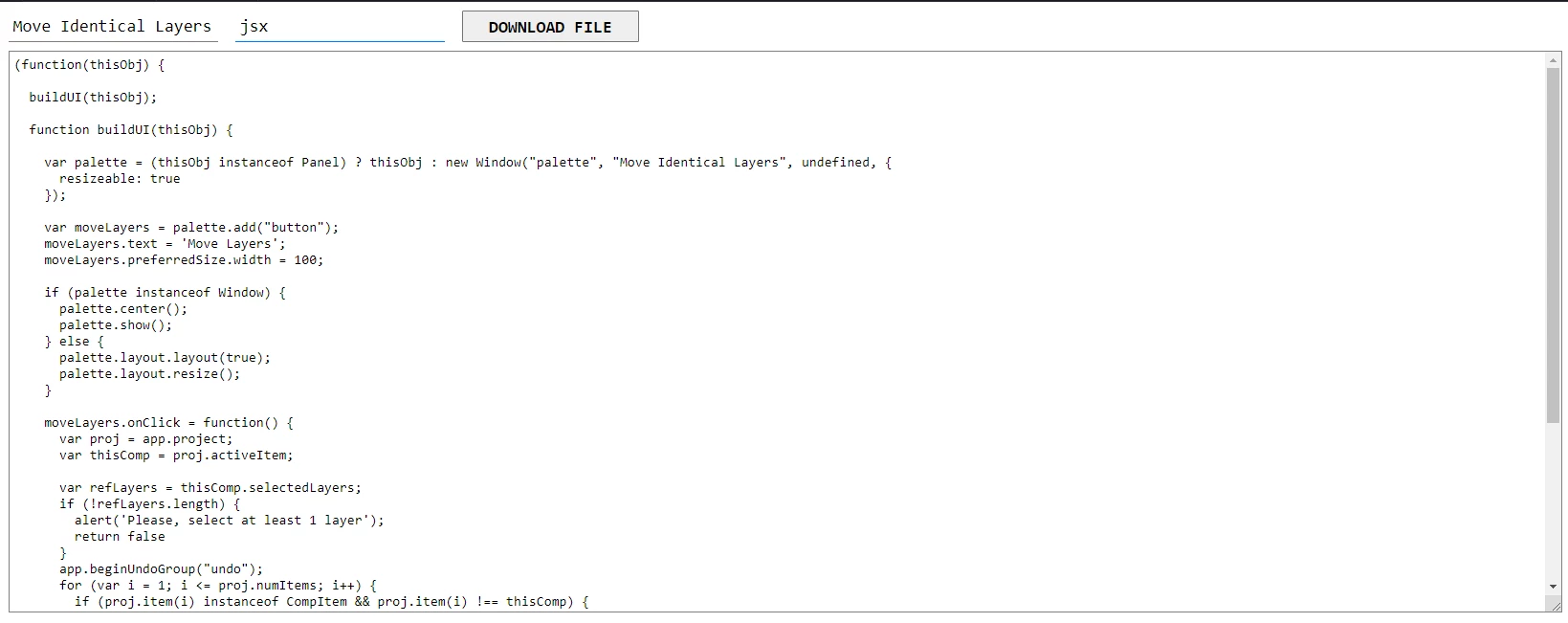
You need to save the script in a text file with the JSX extension.

Then load and run the script in After Effects

File -> Scripts -> Run Script File...


If you don't have a code editor or Notepad, you can use my File Downloader

Just need to enter a file name, extension and paste the code, then click download file button.


2 replies

Legend
February 17, 2024

You can use this script:

Select some layers in your active composition as reference layers.

Then run the script. It will loop through all your compositions and move layers that have the same name and label color  as your reference layers.

(in case it doesn't work as expected, you can undo the operation)


Move Identical Layers.jsx


(function(thisObj) {
  buildUI(thisObj);

  function buildUI(thisObj) {
    var palette = (thisObj instanceof Panel) ? thisObj : new Window("palette", "Move Identical Layers", undefined, { resizeable: true });
    palette.margins = 5;
    palette.spacing = 5;

    var moveLayers = palette.add("button");
    moveLayers.text = 'Move Layers';
    moveLayers.preferredSize.width = 120;

    var checkbox1 = palette.add("checkbox", undefined, undefined, {
      name: "checkbox1"});
    checkbox1.text = "Skip Locked Layers";
    checkbox1.value = 1;

    if (palette instanceof Window) {
      palette.center();
      palette.show();
    } else {
      palette.layout.layout(true);
      palette.layout.resize();
    }

    moveLayers.onClick = function() {
      var proj = app.project;
      var thisComp = proj.activeItem;
      var refLayers = thisComp.selectedLayers;
      if (!refLayers.length) {
        alert('Please, select at least 1 layer');
        return false
      }
      app.beginUndoGroup("undo");
      for (var i = 1; i <= proj.numItems; i++) {
        if (proj.item(i) instanceof CompItem && proj.item(i) !== thisComp) {
          for (var j = 0; j < refLayers.length; j++) {
            for (var k = 1; k <= proj.item(i).numLayers; k++) {
              if (proj.item(i).layer(k).name == refLayers[j].name && proj.item(i).layer(k).label == refLayers[j].label) {
                var locked = proj.item(i).layer(k).locked;
                if (locked && checkbox1.value) {
                  continue
                } else if (locked && !checkbox1.value) {
                  proj.item(i).layer(k).locked = false
                }
                proj.item(i).layer(k).startTime = refLayers[j].startTime;
                proj.item(i).layer(k).inPoint = refLayers[j].inPoint;
                proj.item(i).layer(k).outPoint = refLayers[j].outPoint;
                proj.item(i).layer(k).locked = locked
              }
            }
          }
        }
      }
      app.endUndoGroup();
    }
  }
})(this);


Inspiring
February 20, 2024

thanks for the reply, this is what I need. I am trying to test it, but the script in the example vid is a bit different (shorter) then the one in text in your answer. I am wonder which to use.

Warren Heaton
Community Expert
Community Expert
February 16, 2024

Being able to select all instances of a source footage item in more than Composition from the Project tab could be a good feature request.

I'm thinking right-click the source footage item in the Project panel; choose Reveal in Composition; choose the first Composition in the list to go to the corresponding Layer that uses that item as the source; use option/alt + shift + j to go to the desired time position; the corresponding Layer should be selected, but if not select it and then press Left Bracket to slide the In of the selected Layer to the current Time Indicator.  Repeat for each usage of the source footage item.

If all of the Compositions run in sync with each other, nesting them in a containing Comp could make getting to the desired new time position quicker as long as the default "Synchronize Time of All Related Items" has not been disabled in the preferences.  With this nesting, it will be very fast to jump between nested Comps with the Mini-Flowcart (press Tab, then use right or left arrow to jump to an upstream or downstream Comp).

Inspiring
February 17, 2024

Hi warren, thanks for your response/


sounds like it's already a feature, I hope they build it: I'm thinking right-click the source footage item in the Project panel; choose Reveal in Composition; choose the first Composition in the list to go to the corresponding Layer that uses that item as the source; use option/alt + shift + j to go to the desired time position; the corresponding Layer should be selected, but if not select it and then press Left Bracket to slide the In of the selected Layer to the current Time Indicator. Repeat for each usage of the source footage item.


Yes the comps are all in sync. If I understand correctly this is a work arround that is now possible. I will give it a try: If all of the Compositions run in sync with each other, nesting them in a containing Comp could make getting to the desired new time position quicker as long as the default "Synchronize Time of All Related Items" has not been disabled in the preferences. With this nesting, it will be very fast to jump between nested Comps with the Mini-Flowcart (press Tab, then use right or left arrow to jump to an upstream or downstream Comp).