
danted36312018
Inspiring
April 19, 2019
Answered

Multiple Boxes overlapping but dimensions are right?

  • April 19, 2019
  • 2 replies
  • 1357 views

Hi guys,

I am creating a template in AE for my to animate over three screens.

The dimensions are;

Centre = 896 x 768

Left / Right = 1280 x 640

So I made a comp with dimensions  3456 x 768.

I created three boxes with the rectangle tool with the dimensions above;

Centre = 896 x 768

Left / Right = 1280 x 640

But when I align them, left, centre and right. How come they overlap? They don't fit perfectly?

I tested my dimensions above in PS and it works perfectly but in AE, it seems my total width is smaller but I checked all my dimensions 5 times or more and I can't figure out why the pixels are overlapping when all the numbers add up.

I added a picture below, as you can see within the red boxes, the left and right overlap the middle, or the middle overlaps left and right. Which ever way you want to see it. It's not perfectly aligned.

Edit: The height on all 3 boxes are ok. It's the width that's the problem. Just can't figure out why the width dimensions are overlapping.
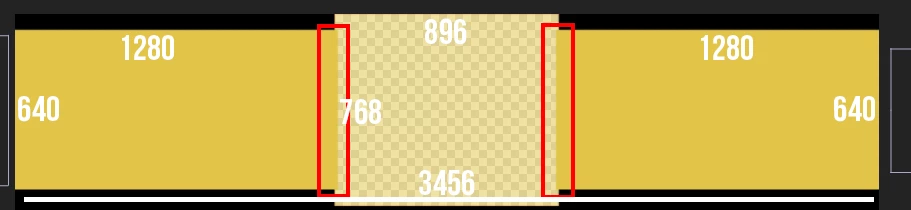
But in PS, it aligns perfectly

I dont understand?

I need to get the dimensions right before working because my animations is going to animate over those 3 screens and i feel if I mess up the dimensions, it's not going to output correctly.

    This topic has been closed for replies.
    Correct answer Roland Kahlenberg

    You've set the Shape Layers' Transform>Scale to [100.9,100].

    2 replies

    Roland Kahlenberg
    Legend
    April 19, 2019

    Either your Solids or Comp, or both may have been set to non-square pixel aspect ratio.

    Very Advanced After Effects Training | Adaptive & Responsive Toolkits | Intelligent Design Assets (IDAs) | MoGraph Design System DEV
    Martin_Ritter
    Legend
    April 19, 2019

    First, make sure that the boxes don't have a stroke outline.

    For further troubleshooting, we need a screenshot of the layer stack.

    We need to see all changed properties - hit UU for that.

    Can be, that scale is not 100% somewhere.

    We also need to see your comp settings, press CTRL+K for that.

    *Martin

    danted36312018
    Inspiring
    April 19, 2019

    Thanks for the replies guys.

    There is no stroke, checked that

    Here are the screenshots

    Roland Kahlenberg
    Roland KahlenbergCorrect answer
    Legend
    April 19, 2019

    You've set the Shape Layers' Transform>Scale to [100.9,100].

    Very Advanced After Effects Training | Adaptive & Responsive Toolkits | Intelligent Design Assets (IDAs) | MoGraph Design System DEV