Participating Frequently
January 12, 2017
Answered

[New to AE] Tracking a key in the background of a moving shot

  • January 12, 2017
  • 2 replies
  • 671 views

Now I've done plenty of normal keying work before but I've never used a key as a "prop" per say. Also its not a green screen...

So we arrived on the shoot and I intended to have everything shot "in camera". We had a real projector that I was going to use to project an image on a white screen. Unfortunately luck was not with us that day and the bulb burnt out before we started shooting. I decided I would try and edit in the projection in post.

Using Premiere I was able to achieve some success at keying out the background in the static shots.
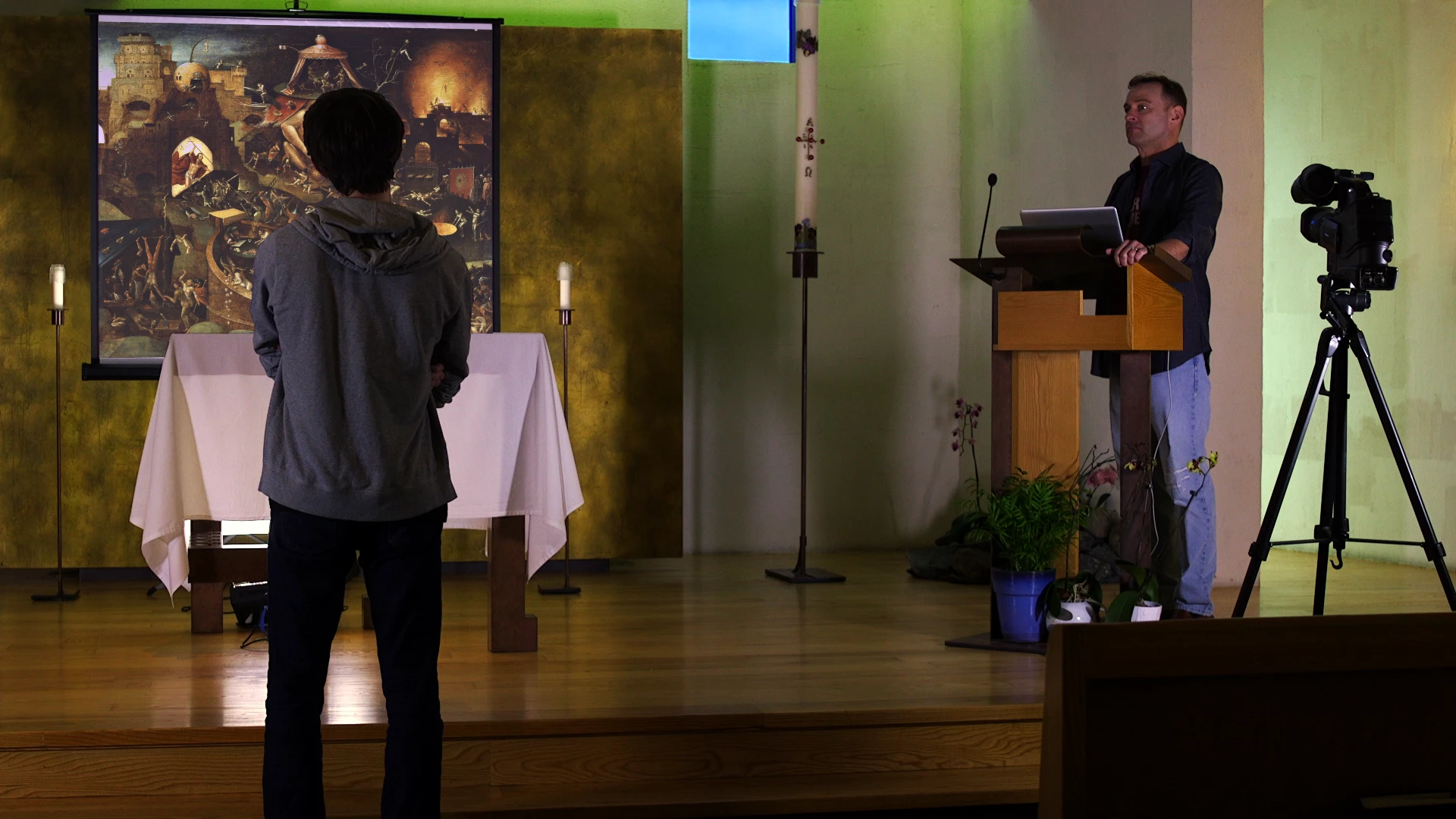
But then we have the final shot of the scene which features a character walking in front of the screen and a pan to the left. I've tried just creating key frames with the position in Premiere but the movement proved too jittery to look like the key belonged in the shot.
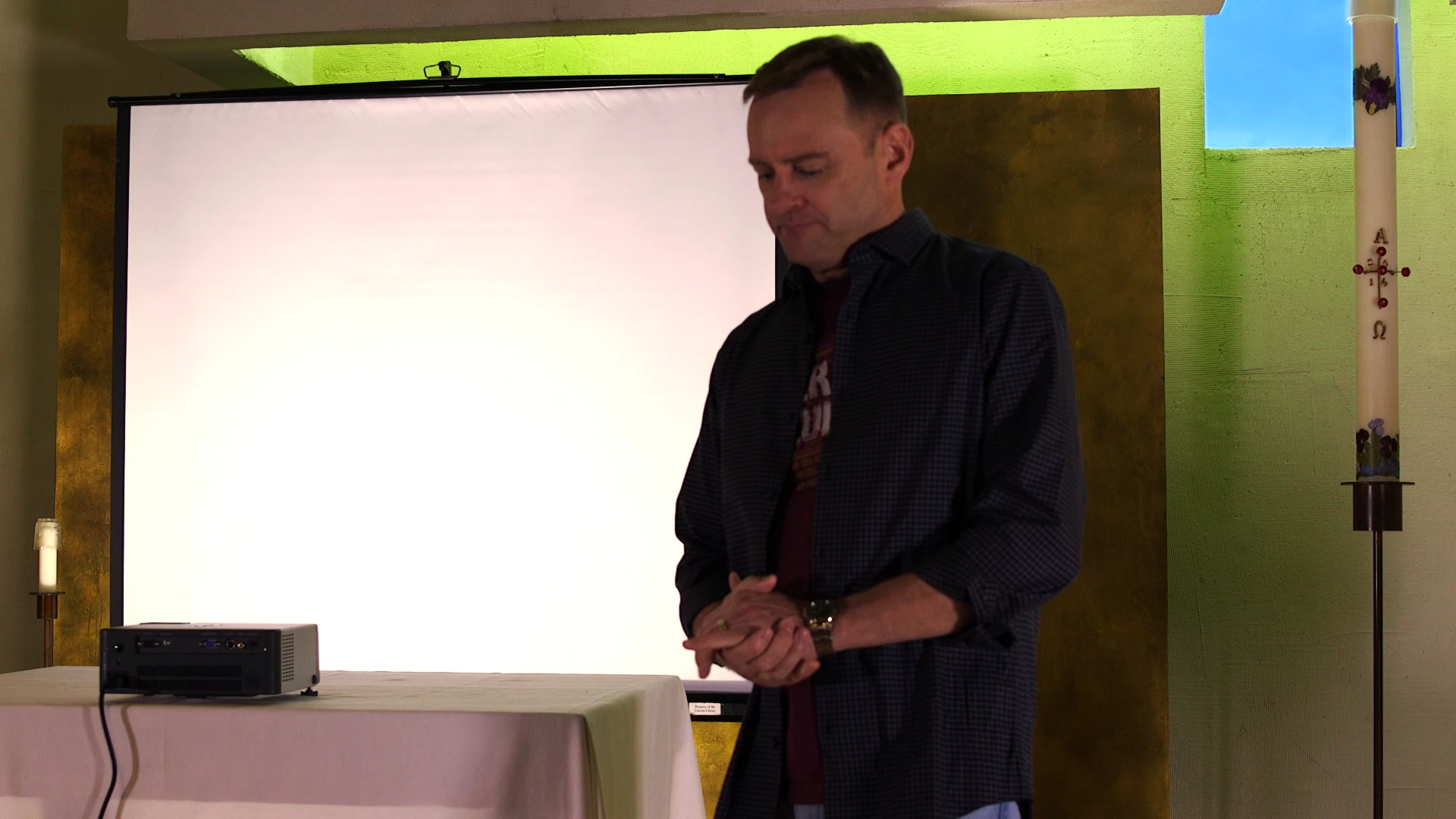
Now I'm an utter novice at AE and I've been scouring for tutorials but haven't found anything that might help. I'm assuming this could be fairly simple but I'm drawing a blank. Maybe you folks could help?
This topic has been closed for replies.
Correct answer kirkeric

Hey thanks for the source video.

So, based on what I see and the length of time, the roto is your likely best course of action in AE.  I took the liberty of testing one of the more complicated portions where his hand goes in the screen.  The body will roto easily.  The hand, I wanted to check.  There is also the need for some minor tracking a bit later when your camera moves, primarily of course to place your image on the screen.

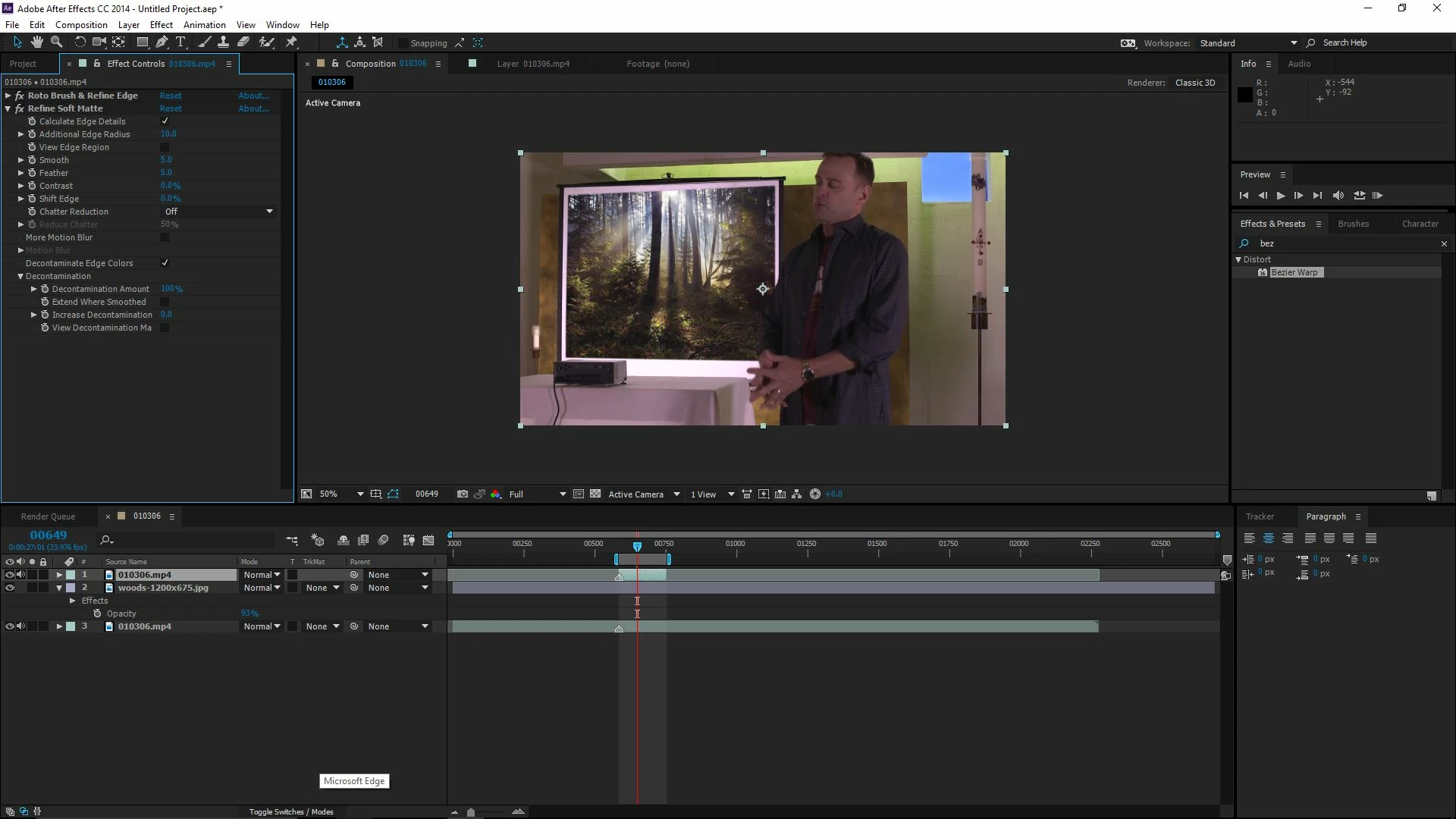
So, I duplicated layer, roto'd just the arm that gets in the screen, added a Refine Soft Matte as seen in the attached image, then added the image between.  For a few minutes, not bad.

Sample - YouTube

Let me know if this helps.


Eric

2 replies

kirkeric
Inspiring
January 12, 2017

Hello,

I'm just arriving to the forum, however I've actually dealt with this very thing on multiple occasions where someone is walking in front of the screen.  In my cases, it was repeatedly walking across the field of view of a laptop sitting on desk.  The problem being the same.

I too would be curious to see the video or at least know the length.  Not knowing that, I'd offer this.  The short answer ranges from simple manual keyframing a mask to tracking movement and applying a mask, to a roto job as mentioned.

Personally, if the gentleman just makes a couple passes through over a short period of time, manually masking around him works pretty well.  The movement can actually mask (no pun intended) much of the line.

In simple terms, this amounts to duplicating your layer, then masking around the man in the areas that he overlaps the screen.  With straight and slightly rounded edges around his waist and face, it's not too much of a task, however clearly this can become more difficult if this is going on for an extensive amount of time.

As Roei mentioned, the roto is an obvious method too.

There are other tools such as Mask Tracker for AE but don't want to boggle you with too many options right away.

v/r

Eric

Roei Tzoref
Legend
January 12, 2017

can we see the video so we can examine and suggest a reasonable workflow? how long is the shot? is the camera moving? if you need to cut a character from a semi-noisy background this looks like a job for Rotobrush.

you can read about it here: Roto Brush and Refine Matte in After Effects

nem2201Author
Participating Frequently
January 12, 2017
kirkeric
kirkericCorrect answer
Inspiring
January 13, 2017

Hey thanks for the source video.

So, based on what I see and the length of time, the roto is your likely best course of action in AE.  I took the liberty of testing one of the more complicated portions where his hand goes in the screen.  The body will roto easily.  The hand, I wanted to check.  There is also the need for some minor tracking a bit later when your camera moves, primarily of course to place your image on the screen.

So, I duplicated layer, roto'd just the arm that gets in the screen, added a Refine Soft Matte as seen in the attached image, then added the image between.  For a few minutes, not bad.

Sample - YouTube

Let me know if this helps.


Eric