
Participant
September 3, 2016
Answered

New UI Element Not "Filling" Correctly

  • September 3, 2016
  • 1 reply
  • 721 views

I'm having a hard time with adding a new element into the UI while making it 'fill' properly with the current elements.

Let's say I have a container that is 500px. The container has 2 buttons set to fill, so they take up 250px each and are nicely even.

When I add another button into this container, I'd expect each button to be 500px/3, or 166.667px now since all 3 buttons can fit in the 500px container evenly.

This does not happen, and instead, the two buttons that were originally present only shrink very little, making the new third button very tiny. Basically, things aren't even.

Any idea why this is happening?

I'm referencing a modified UI of David Torno's example (Dynamically add and remove ScriptUI elements ) to demonstrate this, since my current project is too large to post.

    function SCRIPTNAME(thisObj){ 

          function SCRIPTNAME_buildUI(thisObj){ 

              var pal = (thisObj instanceof Panel) ? thisObj : new Window("palette", "SCRIPTNAME", undefined, {resizeable:true}); 

              if (pal != null){ 

                    var res ="group {orientation:'column', alignment:['fill','fill'], alignChildren:['fill','fill'],\

                              group1: Group{orientation:'row', alignment:['fill','top'], alignChildren:['fill','top'],\

                                  addButton: Button{text:'ADD'},\

                                  removeButton: Button{text:'REMOVE'},\

                              },\

                              group2: Group{orientation:'row', alignment:['fill','fill'], alignChildren:['fill','fill'],\

                              },\

                    }";


                    pal.grp = pal.add(res); 


                    ///CONTROL VARIABLES 

                    var group1 = pal.grp.group1; 

                    var addButton = group1.addButton; 

                    var removeButton = group1.removeButton; 

                    var group2 = pal.grp.group2; 


                    ///ADD NEW CONTENT TO GROUP2 

                    addButton.onClick = function(){ 

                        var g = group2.add('panel', undefined, "myPanel");    //Add a group 

                        g.orientation = "row"; 

                        g.add('button', undefined, "btn1");    //Add a button to that group 

                        g.add('button', undefined, "btn2");    //Add another button to that group 

                        updateUILayout(group2);    //Update UI 

                    } 


                    ///REMOVE CONTENT FROM GROUP2 

                    removeButton.onClick = function(){ 

                        var kids = group2.children; 

                        var numKids = kids.length; 

                        if(numKids > 0){    //Verify that at least one child exists 

                              group2.remove(kids[numKids-1]);    //Remove last child in the container 

                        } 

                        updateUILayout(group2);    //Update UI 

                    } 


                    ///UPDATE UI EASILY TO REFLECT ADD/REMOVE CHANGES 

                    function updateUILayout(container){ 

                        container.layout.layout(true);    //Update the container 

                        pal.layout.layout(true);    //Then update the main UI layout 

                    } 

              } 


              pal.layout.layout(true); 

              pal.grp.minimumSize = pal.grp.size; 

              pal.layout.resize(); 

              pal.onResizing = pal.onResize = function () {this.layout.resize();} 


              return pal; 

          } 


          var SCRIPTNAMEPal = SCRIPTNAME_buildUI(thisObj); 

          if (SCRIPTNAMEPal != null){ 

              if (SCRIPTNAMEPal instanceof Window){ 

                    SCRIPTNAMEPal.center(); 

                    SCRIPTNAMEPal.show(); 

              } 

          } 

    } 


    SCRIPTNAME(this); 
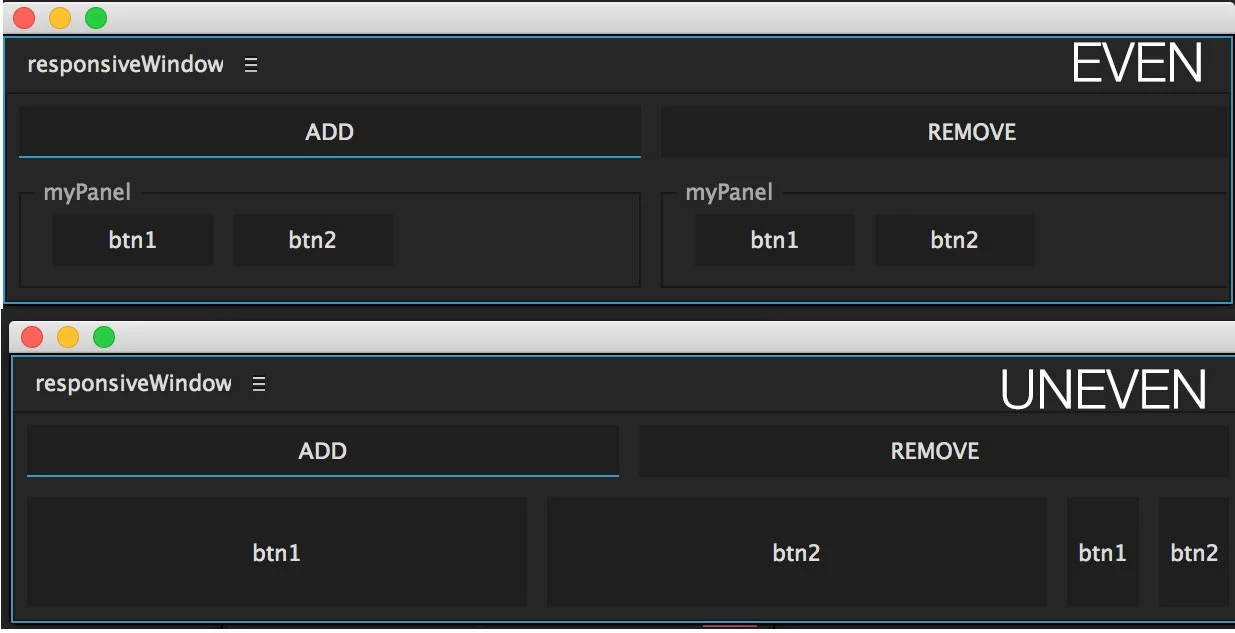
When doing it this way, the UI behaves how I'd expect and elements resize evenly upon adding. What gets interesting is that if you change line 26 to remove the panel. (Change the line to var g = group2, so we're just adding buttons directly into group2 instead of adding a new panel each time). Now, if you add buttons directly into the group, the buttons do not resize evenly anymore unlike when they're added with the panel.

Any help would be much appreciated!

This topic has been closed for replies.
Correct answer David Torno

If the buttons or the groups are added as right or left alignment, then it seems to work just fine. Fill seems to cause the issue. I tried resizing the window manually to the smallest width, and it will actually bring the buttons somewhat back to normal it seems while still keeping fill working.

If you adjust the alignment or alignChildren property for the container:

container.alignment = ['left', 'fill'];

in the updateUILayout function, it will make the buttons show correctly. Just not fill.

I even tried changing the button alignment in the updateUILayout function and only left and right works. Fill is ignored or just not properly calculated maybe?

function updateUILayout(container){

    container.layout.layout(true);    //Update the container  

    var kids = container.children;

    for(var k=0; k<kids.length; k++){

          kids.alignment = ['left', 'fill'];

    }

    pal.layout.layout(true);    //Then update the main UI layout  

}

I guess this might be a bug perhaps with the auto layout manager and the 'fill' setting.

1 reply

David TornoCorrect answer
Legend
September 3, 2016

If the buttons or the groups are added as right or left alignment, then it seems to work just fine. Fill seems to cause the issue. I tried resizing the window manually to the smallest width, and it will actually bring the buttons somewhat back to normal it seems while still keeping fill working.

If you adjust the alignment or alignChildren property for the container:

container.alignment = ['left', 'fill'];

in the updateUILayout function, it will make the buttons show correctly. Just not fill.

I even tried changing the button alignment in the updateUILayout function and only left and right works. Fill is ignored or just not properly calculated maybe?

function updateUILayout(container){

    container.layout.layout(true);    //Update the container  

    var kids = container.children;

    for(var k=0; k<kids.length; k++){

          kids.alignment = ['left', 'fill'];

    }

    pal.layout.layout(true);    //Then update the main UI layout  

}

I guess this might be a bug perhaps with the auto layout manager and the 'fill' setting.

Participant
September 12, 2016

Hi David,

Thanks for the help, glad I wasn't the only one experiencing this. I guess I'll ditch using 'fill' for now.

Another example, lets say at palette creation, we have 4 buttons that take up 400px. If I delete 1 button, the minimum size should now be 300px. Unfortunately, even though the 4th button is gone, the minimum width is still 400px. Seems like whatever the min-width is at creation, it remains the min-width even if elements are deleted?