


Known Participant
January 2, 2024
Answered

No "Size, Position, and Roundness" properties when creating a rectangle using the Rectangle Tool.

  • January 2, 2024
  • 1 reply
  • 1327 views

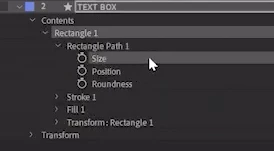
According to this tutorial (https://youtu.be/fi4IPysaTHo?t=26), after creating a rectangle using the Rectangle Tool (Q), there should be an object named "Rectangle 1" that contains "Rectangle Path 1" with properties such as Size, Position, and Roundness:
 

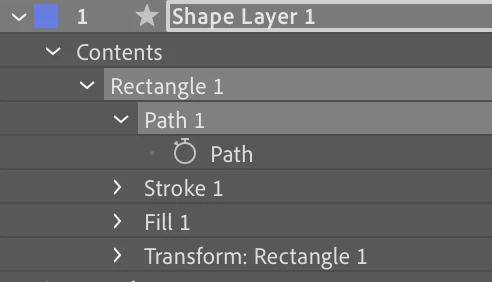
But when I try to do the same, I don't see those elements. Instead, the "Rectangle 1" object only contains "Path 1" with a property called "Path":
 

Is it a bug, or maybe I'm doing something wrong? I would appreciate any help.

Correct answer Rick Gerard

I don't know.

If I draw a rectangle (Q) while holding down the ALT key, I don't have Size, Position and Roundness.

But if I draw a rectangle (Q) without holding the ALT key, it's normal, I have Size, Position and Roundness.


Maybe try to double click on the rectangle button, it should add a rectangle with Size, Position and Roundness properties.


Holding down the Alt/Option key while using the Parametric Shape tool (Rectangle, Rounded Rectangle, Ellipse, etc.) creates a path instead of a parametric shape with all its parameters. Shape layers have worked that way since they were introduced.


You can also convert any parametric shape to a path by Shape Layer/Contentnts/Shape/Shape Path property in the timeline and using the Layer/Mask and Shape Path/Convert To Bezier Path menu or right-click on the Shape Path Property and create the conversion from the popup menu.


There is no way to convert a vector path to a Parametric shape.


1 reply

Legend
January 2, 2024

You need to use Rounded Rectangle Tool


or using a simple Rectangle Tool, you can add Round Corners.


Known Participant
January 2, 2024
quote

You need to use Rounded Rectangle Tool


There are no Size, Position, or Roundness properties even when using the Rounded Rectangle Tool. Only the Path property is available:


quoteor using a simple Rectangle Tool, you can add Round Corners.


By @Airweb_AE


I need to work with the Size and Position properties, not Roundness:


Legend
January 2, 2024

I don't know.

If I draw a rectangle (Q) while holding down the ALT key, I don't have Size, Position and Roundness.

But if I draw a rectangle (Q) without holding the ALT key, it's normal, I have Size, Position and Roundness.


Maybe try to double click on the rectangle button, it should add a rectangle with Size, Position and Roundness properties.