Participant
August 24, 2021
Question

Objects disapear and do not match original positions

  • August 24, 2021
  • 1 reply
  • 386 views

Hi to everybody. I have a problem that is literally driving me nuts and it appears to be a bug of some form.


Specs ryzen 3500 16gb ram GTX 1650 4gb and ssd nvme.


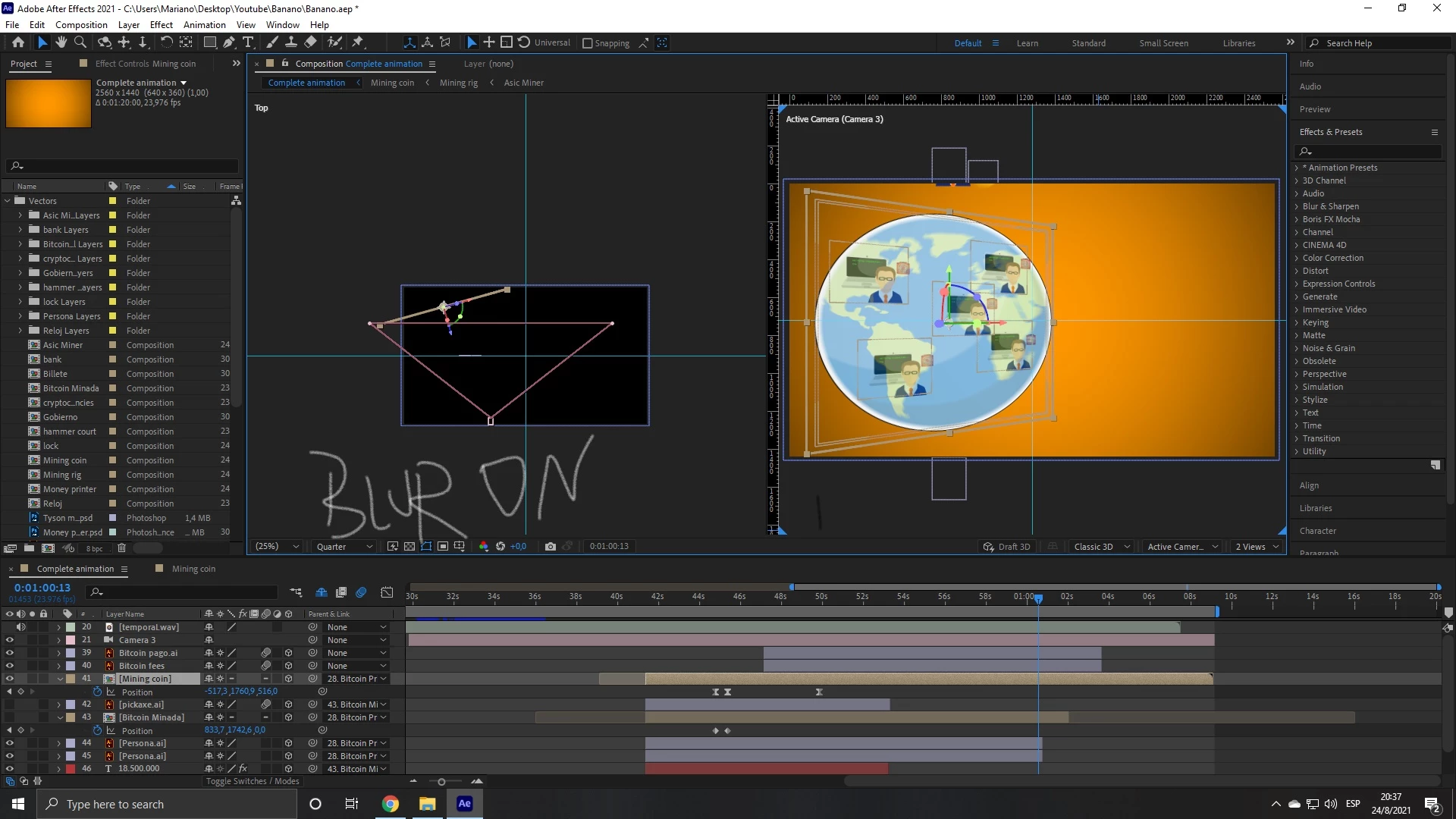
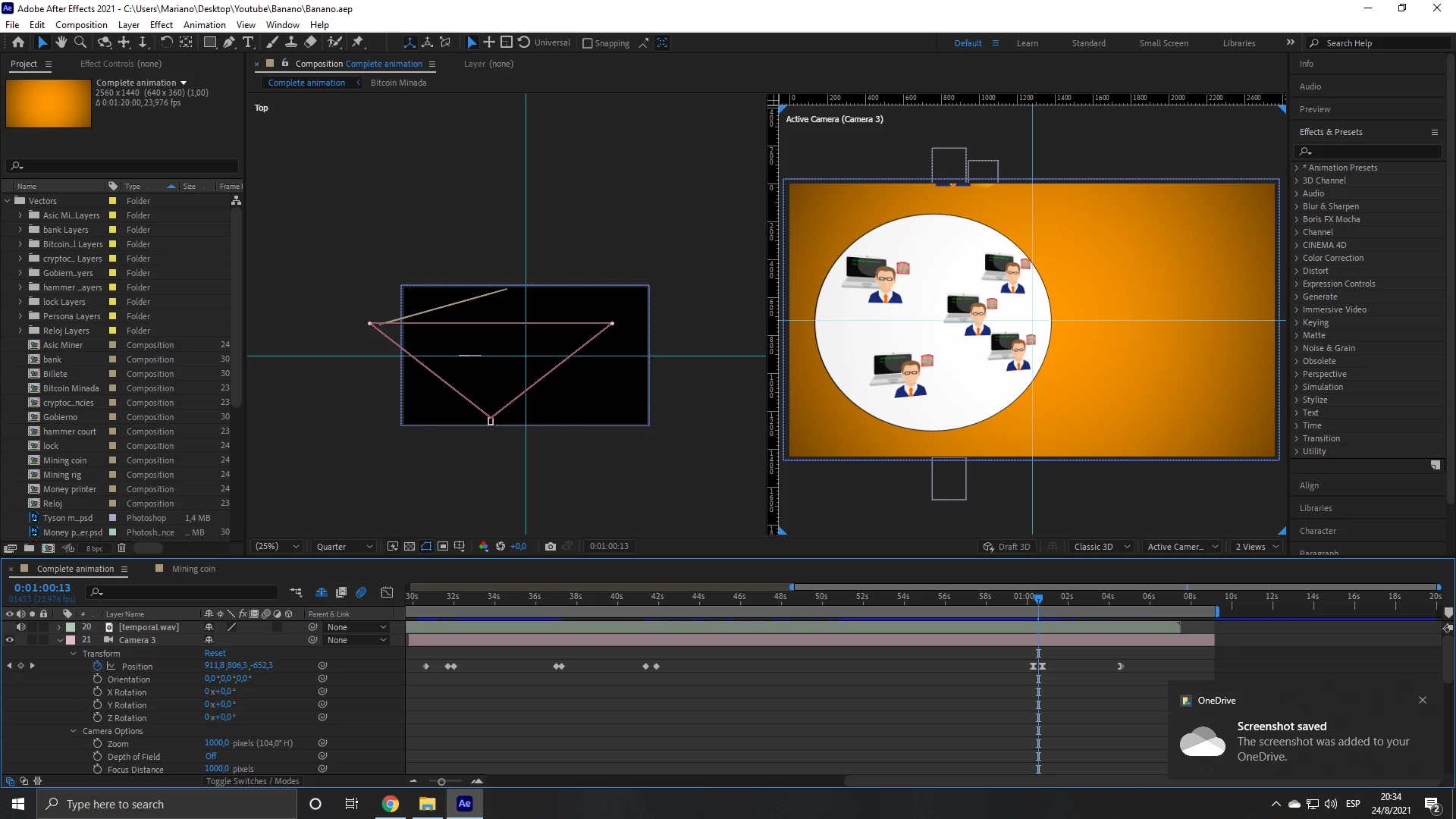
For some reason one object in my composition desapears when I place a camera, and said object (which is a composition) breaks to the point of not respecting the layers orinal position.


So far I've checked everything to make sure 3d was turned on all layers and made sure that there is only one camera working. The only thing that somehow "fixed" the issue was changing the z position very far away. The thing is that the object was already within the camera point of view and thus should still show up as intended.  I also tried using the "blur" function and it some how helped a bit but didnt fix anything


This topic has been closed for replies.

1 reply

Community Expert
August 25, 2021

I am not sure why you have collapse transformations turned on in the nested comp (layer 41) because you made it a 3D layer. Collapsing Transformations will cause AE to take the position data from any 3D layer in the nested comp and use that instead of the position of Layer 41. I'm also not sure that the layer that is out of position is in Layer 41. We need a little clarity. It would help if you soloed the camera and the problem layers so all we see are the layers with the problem. 


It also looks to me like you are editing a video in AE instead of using AE as an animation and VFX app because your comp is a minute and twenty seconds long and I see some cuts in the pre-comp. You could probably greatly simplify the project if you cut things up.


Participant
August 25, 2021

Thank you very much for getting back to me so quickly.


quote

I am not sure why you have collapse transformations turned on in the nested comp (layer 41) because you made it a 3D layer.


Yeah, me neither I'm quite new to AE and thought it was needed. Turning it off kind off "solved" a part of the problem. Now the object shows up but has lost its original 3D properties and shows up equally on both sides when in actuality has 2 distinct faces.

I guess the rasterizing messed with the coordinates some how, still having problems though. Object reapeared but lost its other side somehow (comp coordinates are properly set)


quote

It also looks to me like you are editing a video in AE instead of using AE as an animation and VFX app because your comp is a minute and twenty seconds long and I see some cuts in the pre-comp. You could probably greatly simplify the project if you cut things up.


By @Rick Gerard


Im quite a beginner to AE to be honest I am doing an animation but based of an audio clip. I started doing as you suggested and it definetively was more simple, but because I need to sync the animations to my voice and AE wont show the waveform of audio I get kind of disoriented and thus thought this way would be a more adequate way to do so.

Shall I go back to shorter clips and then throw them all nested into a final comp?


Again thanks a lot for your great help.

ShiveringCactus
Community Expert
Community Expert
August 25, 2021

Just picking up on your last point - AE does show waveforms, if you expand the audio file, then Audio then Waveform, you can see your text.

I'll commit heresy here and admit that I edit my tutorials in AE, I add so many captions and alter timings that I find it simpler.  If you stick with that method, use the marker key (*) on the keypad when listening to the audio.  This will set visual indicators for your timings then you can match the animations to it.


To get the layer to appear 3D without collapse transformations, see if Layer > Transform > Auto-orient > "Orient towards camera" solves it for you.  Right now, it's as if you shot footage of a real ball, then angled it.  You can the ball to appear face on, but in 3D space.